Overview
This module contains the rebate functions and you can study how to submit a rebate order in GDMC.
Category
| No. | Rebate Type | Door |
|---|---|---|
| 1 | Wholesale | Portal |
| 2 | Retail | Portal |
| 3 | Trade In | Portal |
| 4 | Self Collection | Portal |
| 5 | DEMO | Portal |
| 6 | Fleet | Portal |
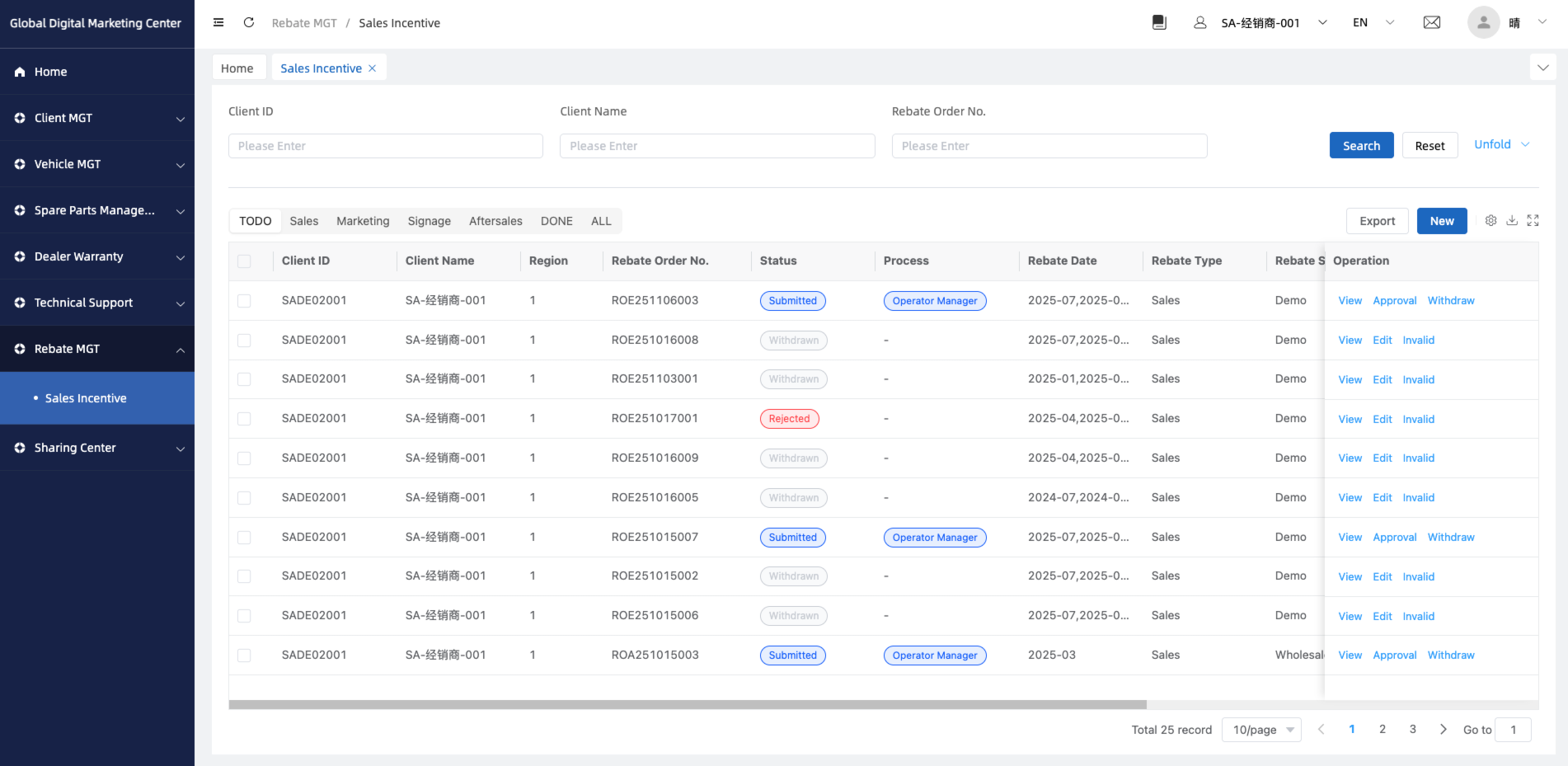
Sales Incentive List
You can check all the rebate orders in this page, you can mange them and check the approval process for your rebate order.
- If you wanna create a new rebate order, you can click "New" button;
- You can also
WithdrawandEditorder;
Wholesale Rebate
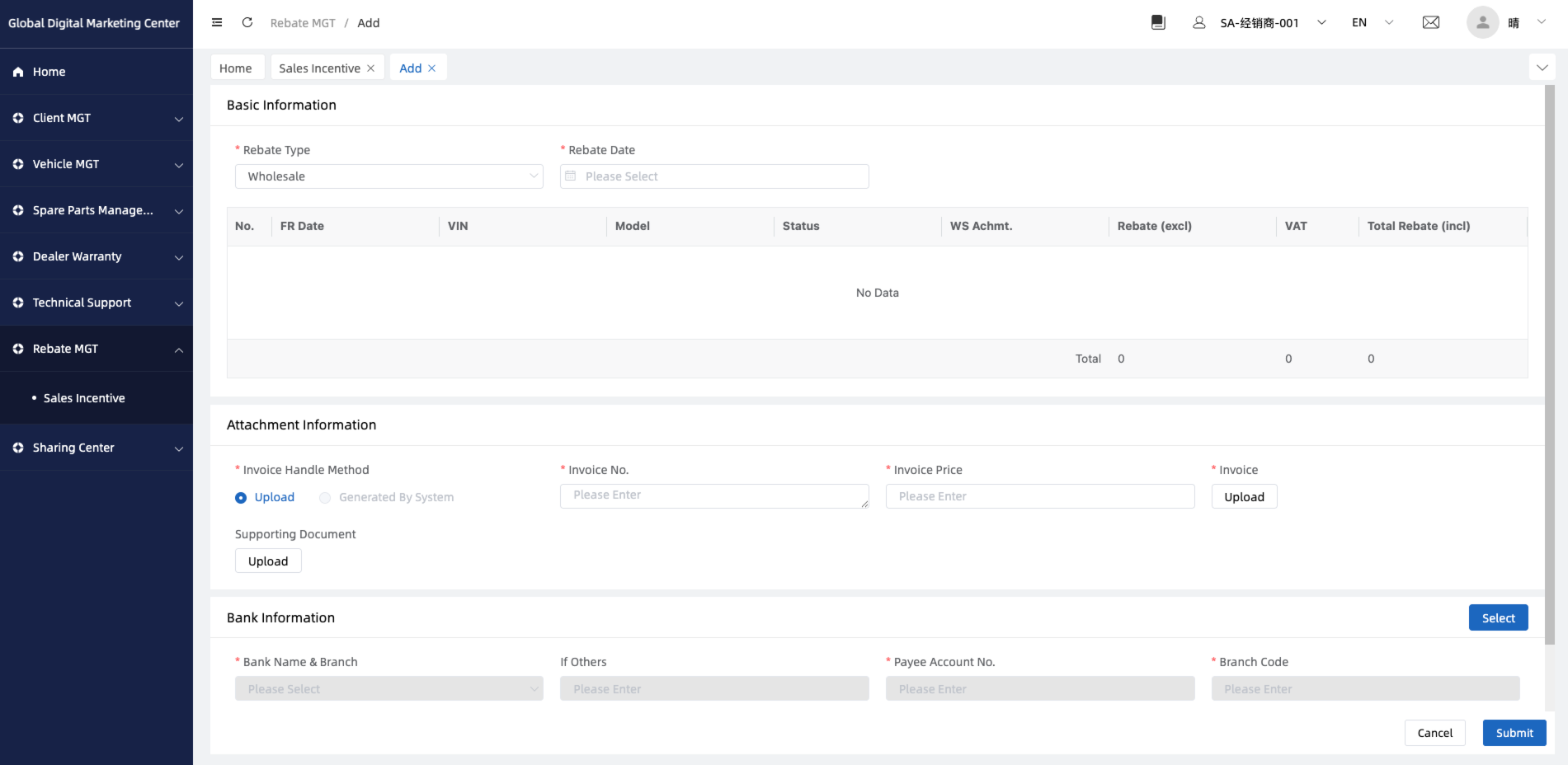
Select
Rebate Type=Sales - Wholesale;Select the
Rebate Dateyou wanna;Check the vehicles
rebate dataand theTotal Rebate;Attachment Info: Input the invoice information:
Invoice No.,Invoice Price, and upload the Invoice file, if you have supporting doc you can upload it too.Bank Information: Select the
Bank Information, if you don't have it, you need to create a new one first.Click
Submit.Done.
Retail Rebate
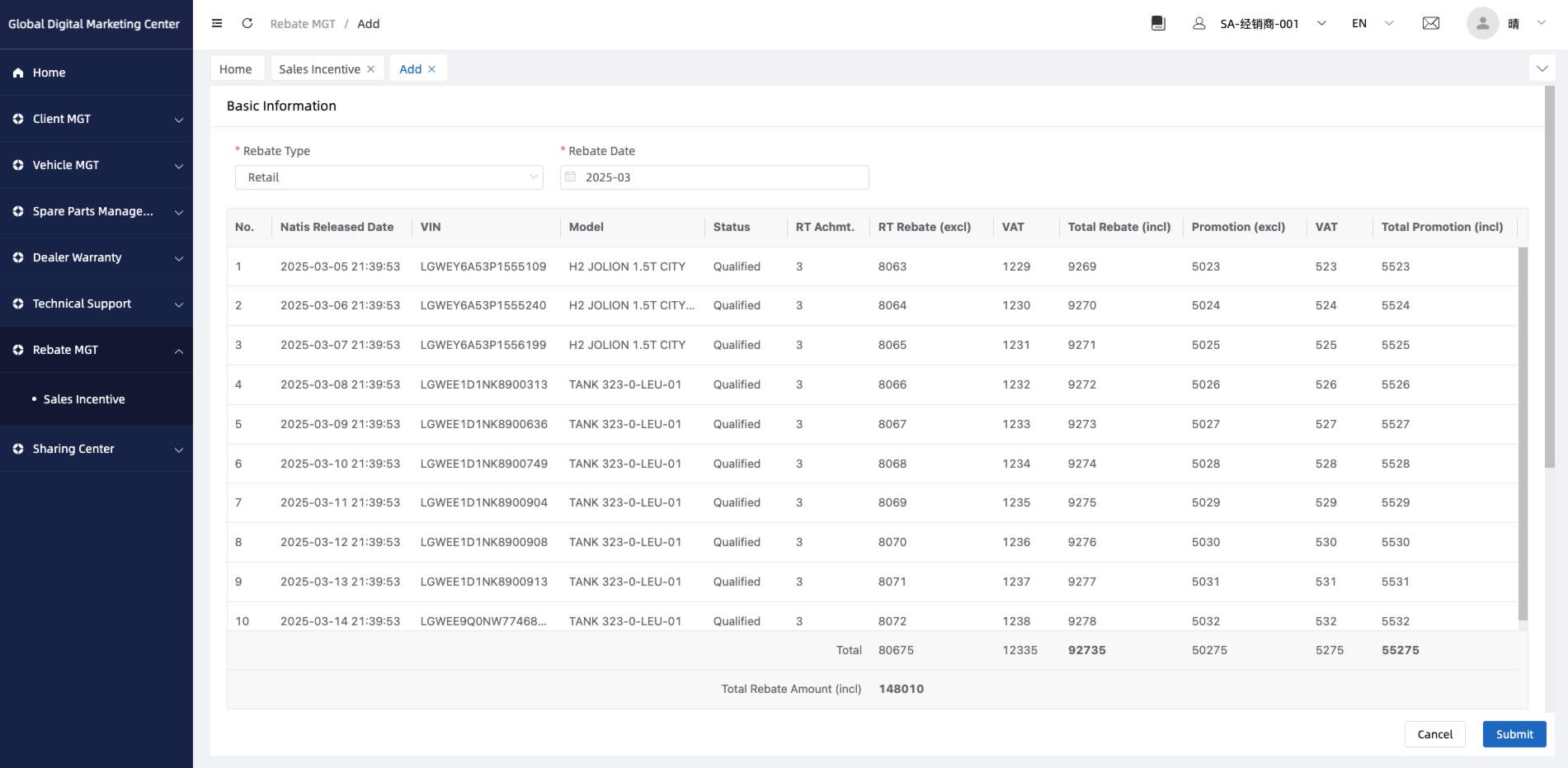
Select
Rebate Type=Sales - Retail;Select the
Rebate Dateyou wanna;Check the vehicles
rebate dataand theTotal Rebate Amount;Attachment Info: Input the invoice information:
Invoice No.,Invoice Price, and upload the Invoice file, if you have supporting doc you can upload it too.Bank Information: Select the
Bank Information, if you don't have it, you need to create a new one first.Click
Submit.Done.
Trade In Rebate
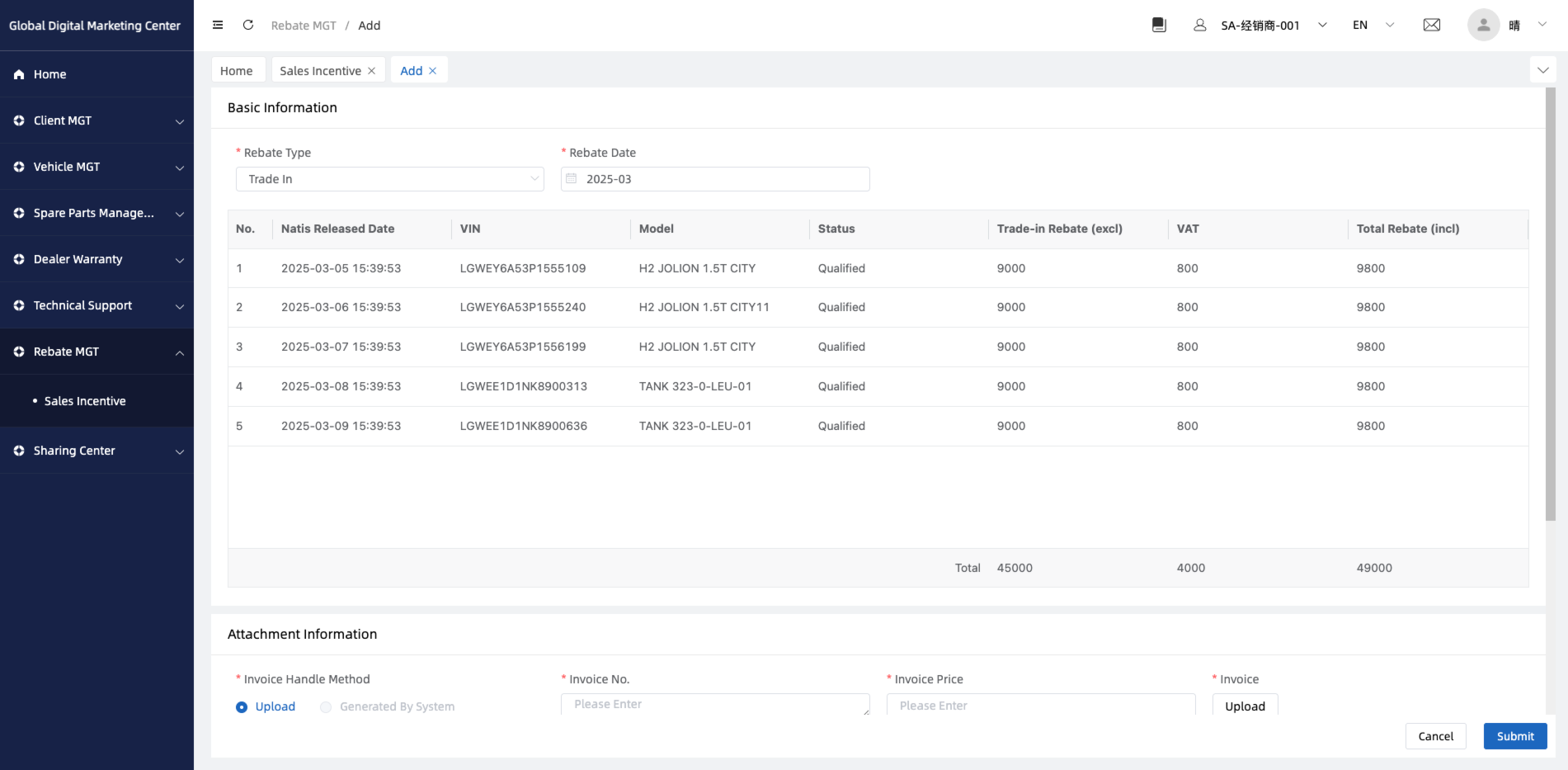
Select
Rebate Type=Sales - Trade In;Select the
Rebate Dateyou wanna;Check the vehicles
rebate dataand theTotal Rebate(incl);Attachment Info: Input the invoice information:
Invoice No.,Invoice Price, and upload the Invoice file, if you have supporting doc you can upload it too.Bank Information: Select the
Bank Information, if you don't have it, you need to create a new one first.Click
Submit.Done.
Self-collection Rebate
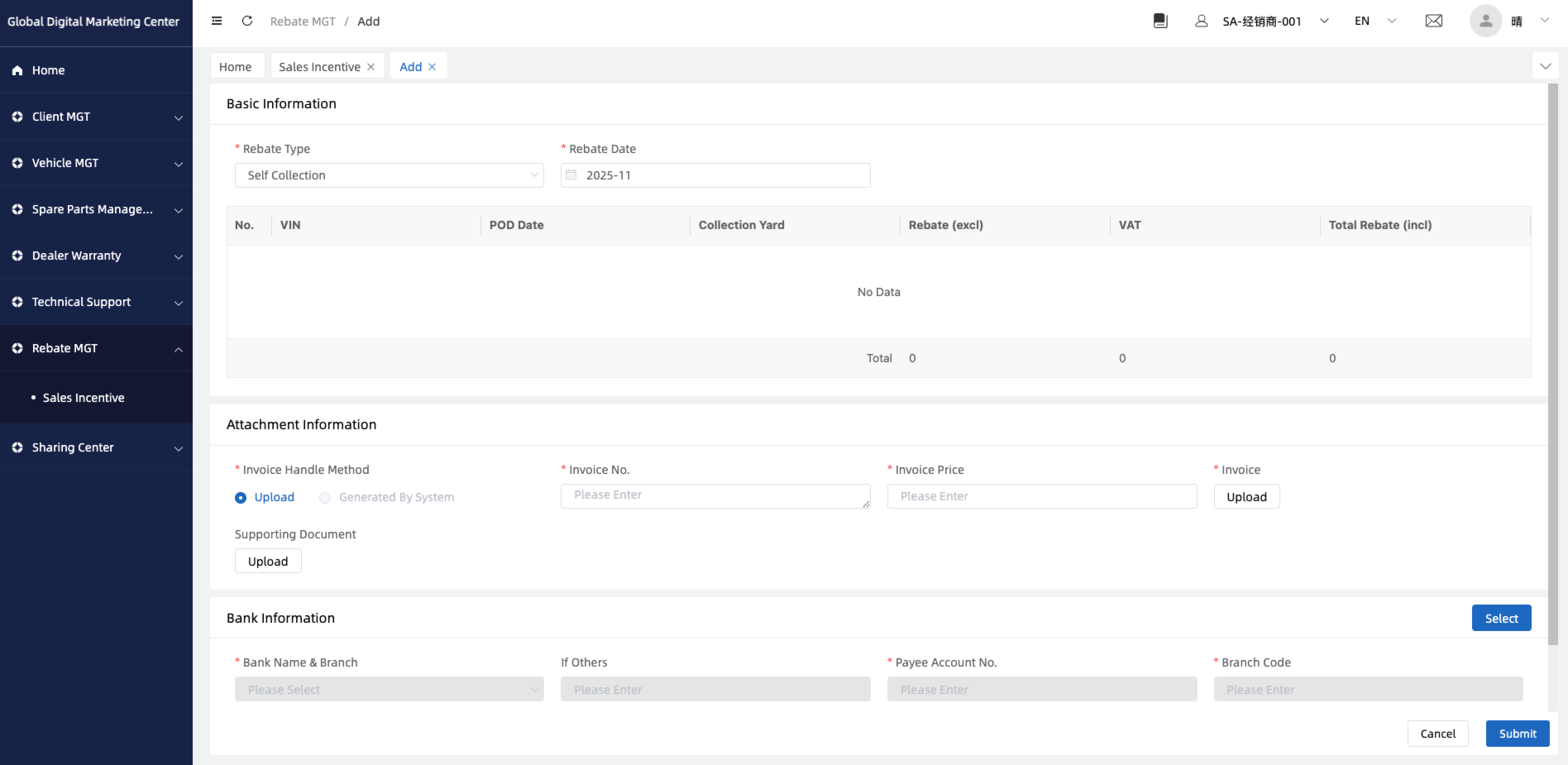
Select
Rebate Type=Sales - Self Collection;Select the
Rebate Dateyou wanna;Check the vehicles
rebate dataand theTotal Rebate(incl);Attachment Info: Input the invoice information:
Invoice No.,Invoice Price, and upload the Invoice file, if you have supporting doc you can upload it too.Bank Information: Select the
Bank Information, if you don't have it, you need to create a new one first.Click
Submit.Done.
DEMO Rebate
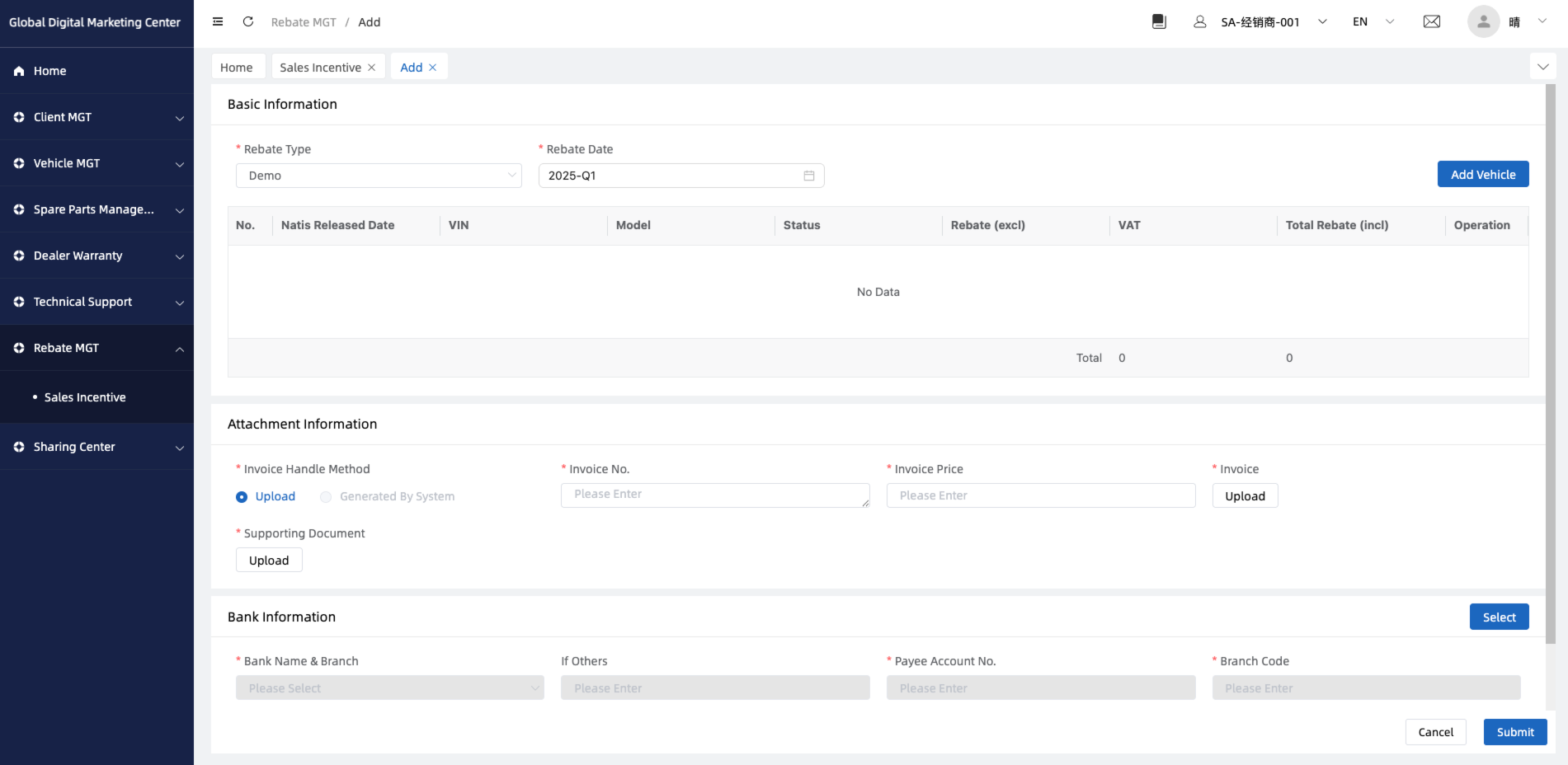
Select
Rebate Type=Sales - DEMO;Select the
Rebate Dateyou wanna, it's a quarter selector;Click
Add Vehicle, then select the vehicles you want to submit for DEMO rebate;Check the vehicles
rebate dataand theTotal Rebate(incl);Attachment Info: Input the invoice information:
Invoice No.,Invoice Price, and upload the Invoice file, if you have supporting doc you can upload it too.Bank Information: Select the
Bank Information, if you don't have it, you need to create a new one first.Click
Submit.Done.
Fleet Rebate
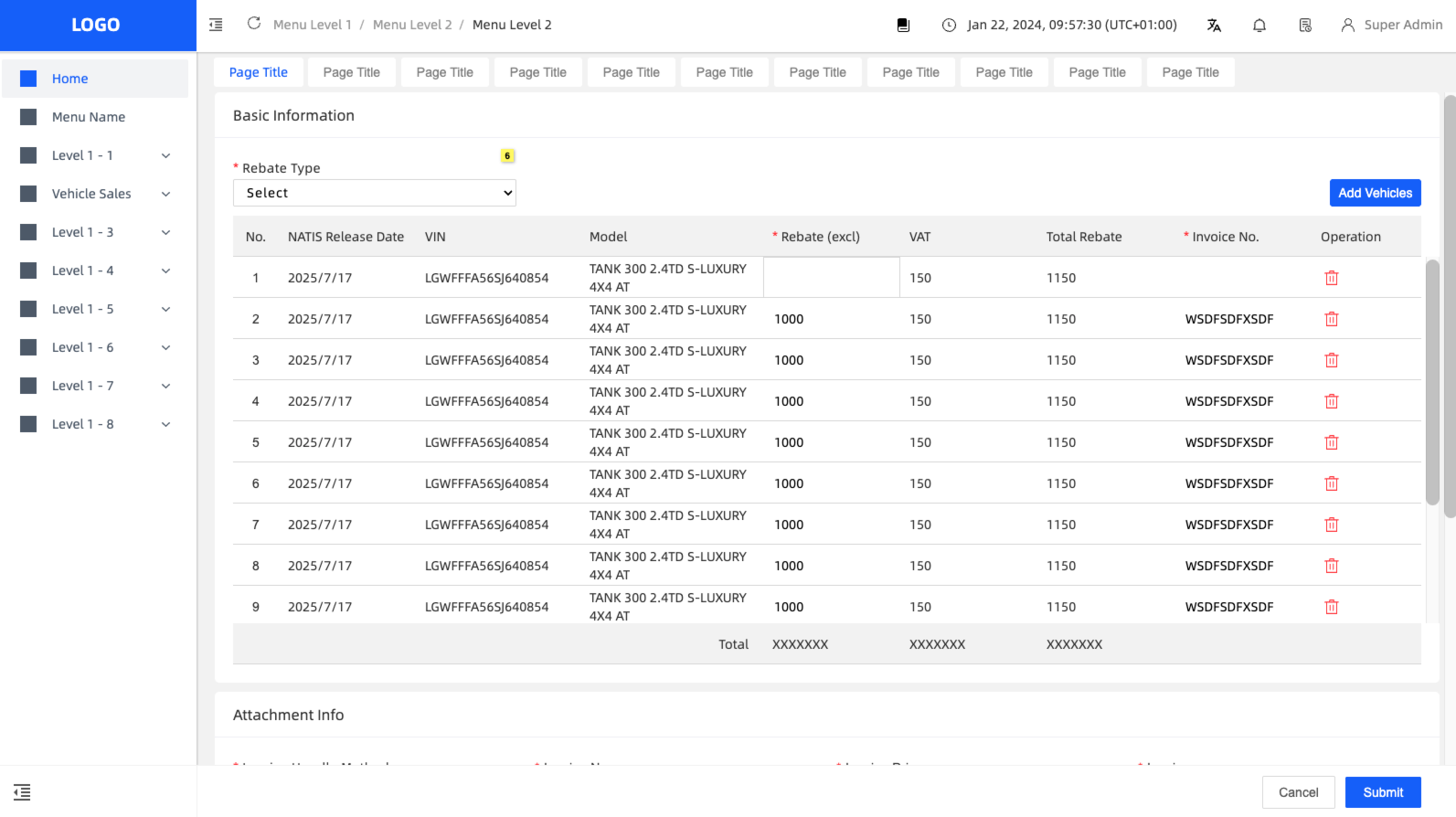
Select
Rebate Type=Sales - Fleet;Click
Add Vehicle, then select the vehicles you want to submit for fleet rebate;Input the
Rebate(excl)andInvoice No.;Attachment Info: Input the invoice information:
Invoice No.,Invoice Price, and upload theInvoice file, approval form, NATIS document, and others.Bank Information: Select the
Bank Information, if you don't have it, you need to create a new one first.Click
Submit.Done.
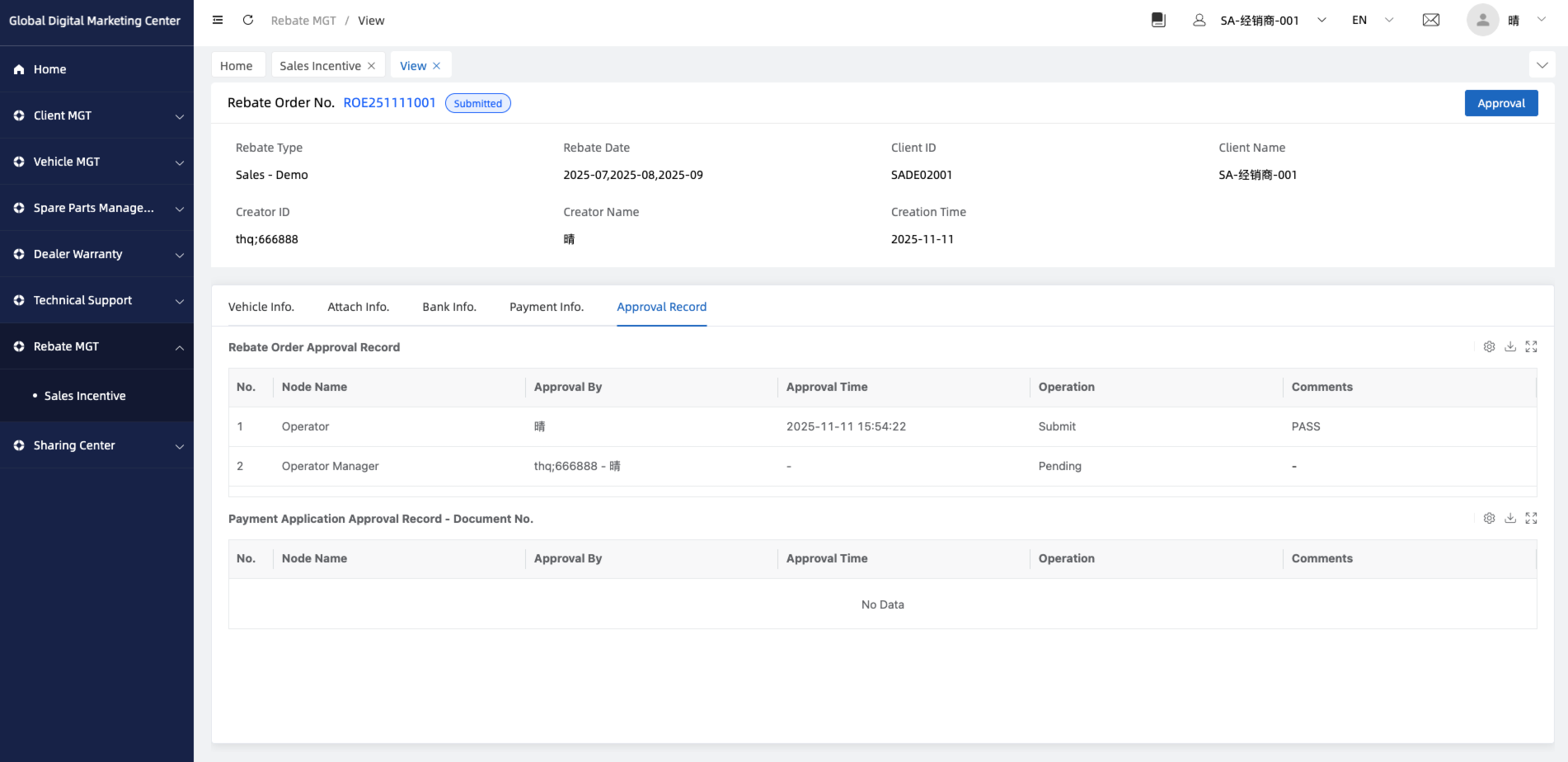
Rebate Order - View
You can click View to go to the rebate order details page, then you will see:
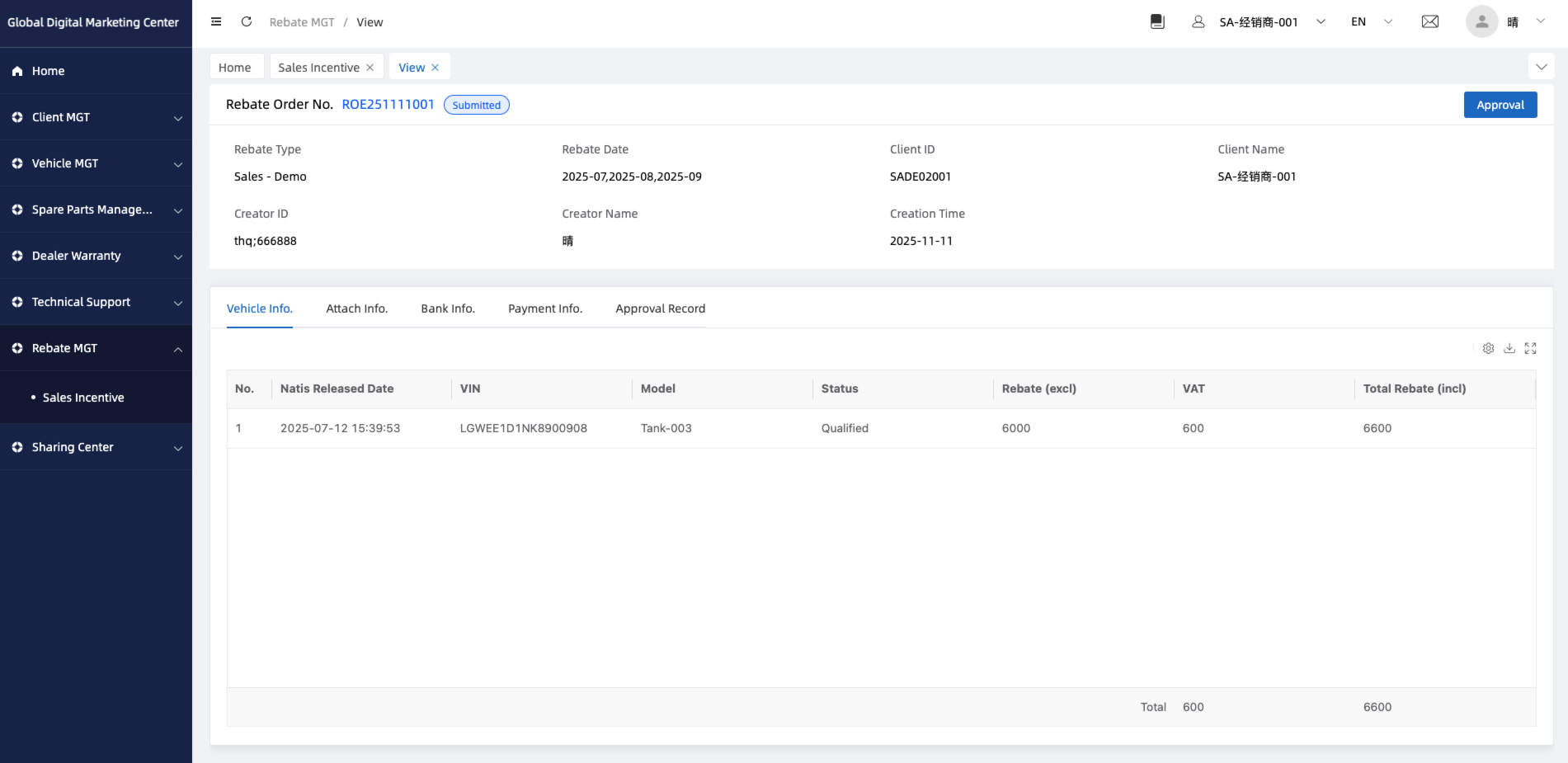
Vehicle Info.
You can check all the vehicles about this rebate order here.
Attach Info.
You can check all the attachment information here.
Bank Info.
You can check ur bank information here.
Payment Info.
You can check the payment application order here.
Approval Record
You can check the rebate order approval record and payment application approval record here.