
Overview
You can check the vehicles eNaTIS information here and request for MV NATIS Released.
Details about the request for the NATIS Released:
| Sales Type | Rules |
|---|---|
| Demo | 1. Request for NATIS Released; 2. DSM will approve for the request; 2. Logistics team eNaTIS release the vehicle. |
| Courtesy | 1. Request for NATIS Released; 2. DSM will approve for the request; 2. Logistics team eNaTIS release the vehicle. |
| Retail | 1. Request for NATIS Released; 2. System will eNaTIS release the vehicle automatically. |
| Fleet | 1. Request for NATIS Released; 2. System will eNaTIS release the vehicle automatically. |
| GOV | 1. Request for NATIS Released; 2. System will eNaTIS release the vehicle automatically. |
Request for NATIS Release
- When you want to request for the
NATIS Release, you can search the vehicle first, thenright mouse clickon the row:
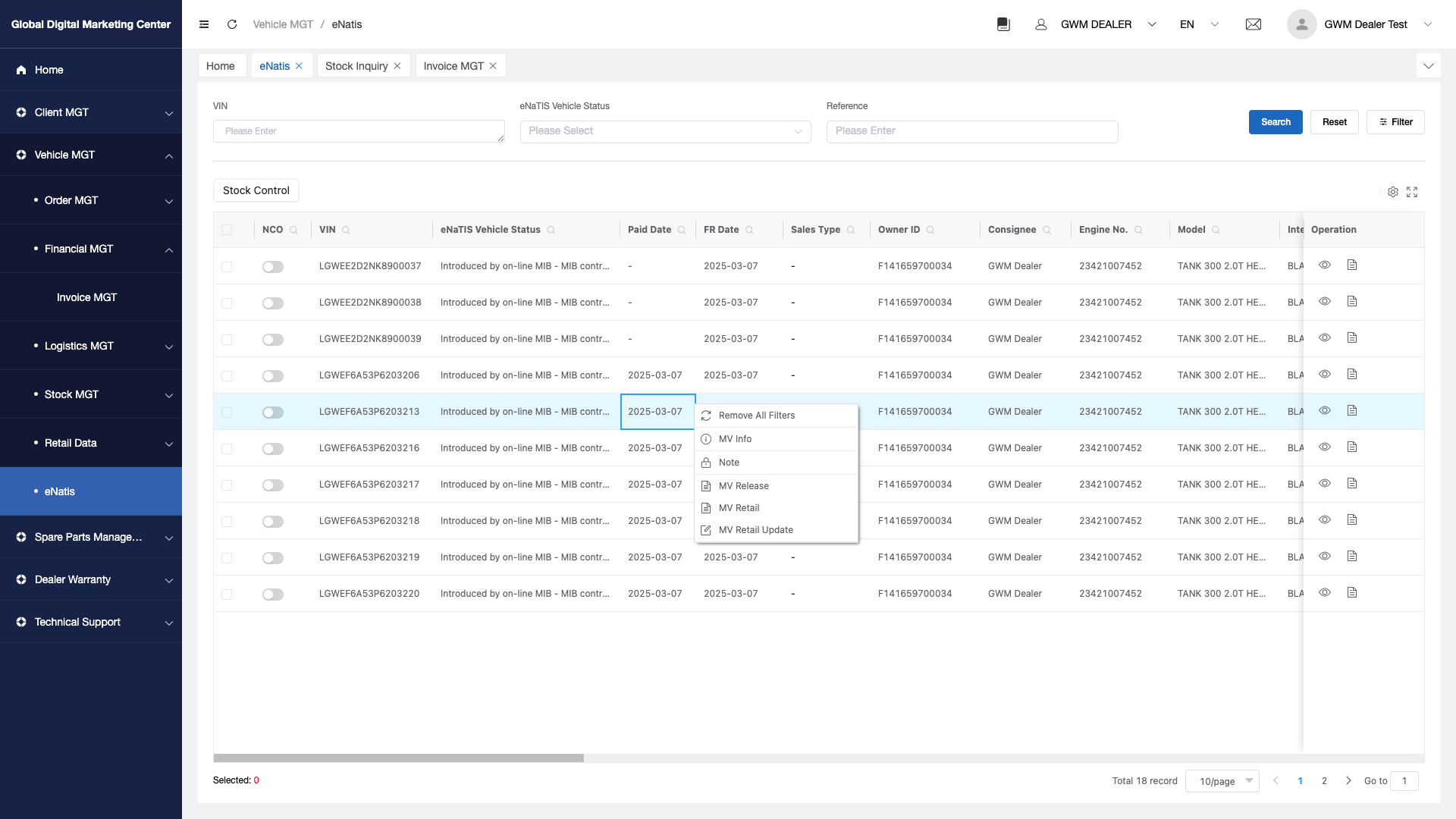
Click
MV Release, then will go to the NATIS release page: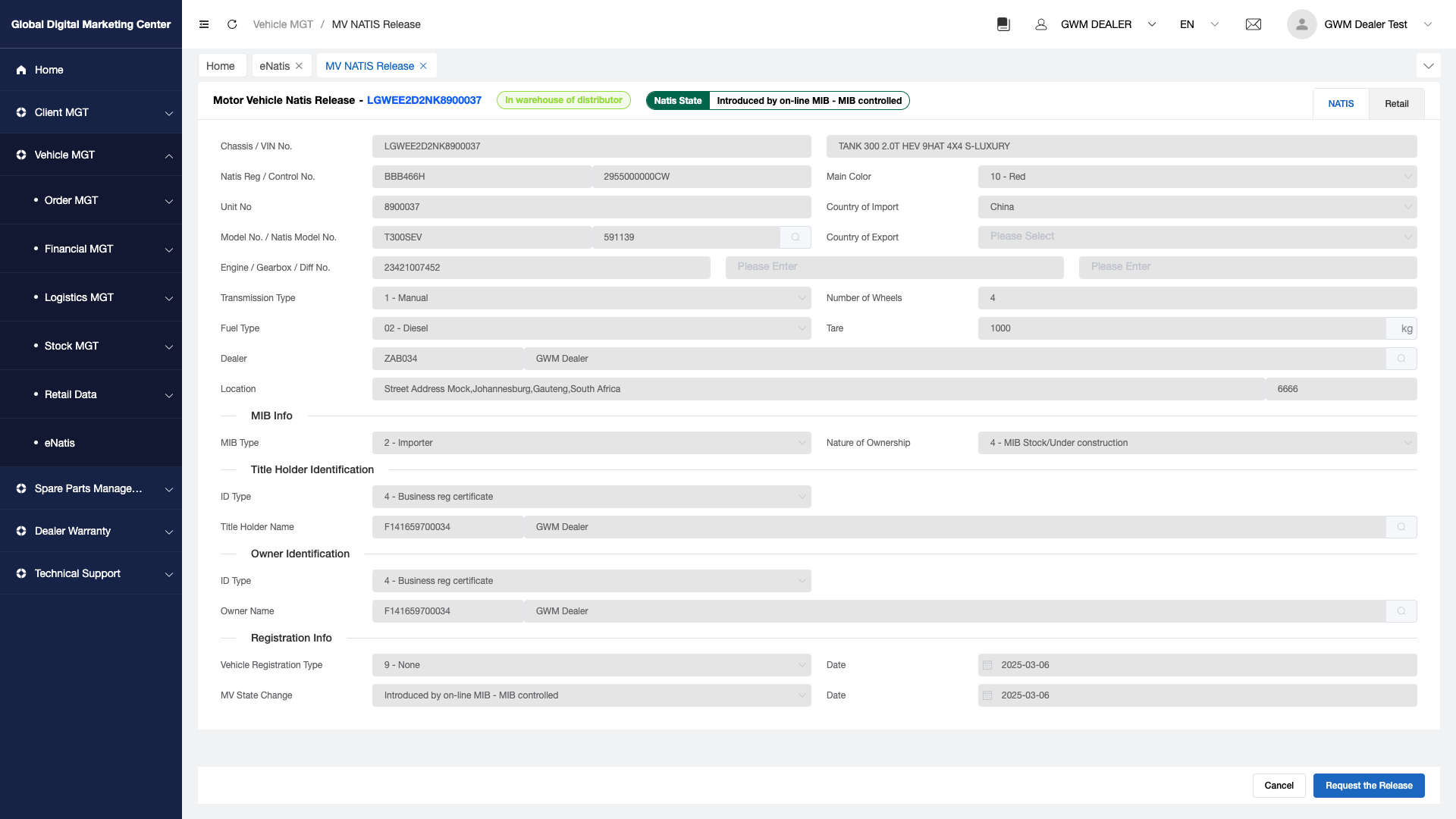
In this page, you can view 2 tab here: NATIS and Retail
Click "Retail" tab to go to the retail page and confirm all the information, you can update the retail data here;
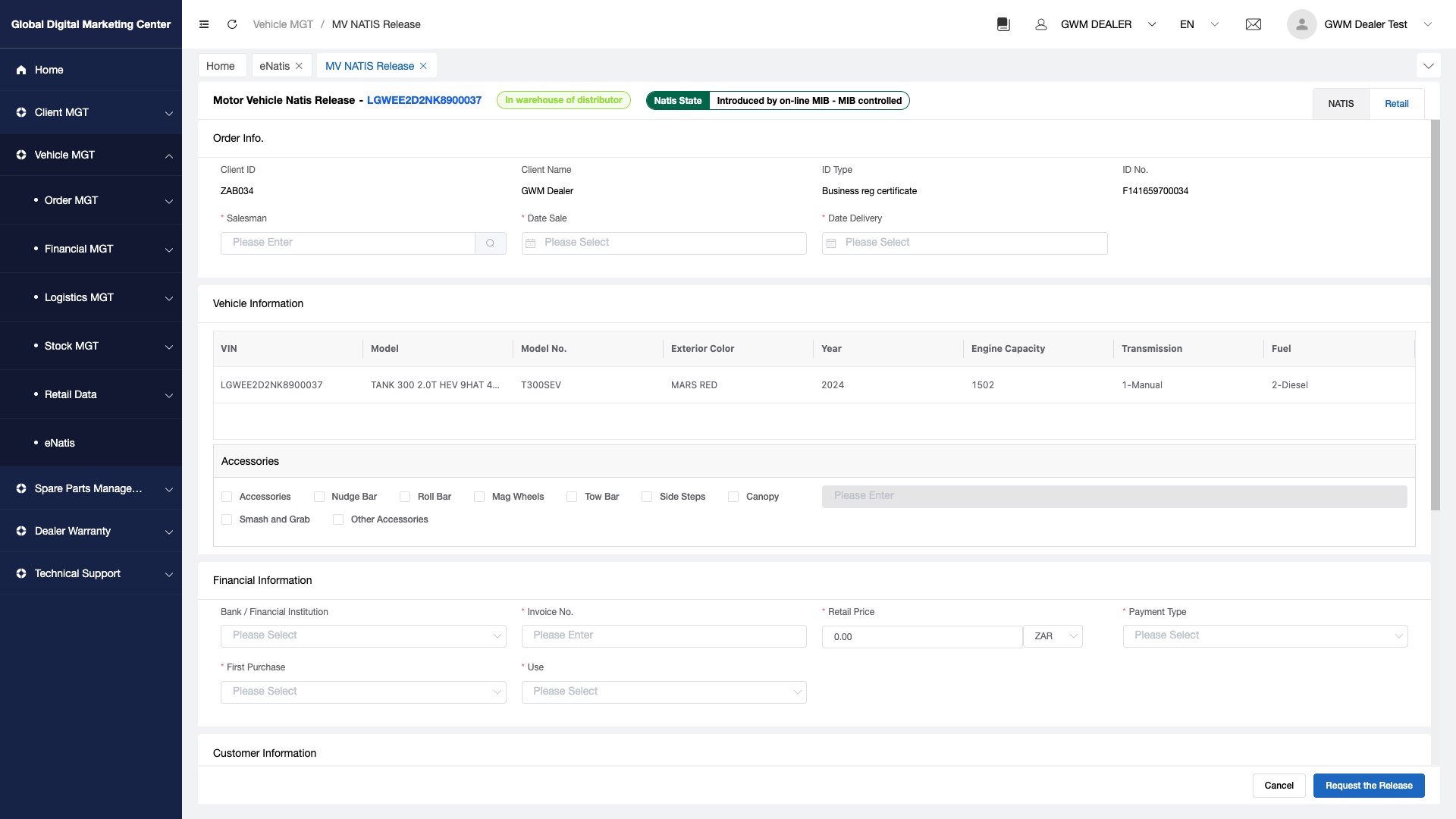
When you finish the retail data and you can Click "NATIS" tab;
Click "Request for Release";(system will verify whether you have done the retail data updated)
Congratulation! You have requested for the NATIS Released.
Update Retail Data Only
When you want to update retail data, you can also do this work here,
right mouse clickon the vehicle's row:Click
MV Retail Update: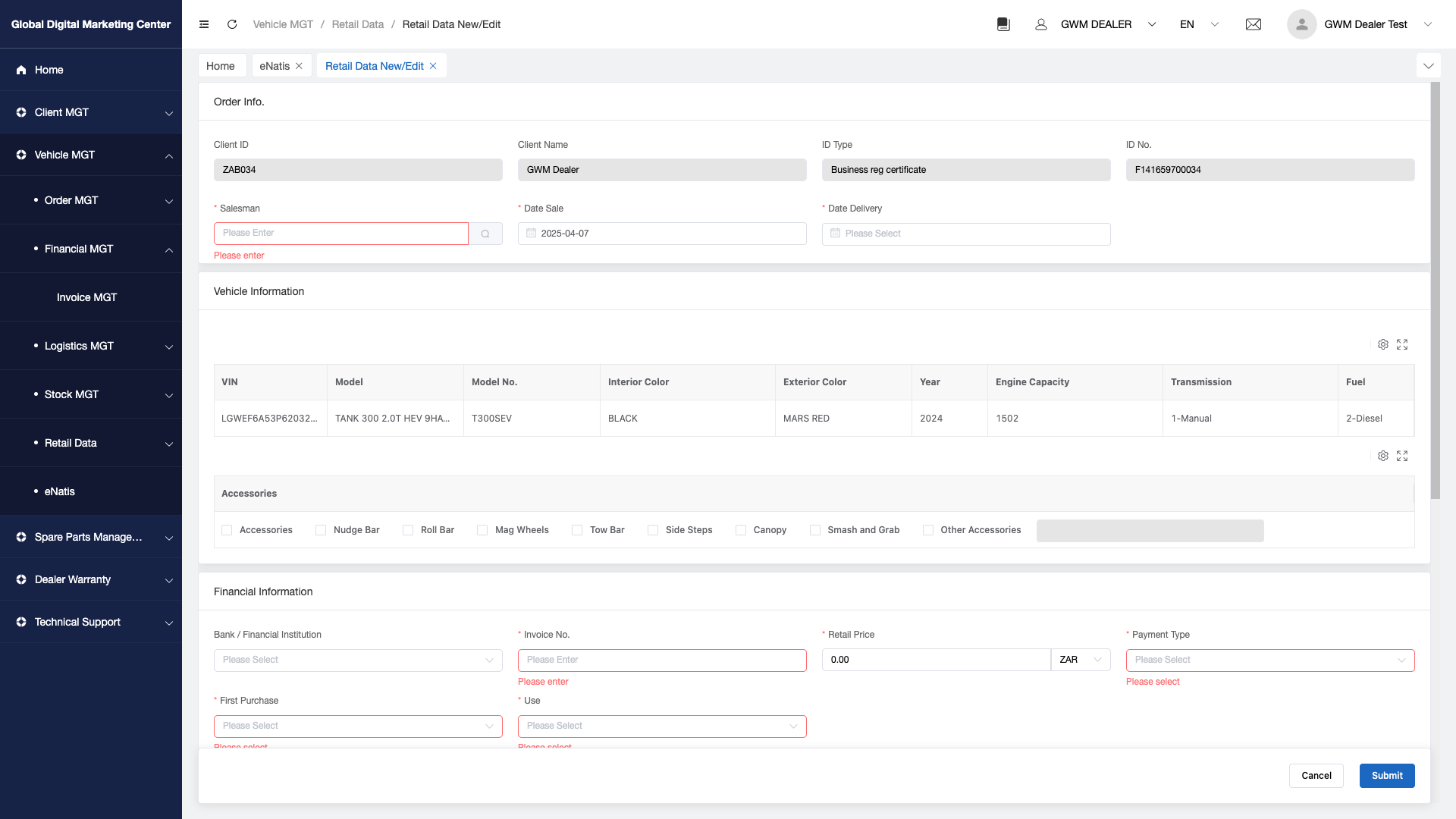
Then you can fill in the forms with the retail data.
Finally submit the retail data.
Done.