
1 Technical Report
1.1 Introduction
● Subsidiaries may initiate technical assistance requests and submit them to headquarters.
● The technician of the subsidiary replies to the treatment plan through the communication function. The dealer can continue to communicate with the technician of the subsidiary company through the communication function until the conclusion of the report.
● The technical report of the final status can generate fault cases for other dealers to learn.
1.2 Operaton
1.2.1 Create technical reports
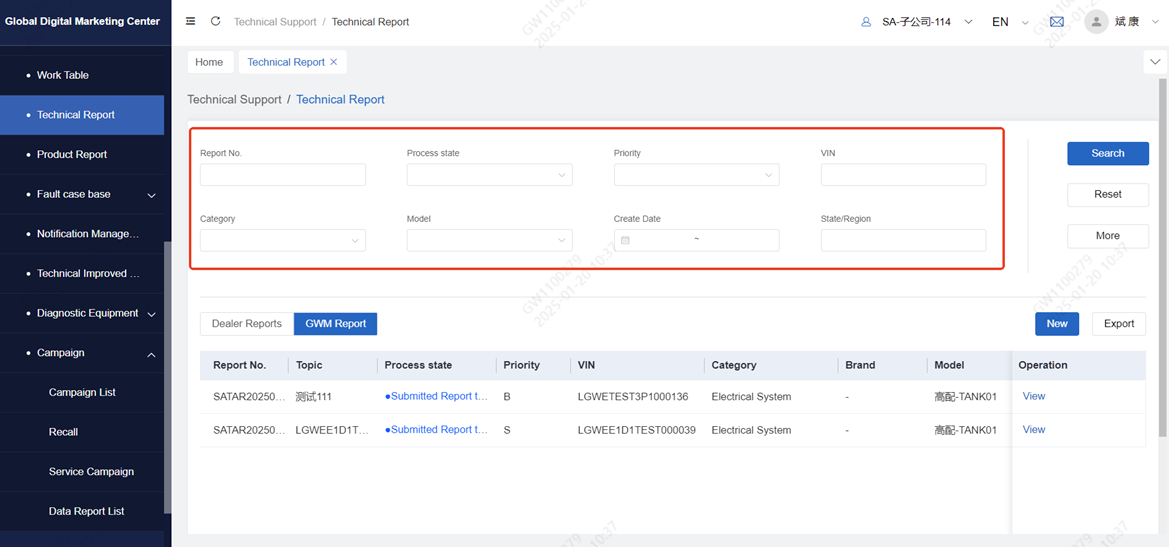
Click Technical Report to enter the technical report list, and query the submitted data of the technical report according to the conditions
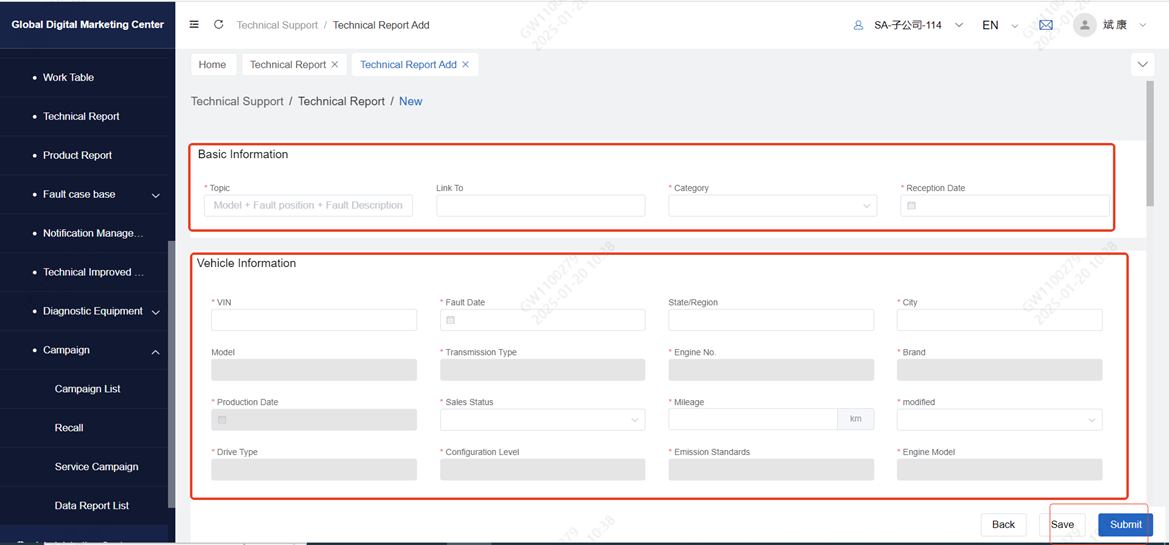
Click New to enter the report creation page, fill in Basic Information, Vehicle Information, Material information and Descriptions, and click Submit after filling in
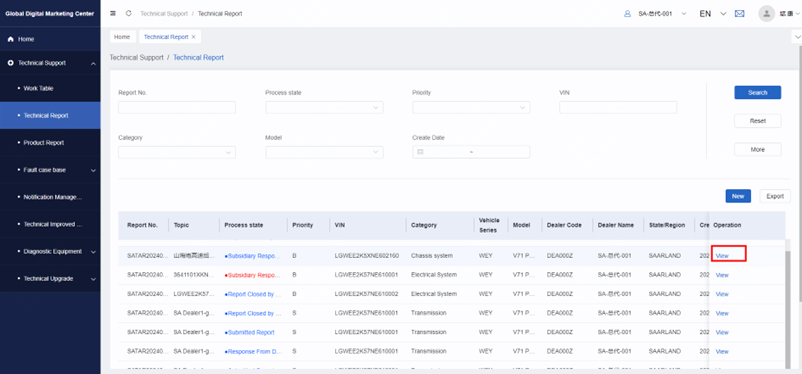
The report in the list can be clicked on the View button to enter the details page
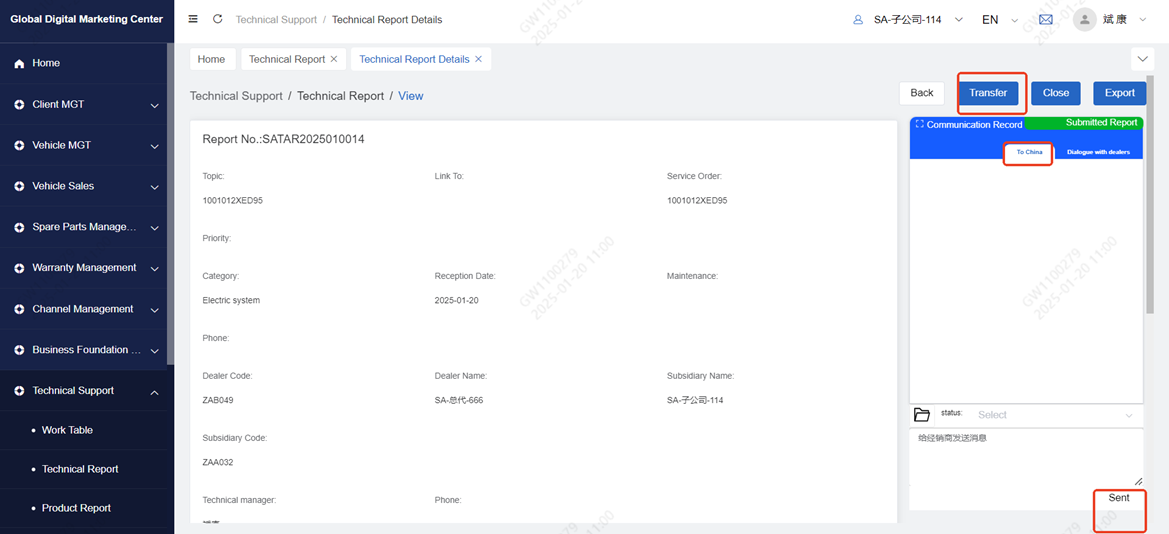
After submission, it will arrive at the headquarters for processing. Click "to China" to communicate with the headquarters technician. You can select the communication status according to the processing situation, edit the information and click "Send". The report concluded by the subsidiary company can no longer initiate online communication, and the report concluded by the headquarters can still continue to communicate with the headquarters.
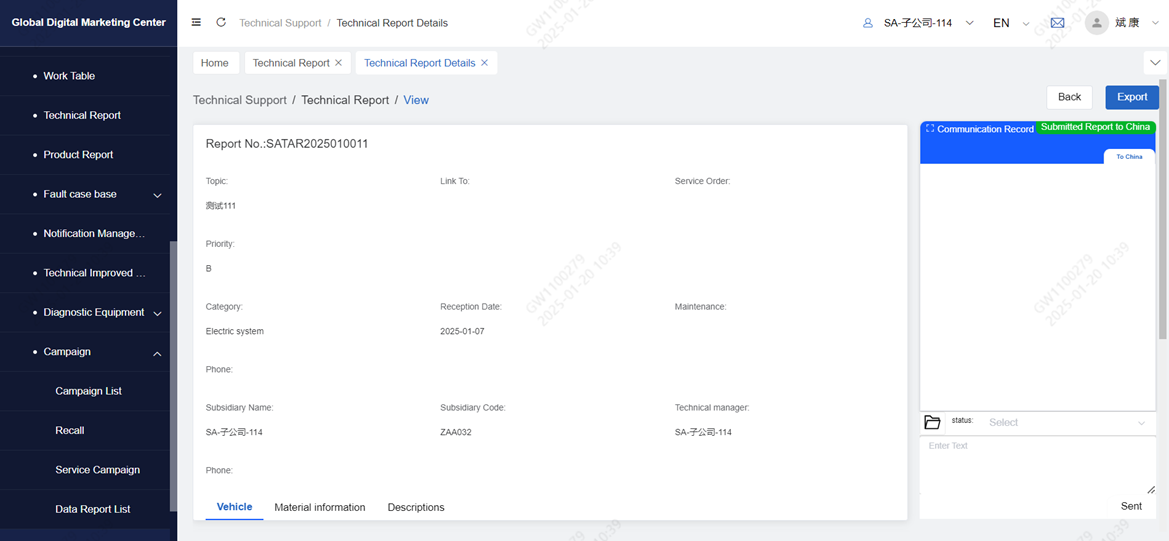
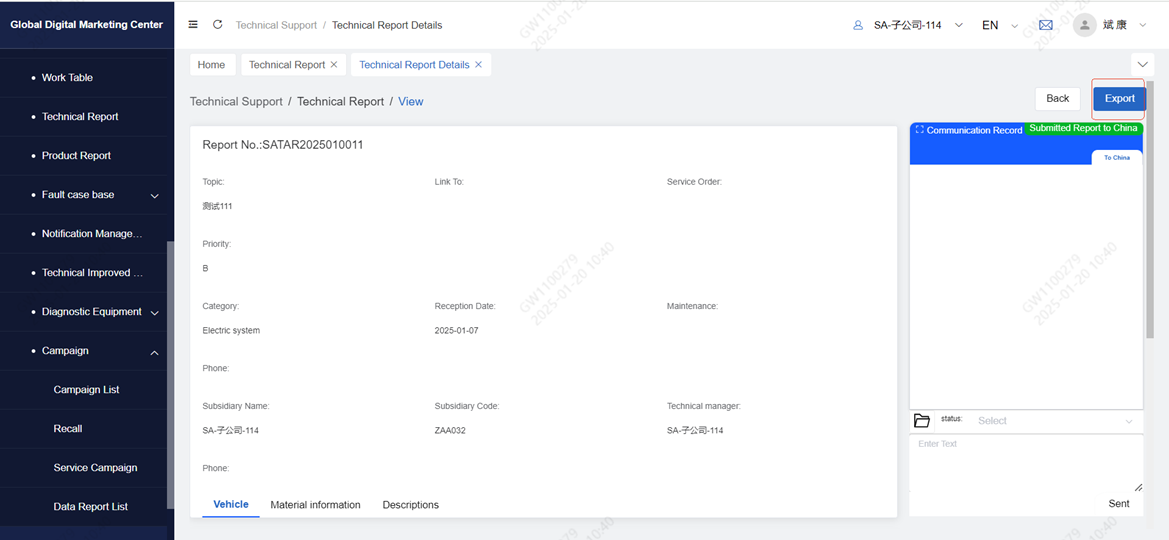
Report details support export, click export, generate PDF document
1.2.2 Dealing with dealer's reports
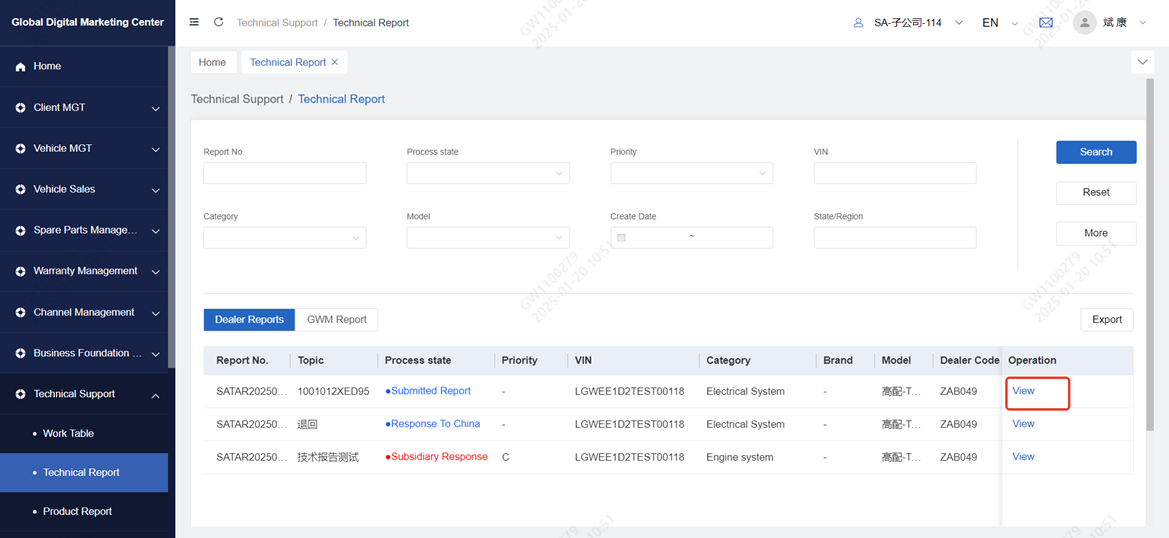
Click Technical Report to enter the technical report list, click view to enter the view page
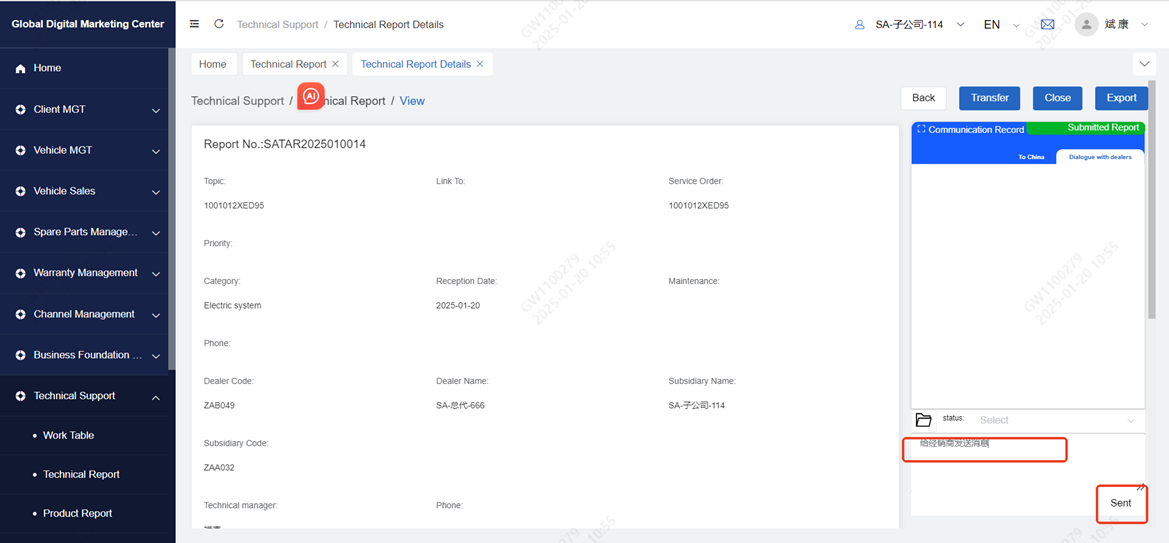
After entering the details page, reply to the dealer's processing plan through communication, edit the reply content, and click the send button
After the problem is solved, click close to close the report. After closing, communication cannot continue
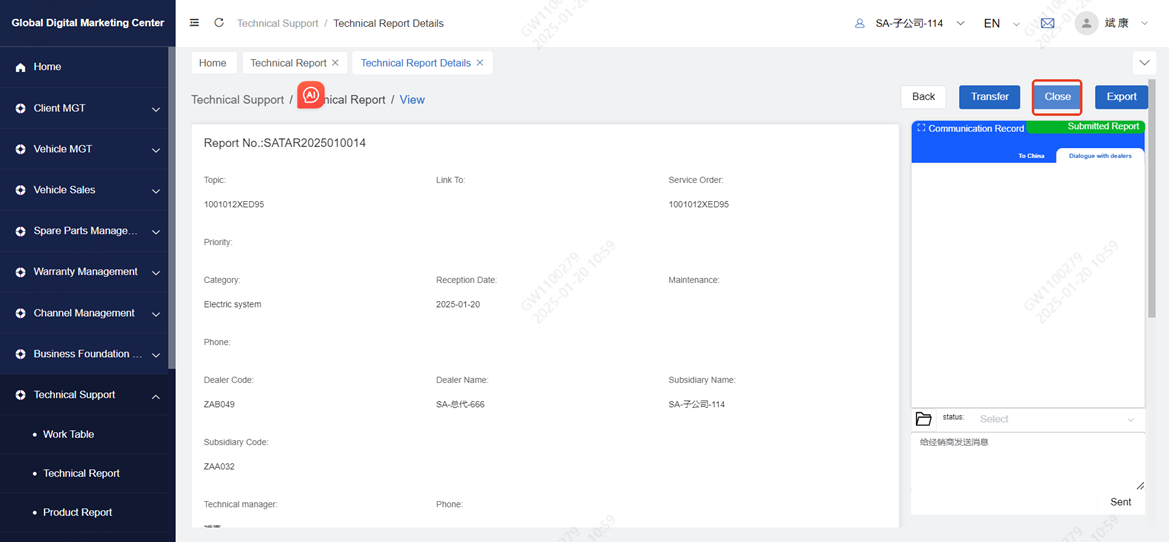
If the problem cannot be solved, the technician of the subsidiary company can click Transfer and send the report to the headquarters. The technician of the subsidiary company can send a message to the headquarters through communication
2 Product Report
2.1 Introduction
● Subsidiaries can initiate quality reports and submit them to headquarters.
● The technician of the subsidiary replies to the treatment plan through the communication function. The dealer can continue to communicate with the technician of the subsidiary company through the communication function until the conclusion of the report.
● The quality report of the final status can generate fault cases for other dealers to learn.
2.2 Operation
2.2.1 Create Report
Click Product Report to enter the technical report list, and query the submitted data of the technical report according to the conditions
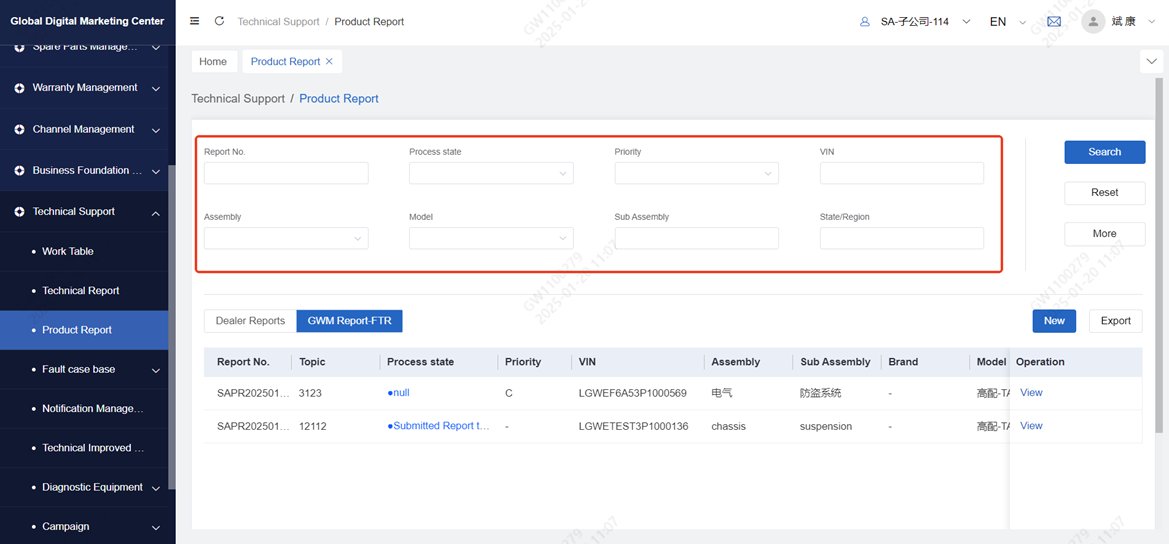
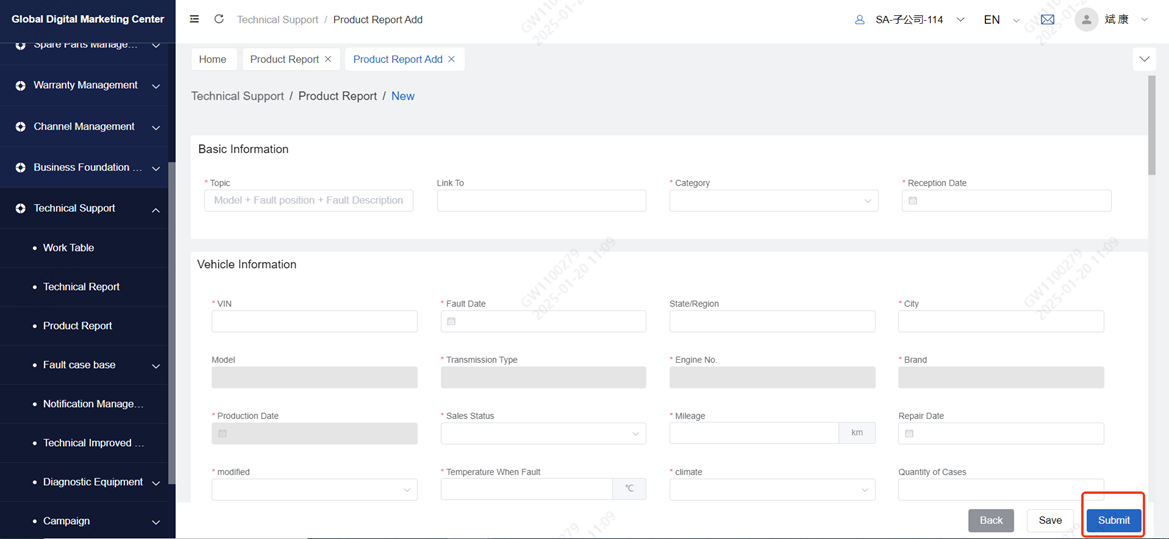
Click New to enter the report creation page, fill in Basic Information, Vehicle Information, Material information, Supplementary Information and Descriptions, Fill it out and click Submit
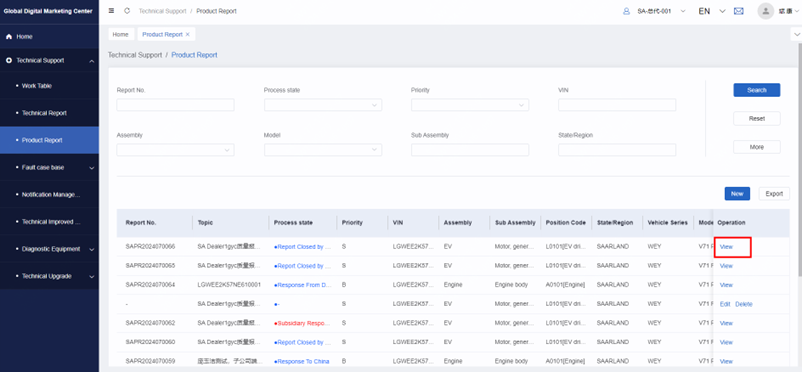
The report in the list can be clicked on the view button to enter the details page, and the report to be submitted can be deleted and edited
After submission to the headquarters for processing, you can communicate with the headquarters technician online, according to the processing situation can select the communication status, edit the information content and click send. Online communication can no longer be initiated for the completed report of the subsidiary's operation, and communication can continue for the report initiated by the headquarters.
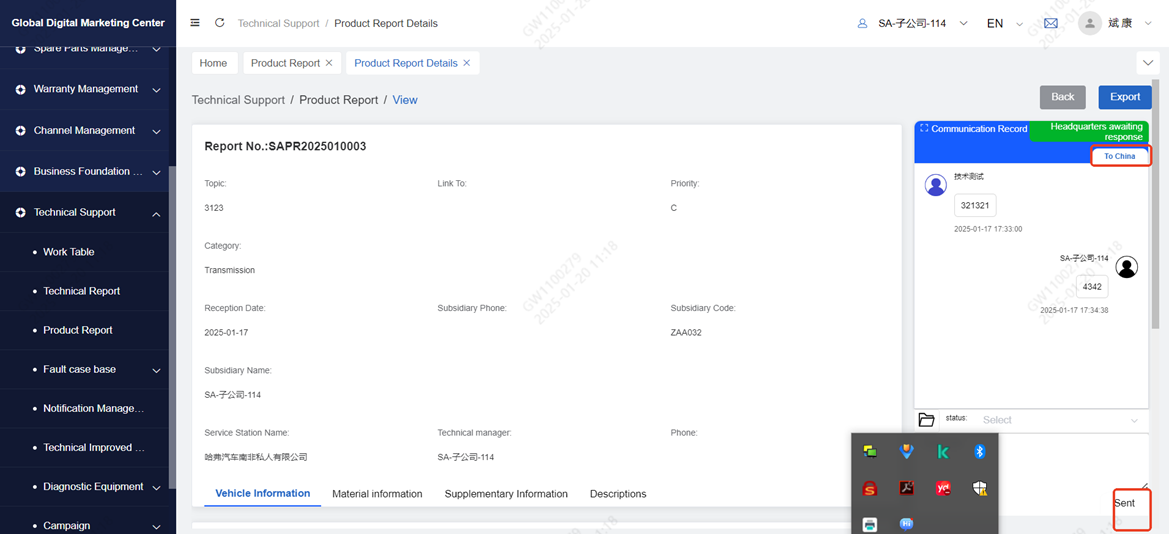
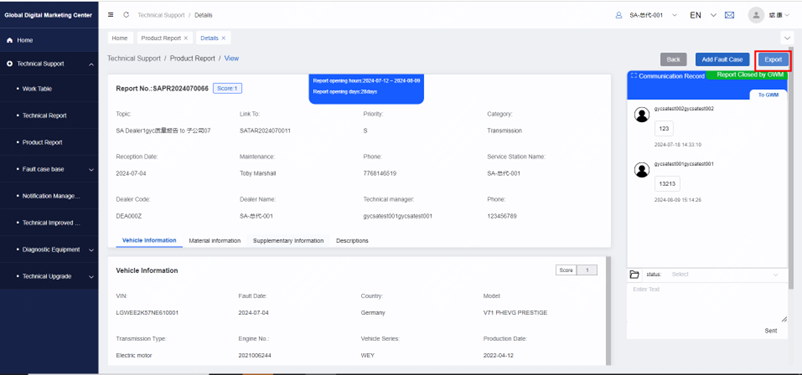
Report details support export, click export, generate PDF document
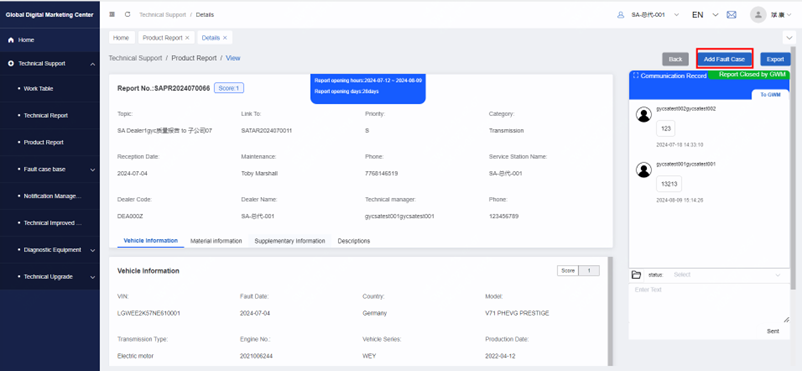
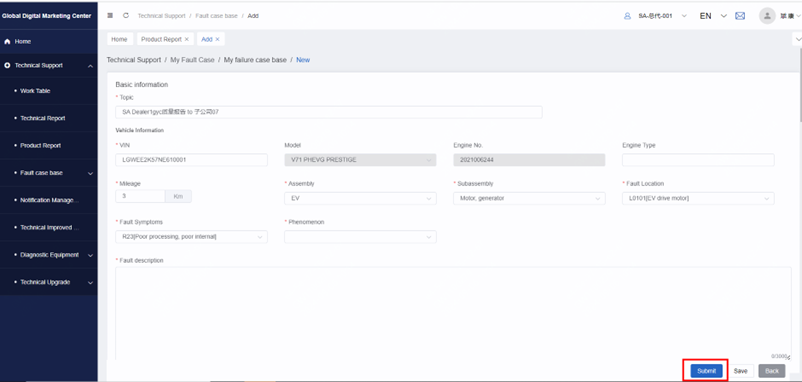
The conclusion of the quality report supports one-click generation of fault cases, click on the fault case, jump to the fault case new page
2.2.2 Dealing with dealer's reports
Click Product Report to enter the technical report list, and click view to enter the view page
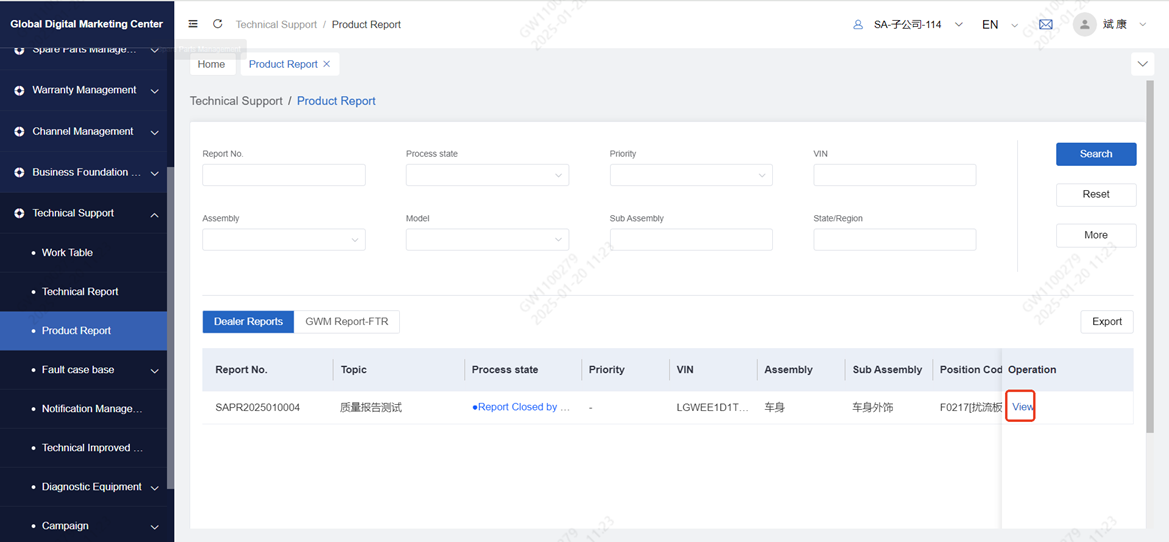
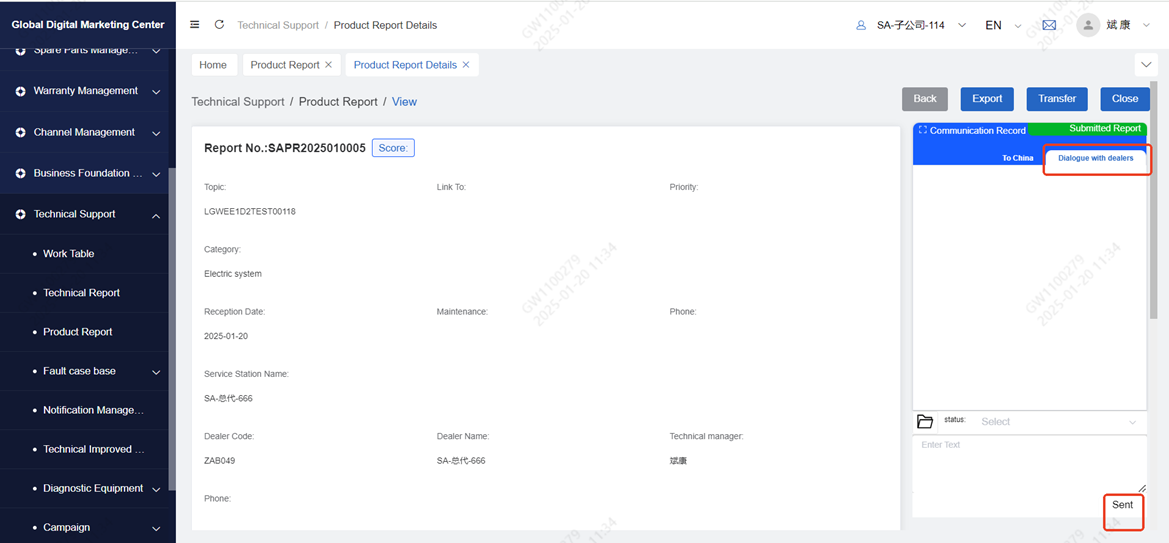
After entering the details page, reply to the dealer's processing plan through communication, edit the reply content, and click the send button
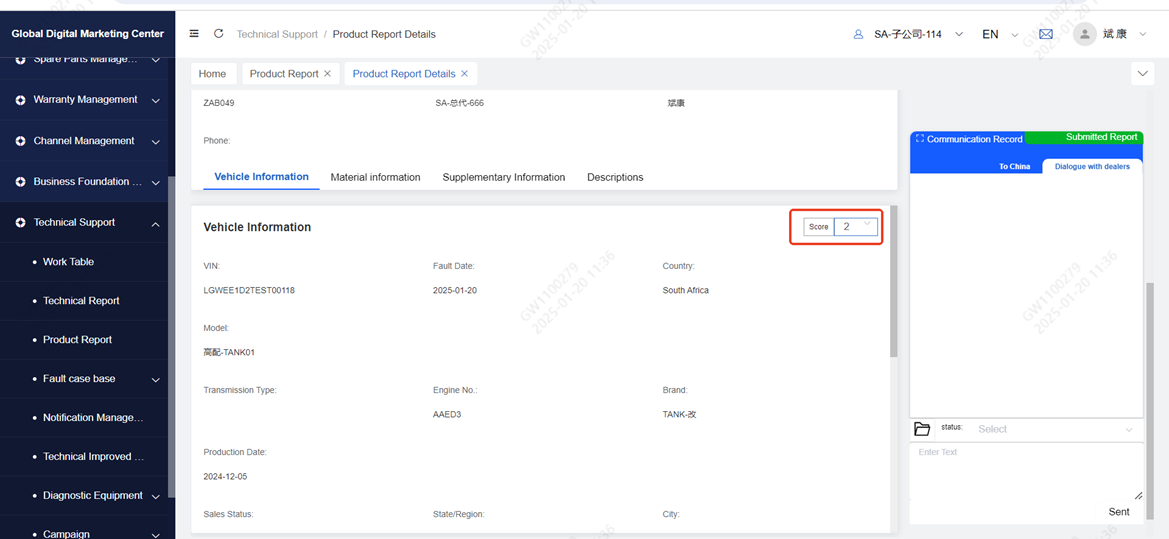
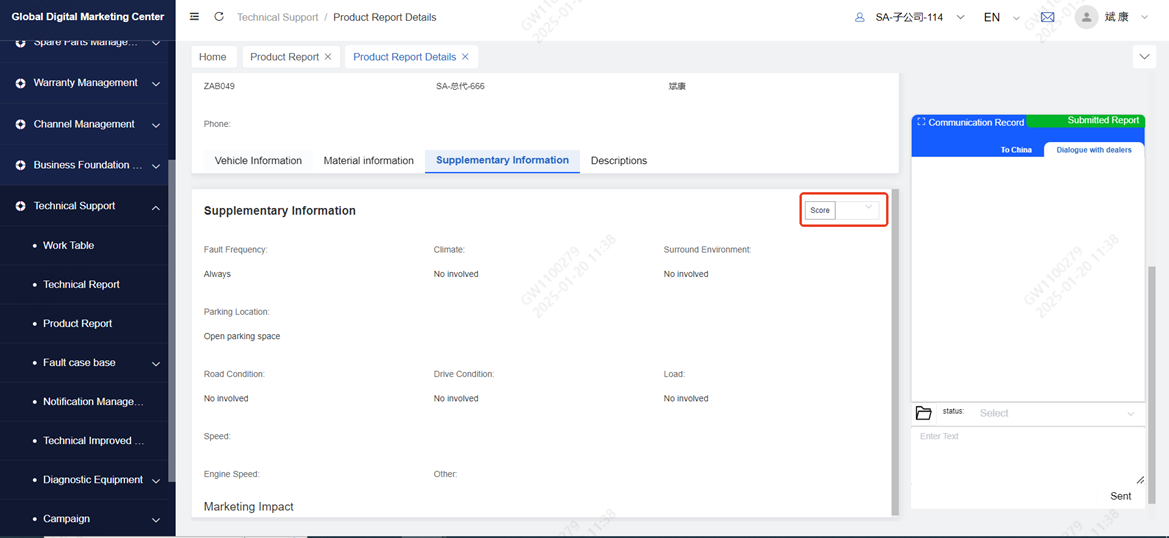
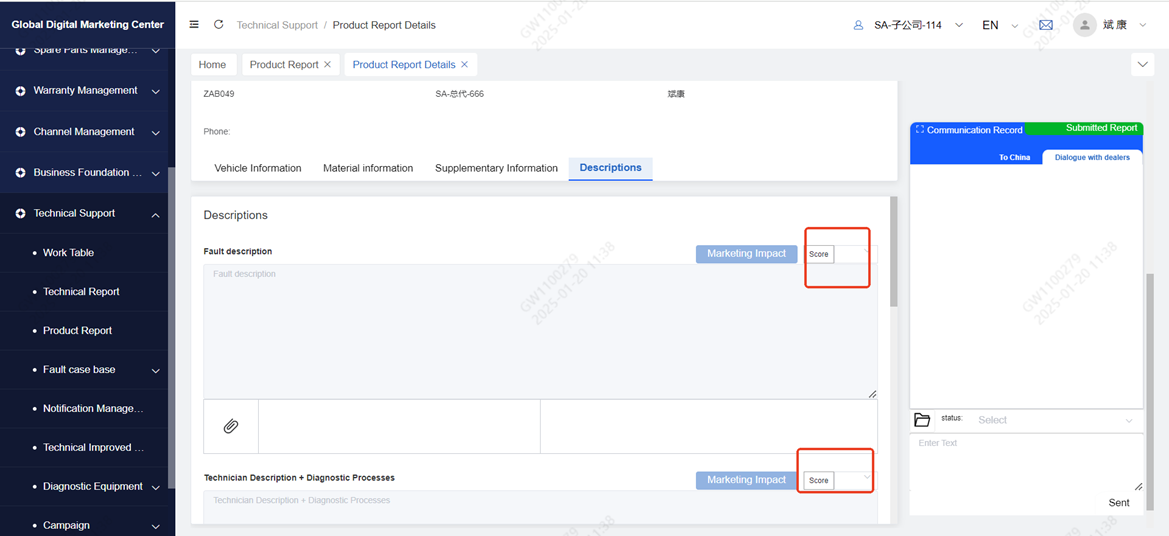
After the problem is solved, score the quality of report submission. There are scoring items for Vehicle Information, Material information, Supplementary Information and Descriptions.
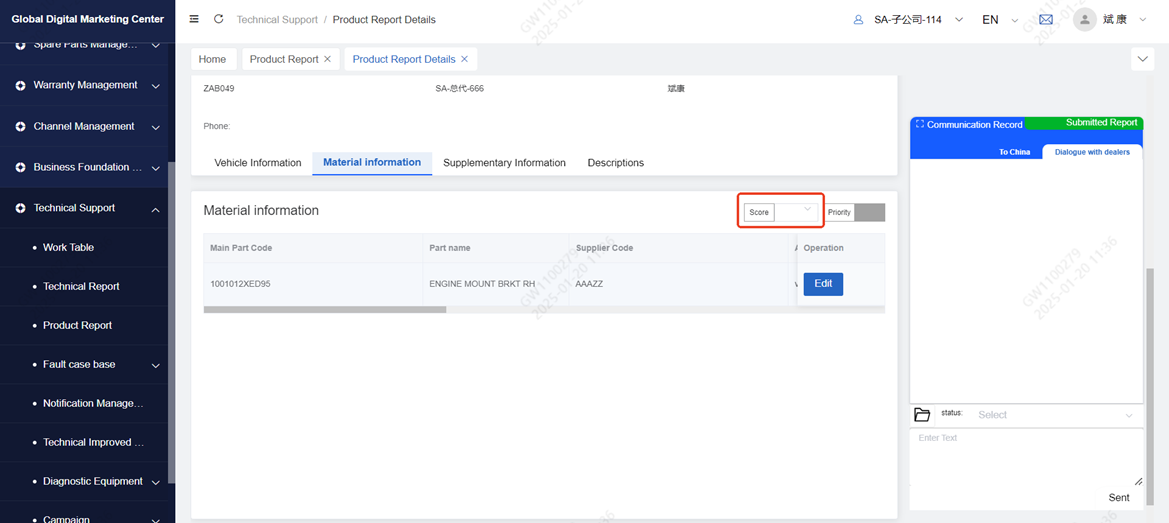
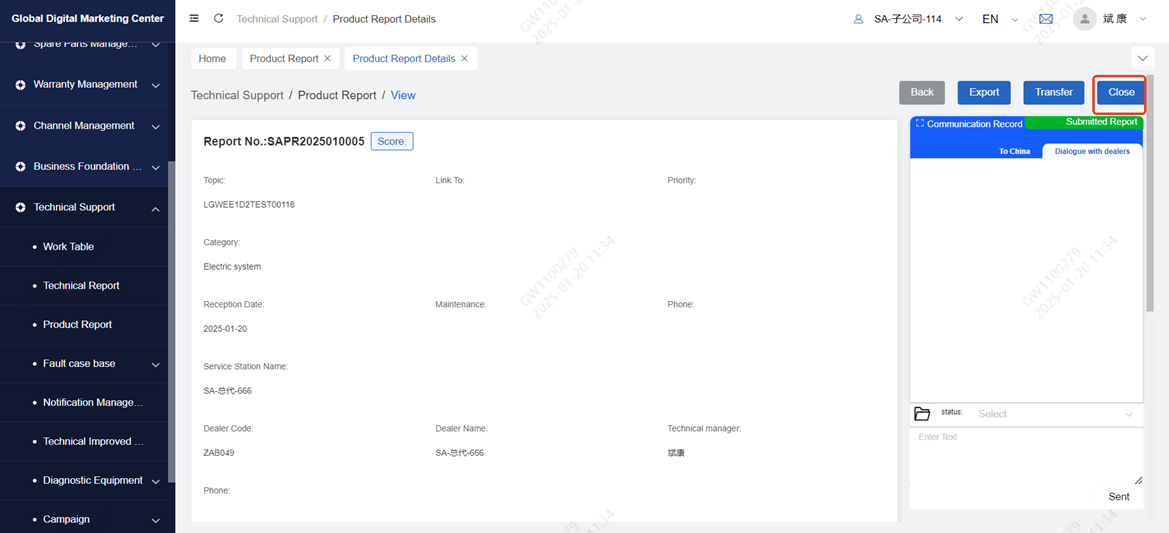
Click close to close the report. After closing, communication cannot continue
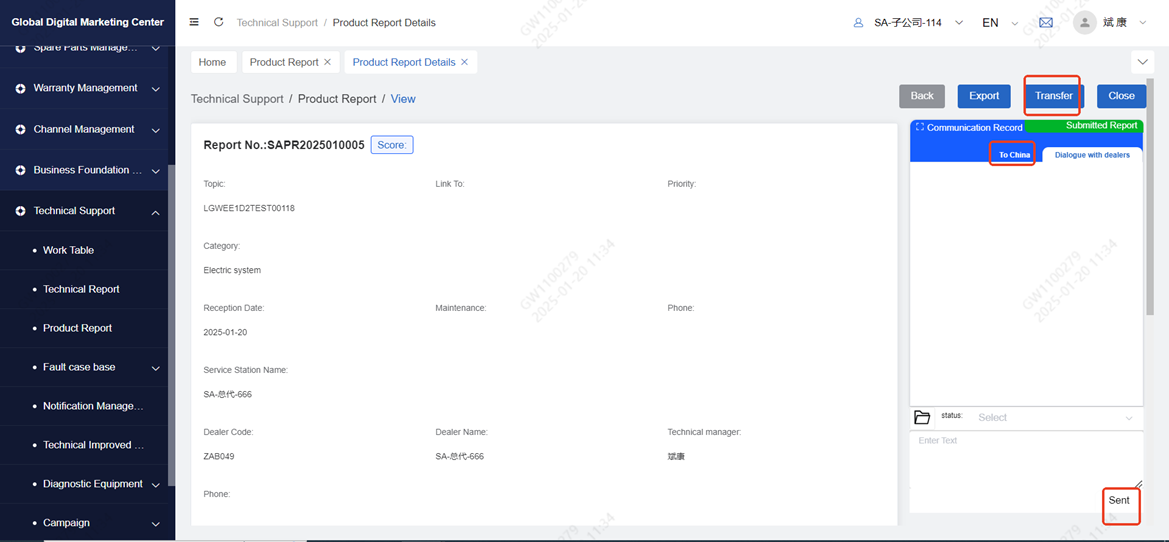
If the problem cannot be solved, the technician of the subsidiary company can click Transfer, and after the report is delivered to the headquarters, the technician of the subsidiary company can send a message to the headquarters through communication
3 Fault case base
3.1 Introduction
● There are three menus: My case library, Local case library and global case library.
● My case base: the subsidiary can convert the more classic reports in daily life into failure cases, which are submitted and approved by the headquarters for other dealers to comment and like.
● Local case database: Subsidiaries can view the cases submitted and approved by the South African market, comment and click "like".
● Global case database: All cases approved by GWM market review can be liked and commented.
3.2 Operation
3.2.1 Subsidiary's case
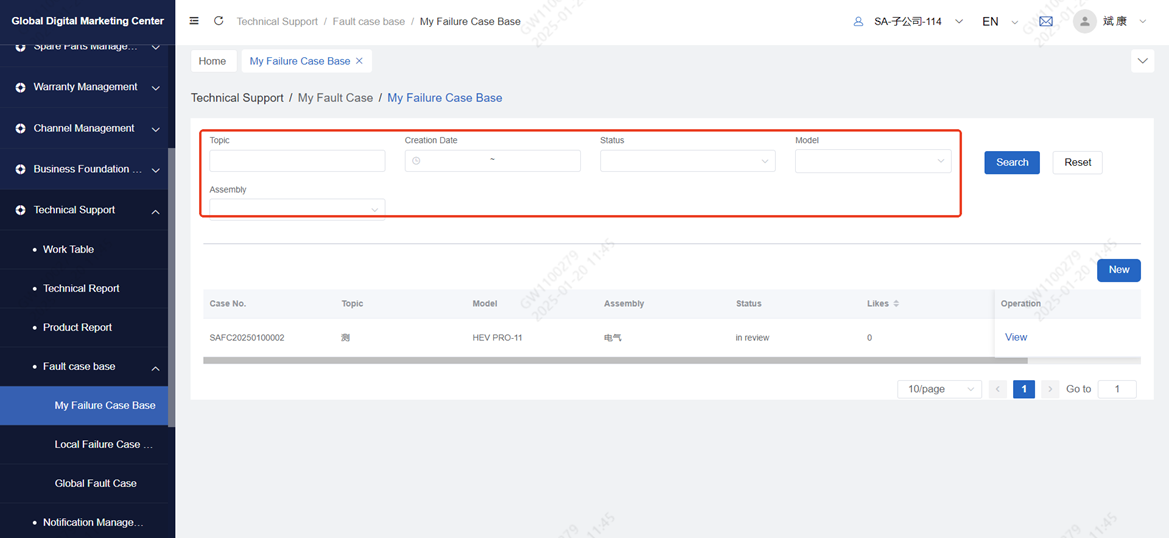
Click Fault case base to enter the fault case menu, click My failure case base to enter the list, and query the submitted data of the technical report according to the conditions
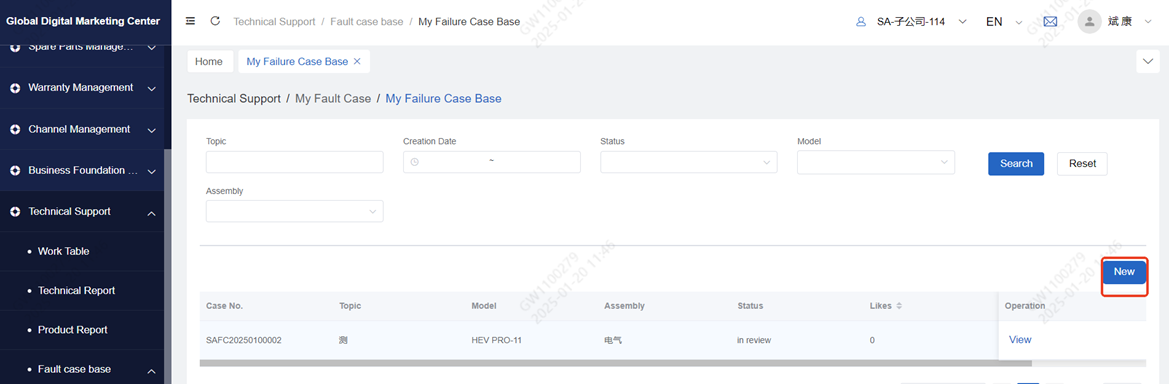
Click "New" to enter the case creation page, fill in Basic information, Vehicle Information, Fault description and other information, and click "Submit" after filling in, technicians at the headquarters will review.

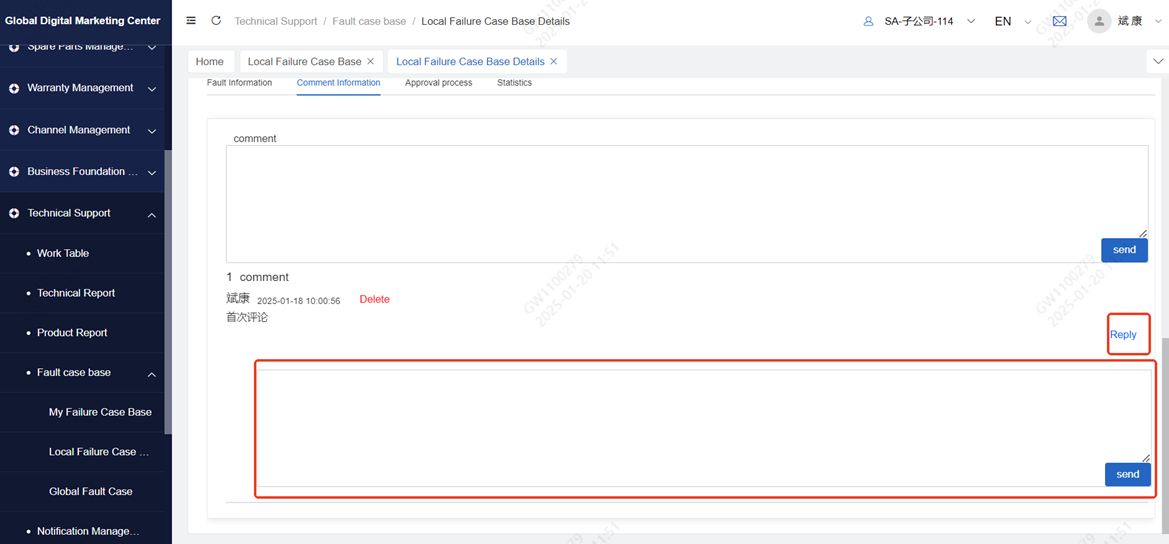
After the headquarters audit is completed, dealers can see the approved cases in the Local failure case base, open the details page, you can view the comment information and the number of likes given by other dealers.
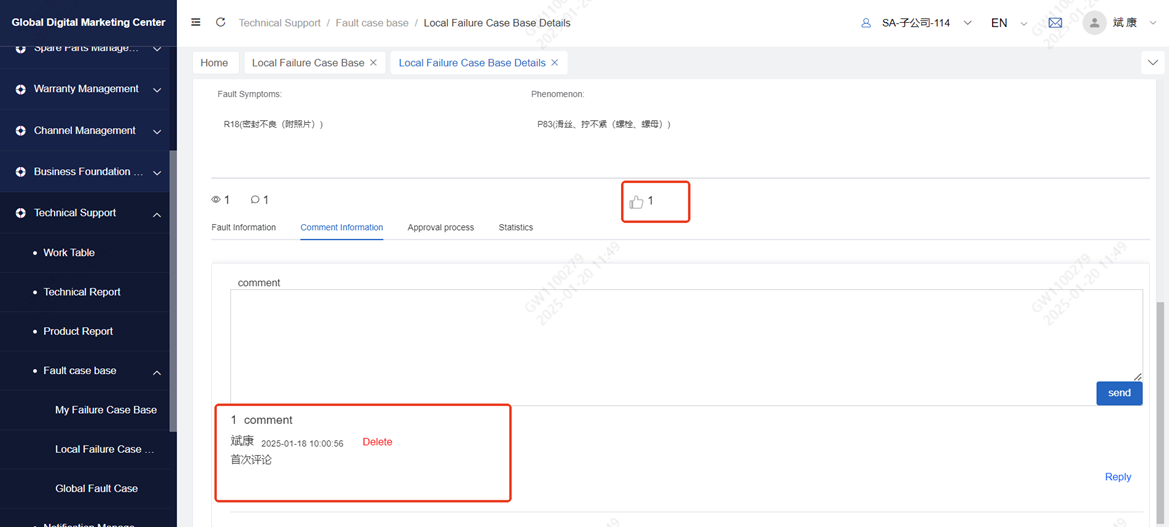
Click Reply and enter text to reply to the comment
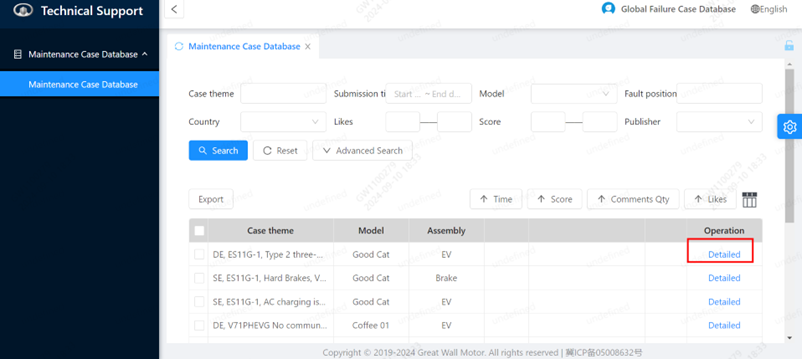
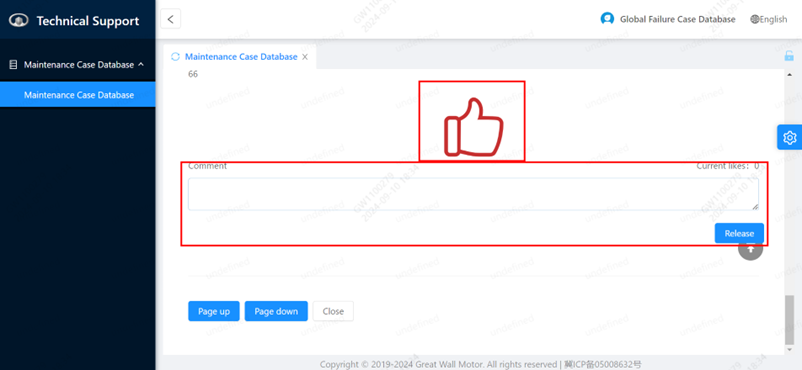
Click Global Fault Case to view global cases, click the case details page, you can like and comment.
3.2.2 Dealer's case
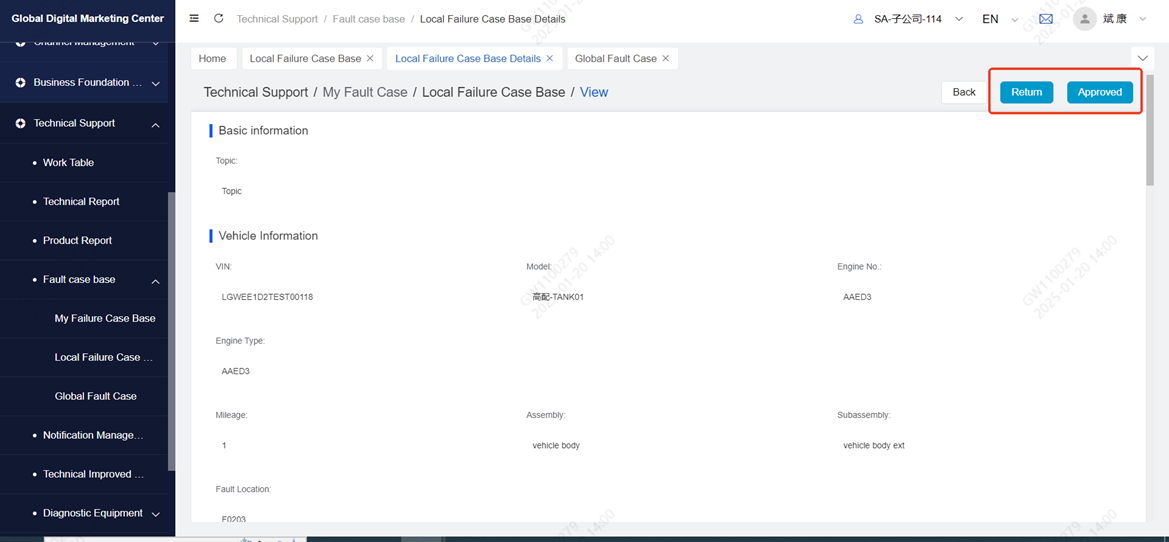
Click Local Failure Case Base, you can see the case to be reviewed, click approve, enter the review page
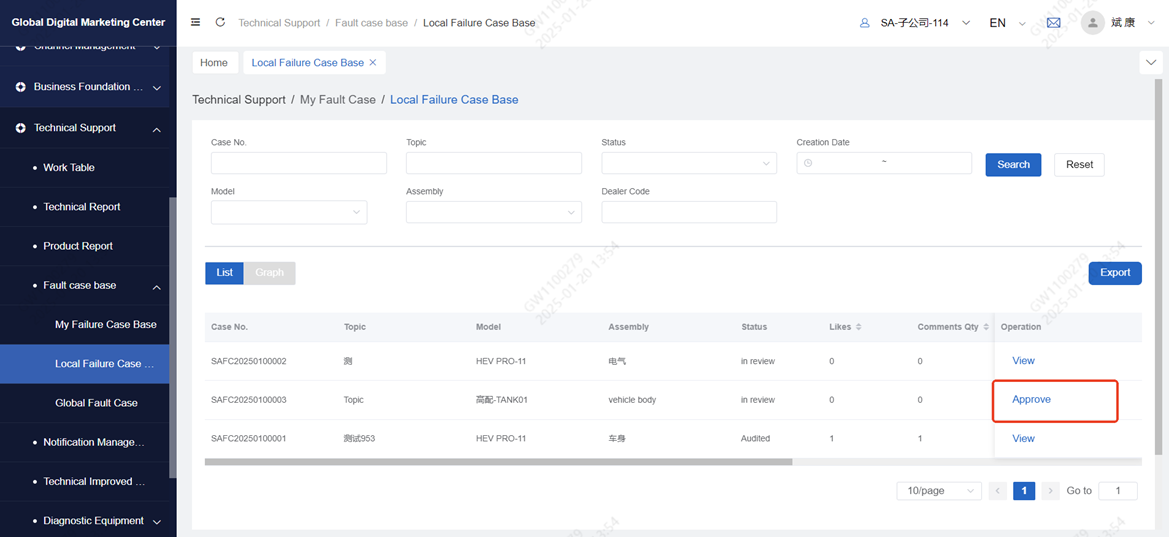
Click "approved", the subsidiary will approve it, and the case will be returned to the dealer by clicking "return"
Note: If the headquarters score is above 60, you can view the Case in Global Fault Case. If the headquarters score is below 60, you can only view the case in Local Failure Case Base
4 Notification Management
4.1 Introduction
● Receive the business notification issued by the headquarters, and can only operate the view and return receipt.
● You can create a new notice, after the director's approval, dealers can view, return receipt.
4.2 Operation
4.2.1 View Headquarters' Notifications
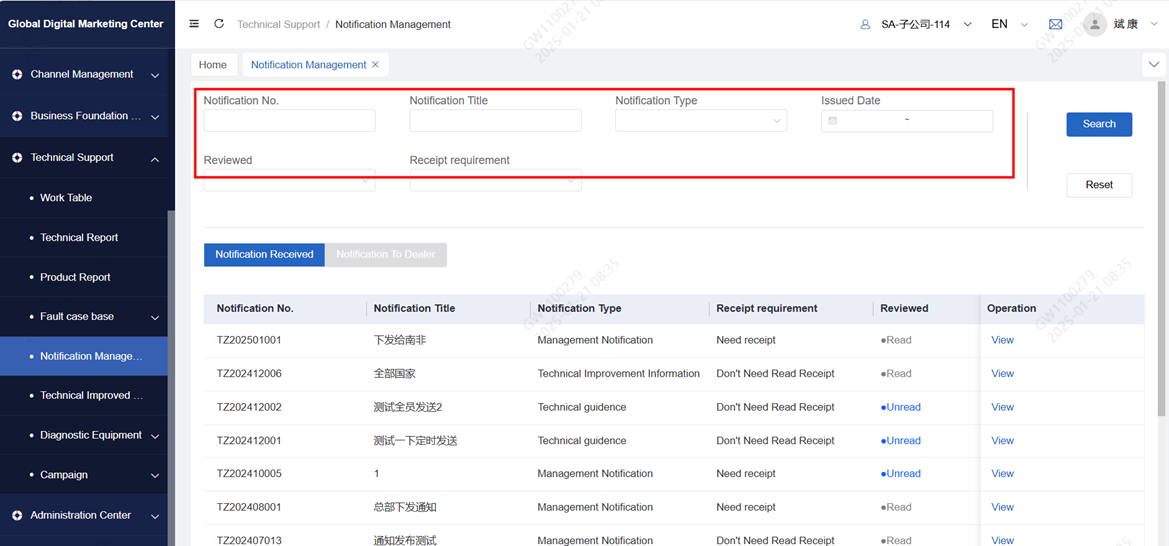
Click Notification Management to enter the service notification menu, which supports data query based on conditions
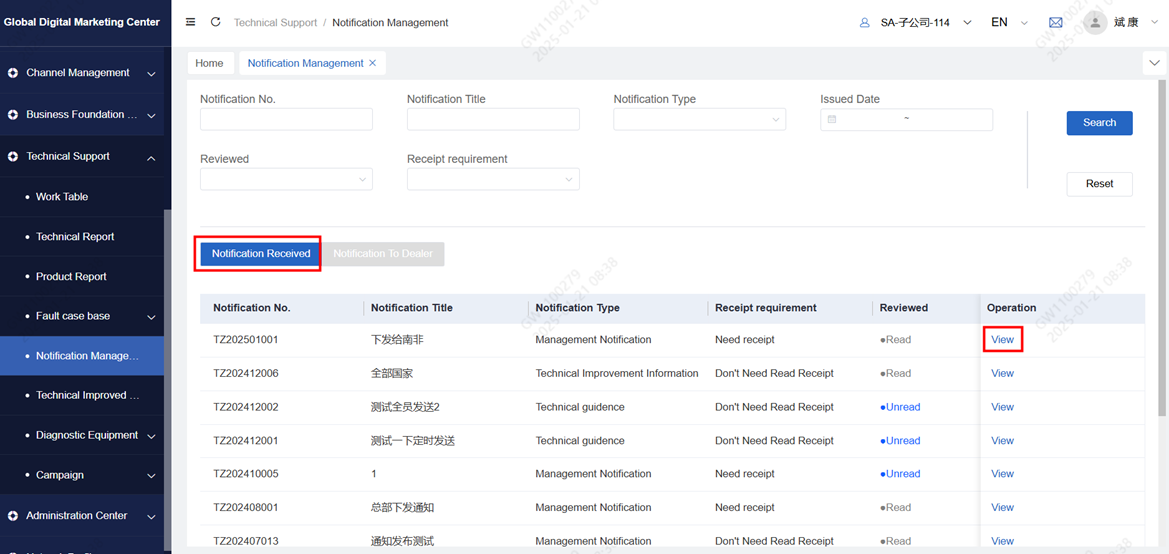
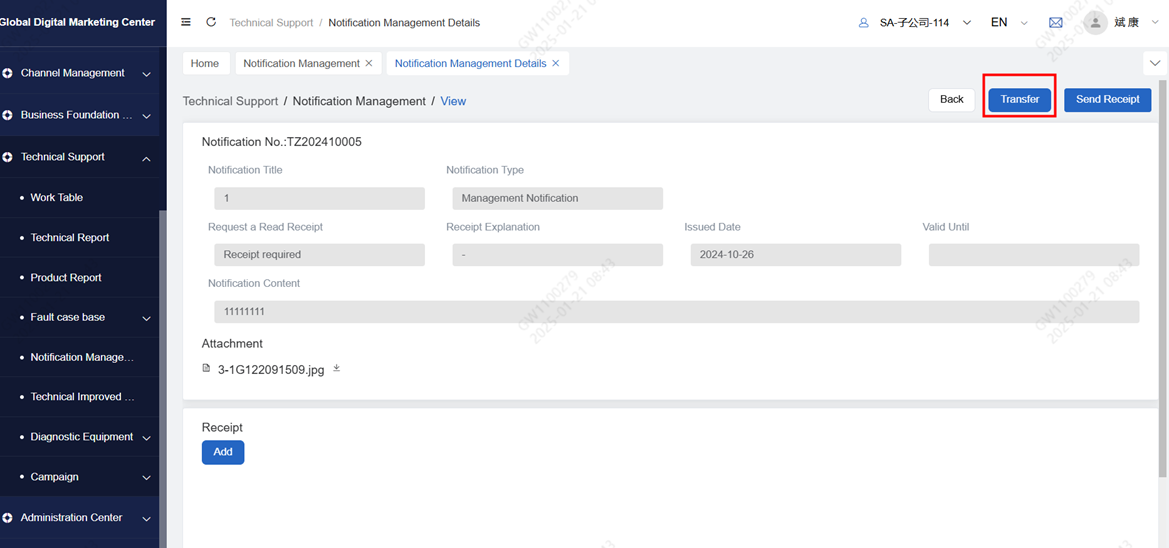
Click Notification Received to go to the list of notifications sent by the headquarters. Click view to go to the page for viewing details
If the notification from the headquarters requires a return receipt, the subsidiary needs to upload the return receipt attachment, and then click Send Request to upload the attachment
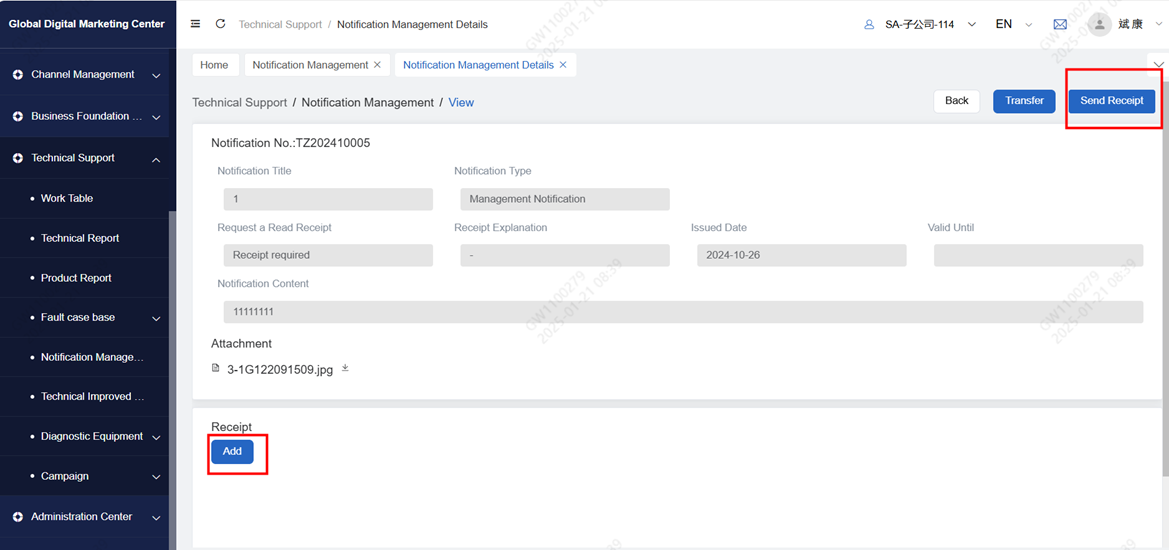
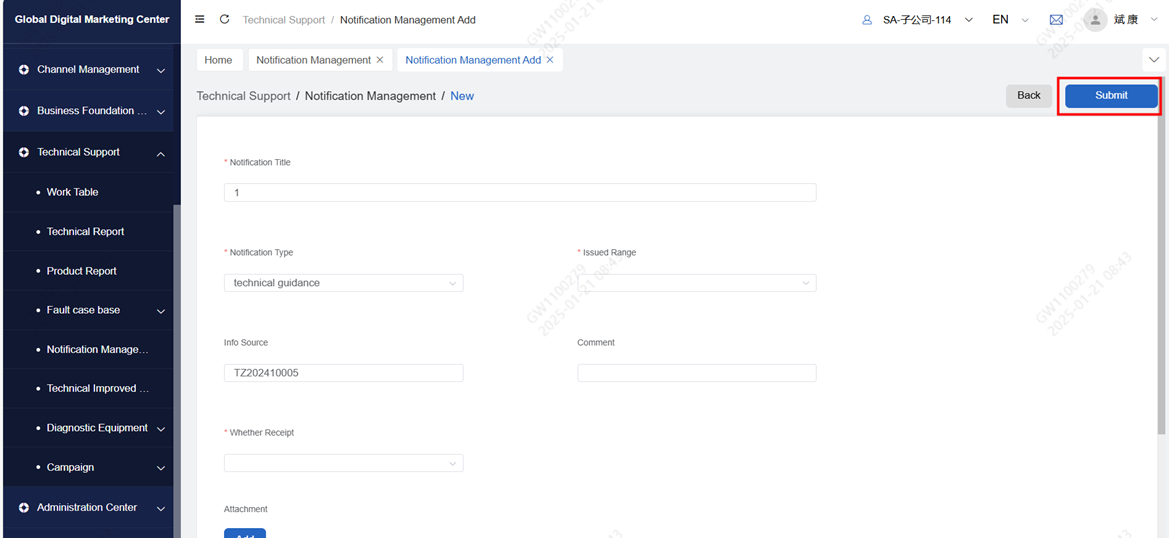
Click Transfer to jump to the new page of service notification
Fill in the basic information of the notice, upload the attachment of the notice, click submit, submit it to the director of the subsidiary for review, and the distributor will see if it passes the review
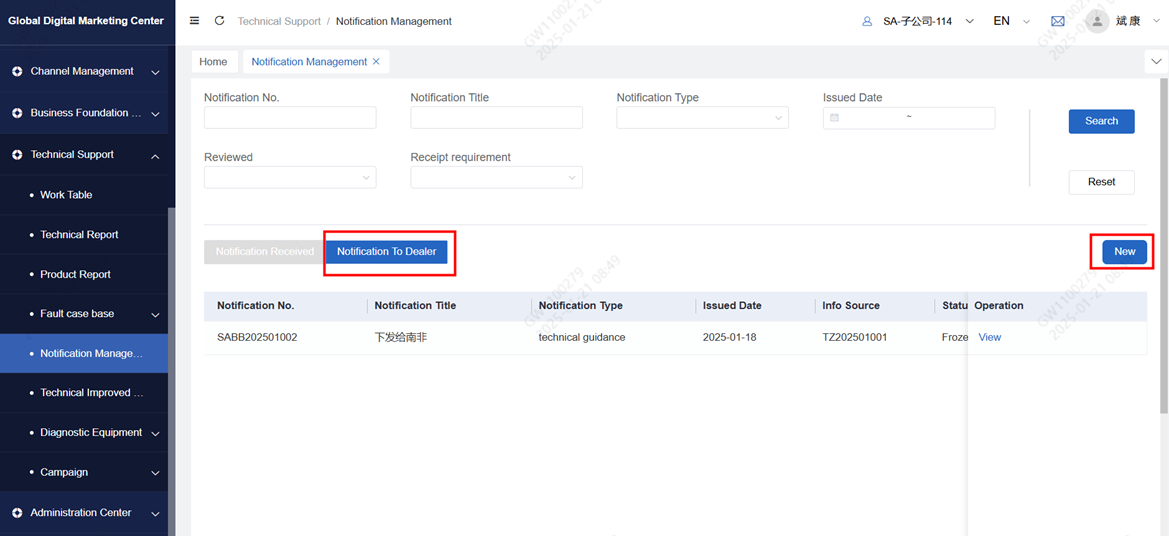
4.2.2 Issue new notice
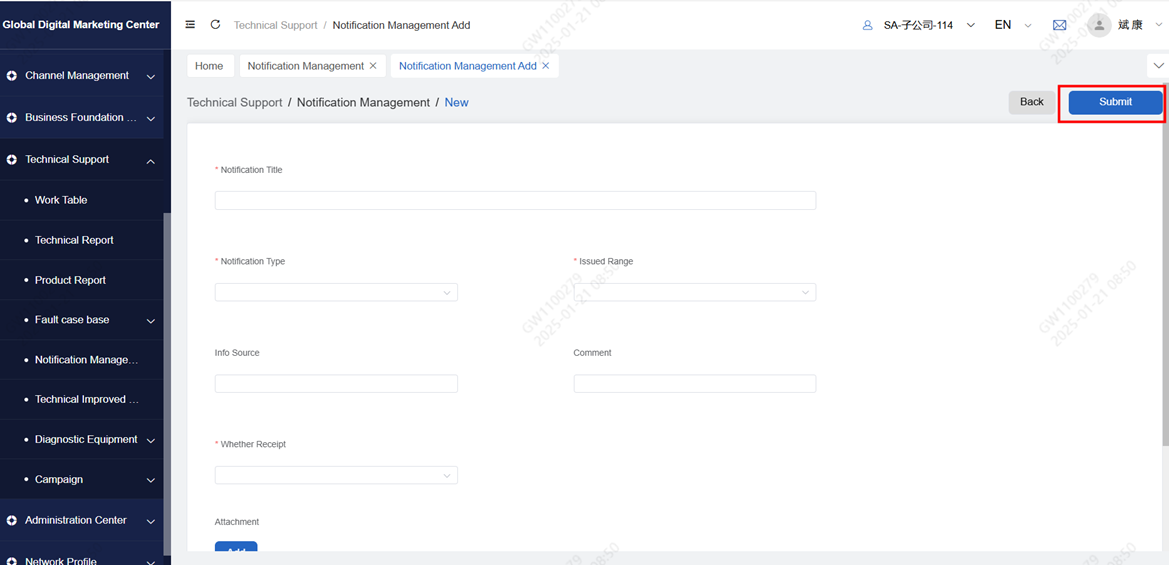
Click Notification Dealer to enter the notification list of subsidiary New business, and click New to enter the new page
Fill in the basic information of the notice, upload the attachment of the notice, click submit to the director for review, after the director of the subsidiary completes the review, the dealer can see the business notice
5 Technical Improvement Info
5.1 Introduction
● Receive the technical improvement information issued by the headquarters, and can only be operated and viewed.
● Can create new technical improvement information, after approval by the director, dealers can view.
5.2 Operation
5.2.1 View Headquarters improvement information
Click Receive informmation to enter the receiving technical change information list
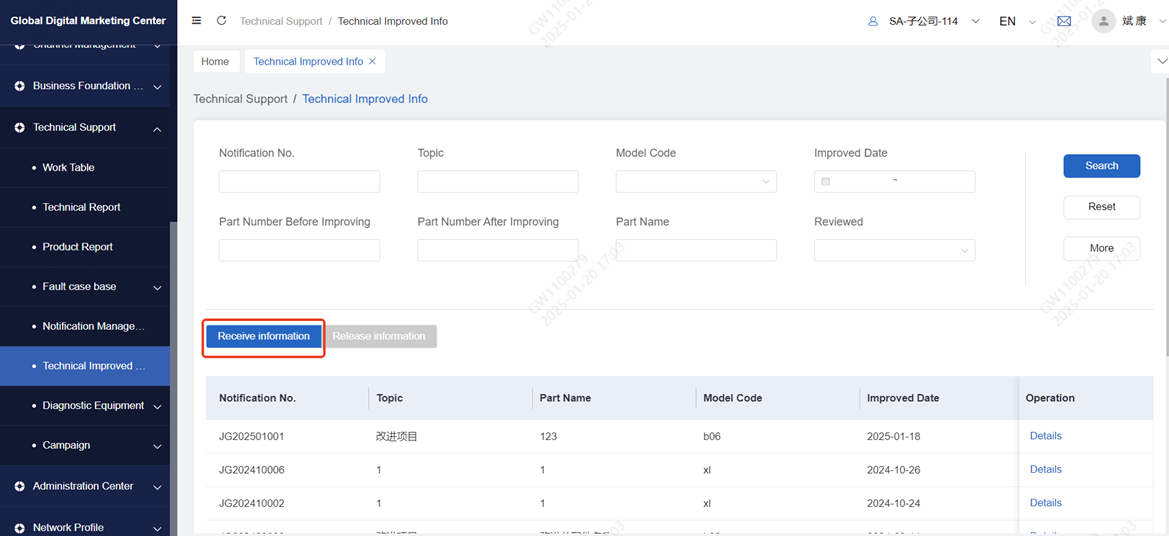
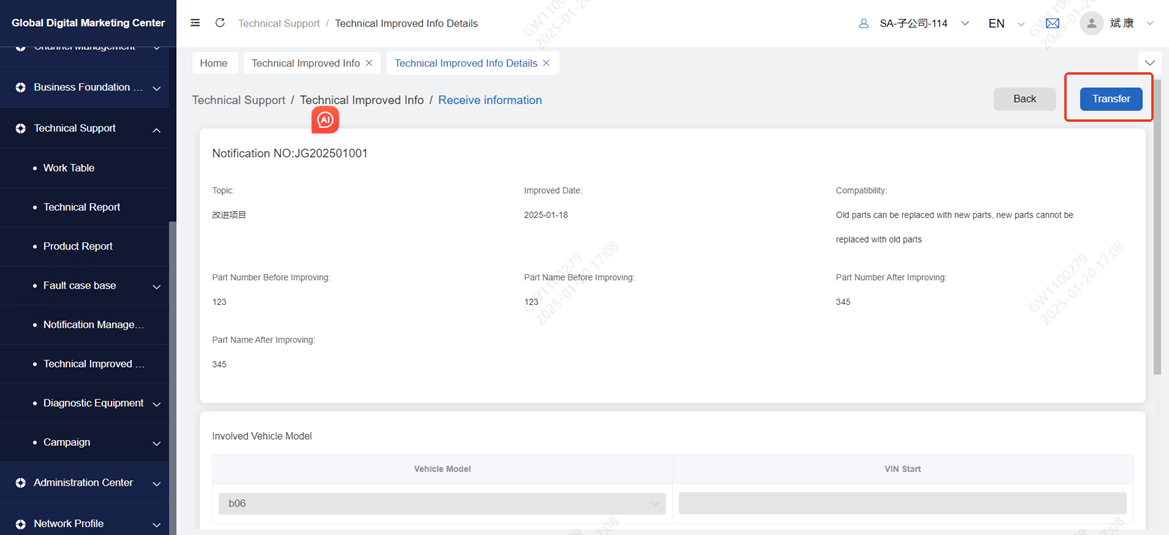
Click details to enter the view page, click Transfer, enter the new page of technical transformation information, detailed operations see subsidiary new technical transformation information
5.2.2 Issue technical improve information
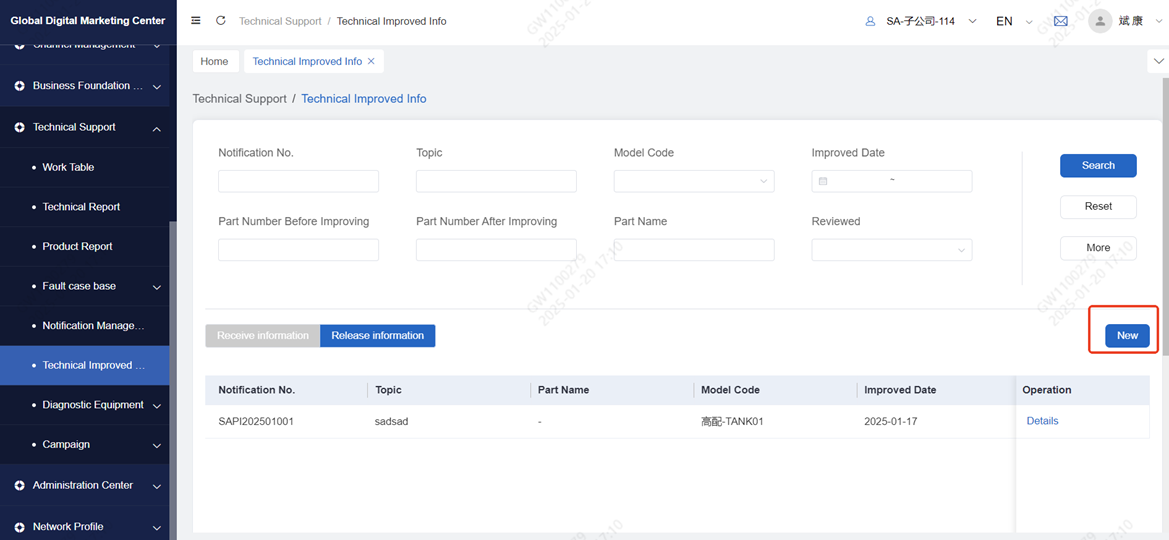
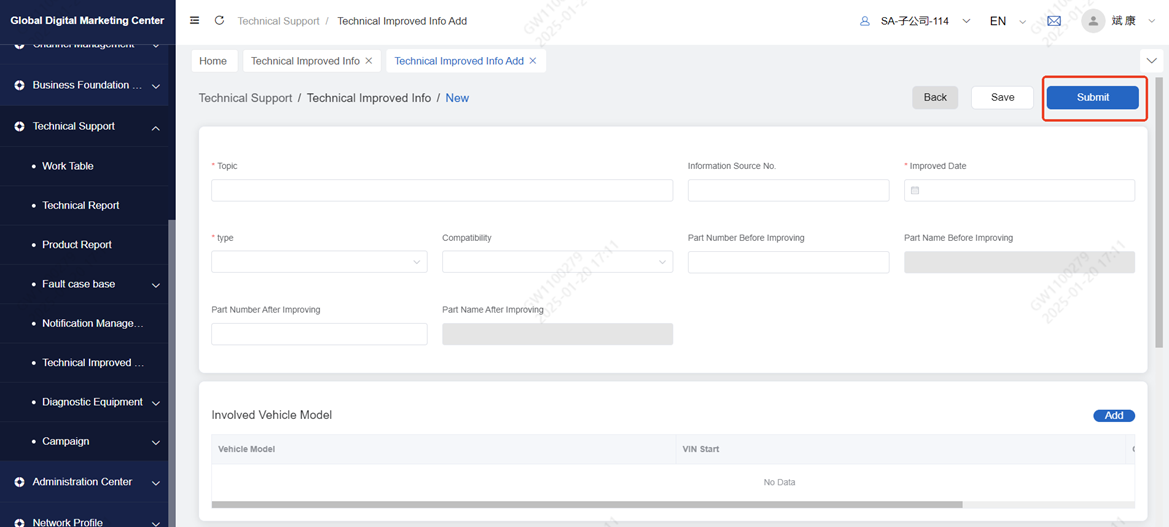
Click release information and click new to enter the new page
When filling out the technical improvement information form, you can select the sending range and check dealer. After the subsidiary director's review, all GDMC account holders who have the role of technical support dealer can see the corresponding business notification information
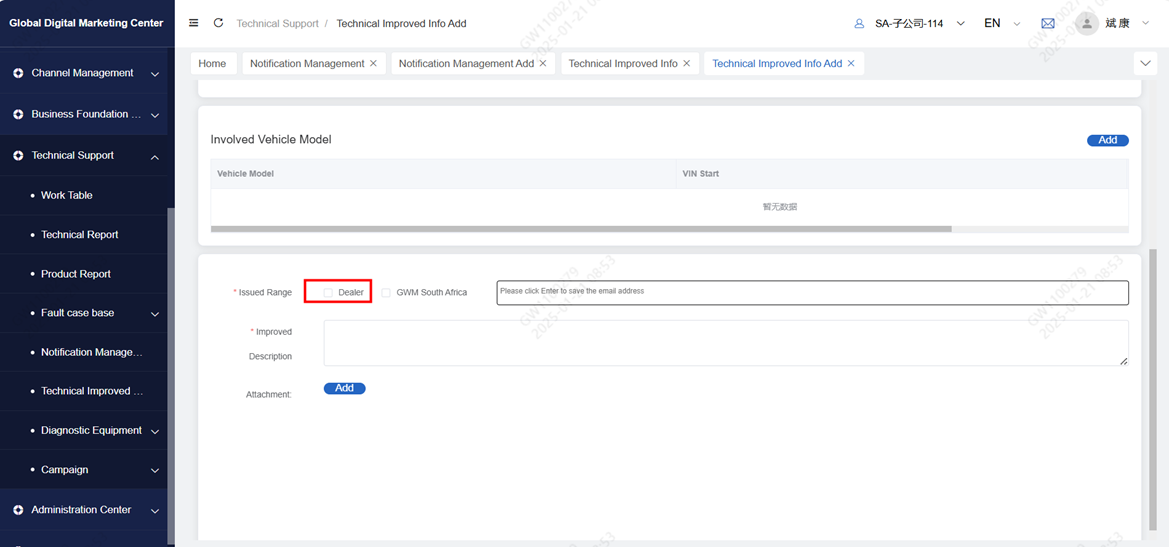
Only tick GWM South Africa and fill in the specific mailbox (you need to click enter once to fill in an mailbox to enter the next mailbox) After the subsidiary director's review, the corresponding mailbox will receive the mail
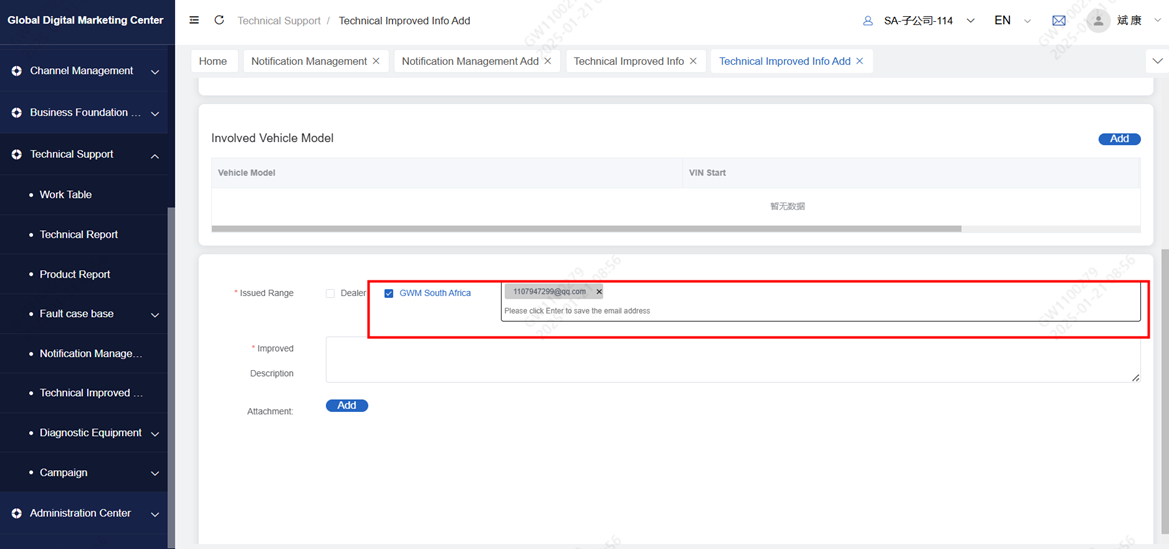
Note: You can check "dealer" and "GWM South Africa" at the same time, the result is that the account and mailbox in the GDMC system can receive the notification
● After filling in the form of technical improvement information, click submit, which will be reviewed by the director of the subsidiary. After the review, the dealer can view the technical improvement information issued by the subsidiary
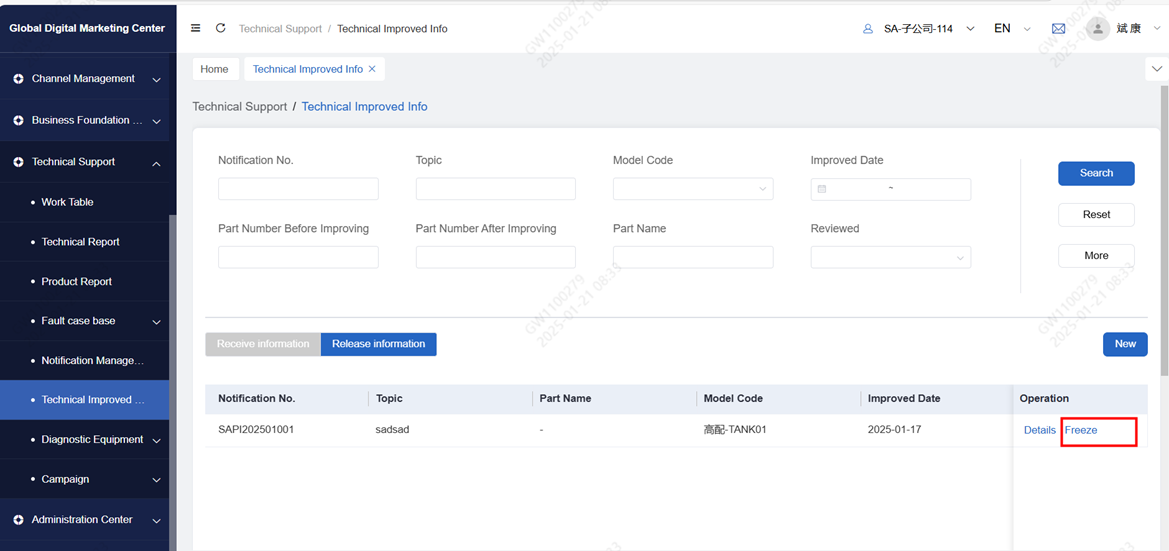
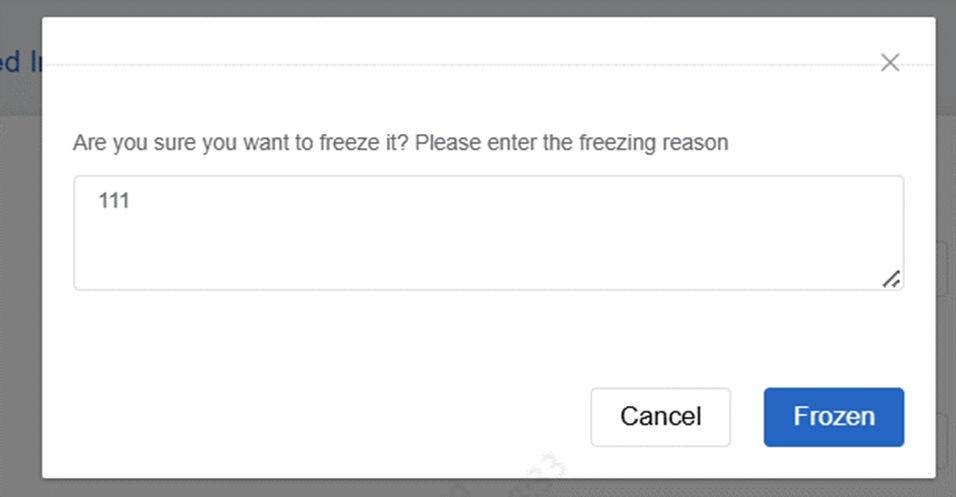
Click Release informmation to enter the data list issued by the technician of the subsidiary company, query the technical reform information that needs to be stopped according to business requirements, click Freeze, and enter the freezing reason
Click Frozen and submit it to the director of the subsidiary for review. After the review, the dealer cannot see the corresponding technical modification information, and click cancel to cancel the freeze
6 Diagnostic Equipment
6.1 Introduction
● It is divided into three menus: diagnostic equipment data, diagnostic equipment upgrade list and diagnostic equipment exception list.
● Diagnostic device data: ① After purchasing the diagnostic device, submit the diagnostic device data to the headquarters, the headquarters opens the diagnostic device software account, and returns the account and password to the service station number and service number password. ② The diagnostic equipment data submitted by the dealer will be reviewed by the subsidiary and automatically transmitted to IDMS after approval.
● Diagnostic equipment upgrade order: ① After the right to use the diagnostic instrument software expires, you need to submit an application for software upgrade. After the subsidiary submits it, it arrives at the headquarters, the headquarters issues CI, and the subsidiary receives and checks the CI. After the device is successfully upgraded, the upgrade status is changed to upgrade completed. ② Handle the diagnostic equipment upgrade order submitted by the dealer, pass it to the headquarters after approval, and issue CI to the dealer.
● Diagnostic equipment abnormal list: ① If there is an anomaly during the use of the diagnostic instrument, submit the diagnostic equipment abnormal list to the headquarters, and the headquarters will provide solutions through communication. ② Handle the abnormal diagnosis equipment list submitted by the dealer, and provide solutions through communication. Click Finish after processing.
6.2 Operation
6.2.1 Equipment Database
6.2.1.1 Subsidary submit information
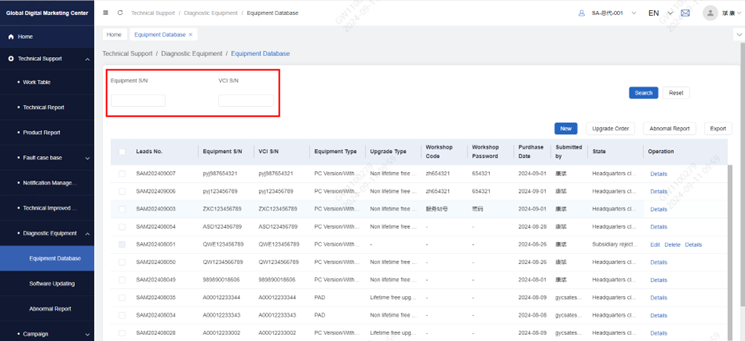
Click Equipment Database to query data according to conditions and support data export.
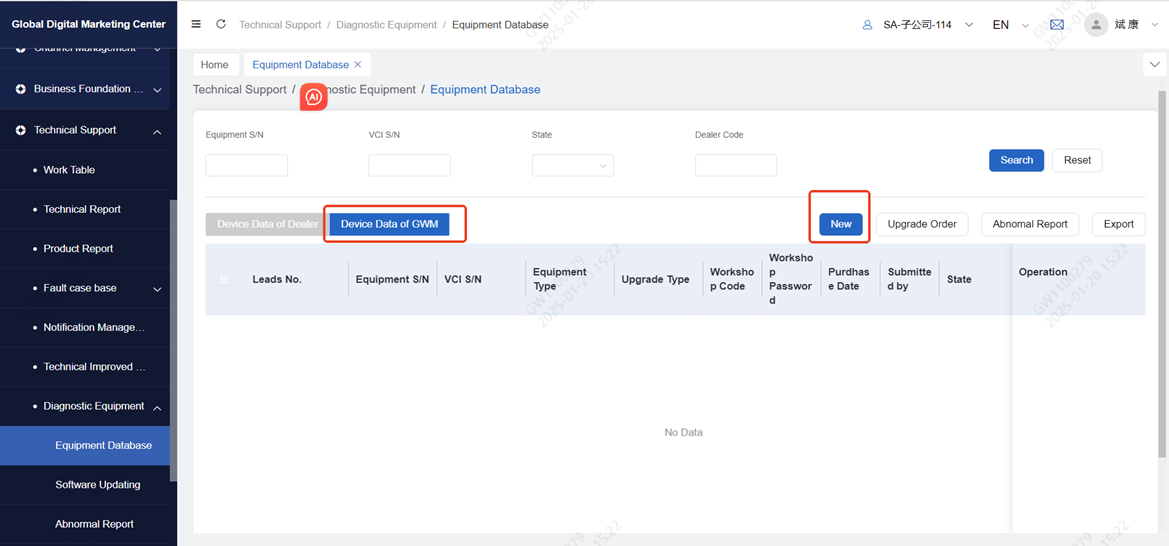
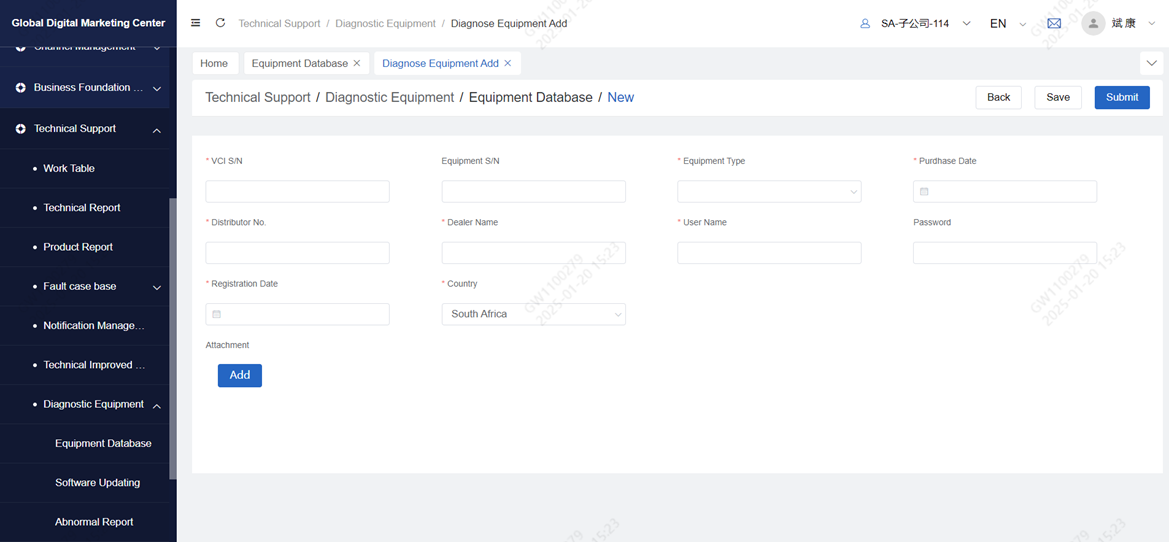
Click new to enter the new page, fill in the basic information of the device and click Submit. After submission, it will arrive at the headquarters for review.
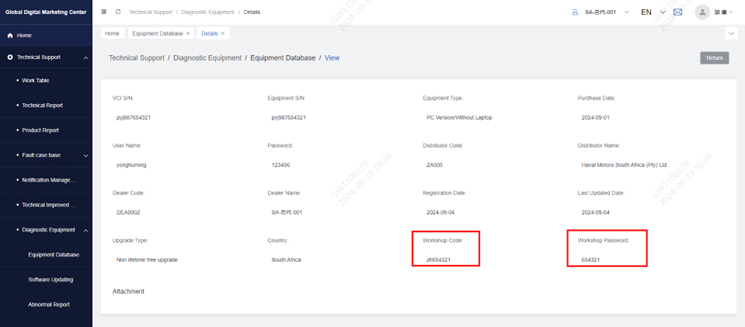
After the headquarters completes the review, return the service station number and service station password, and the subsidiary can log in to the software according to the account.
6.2.1.2 To review
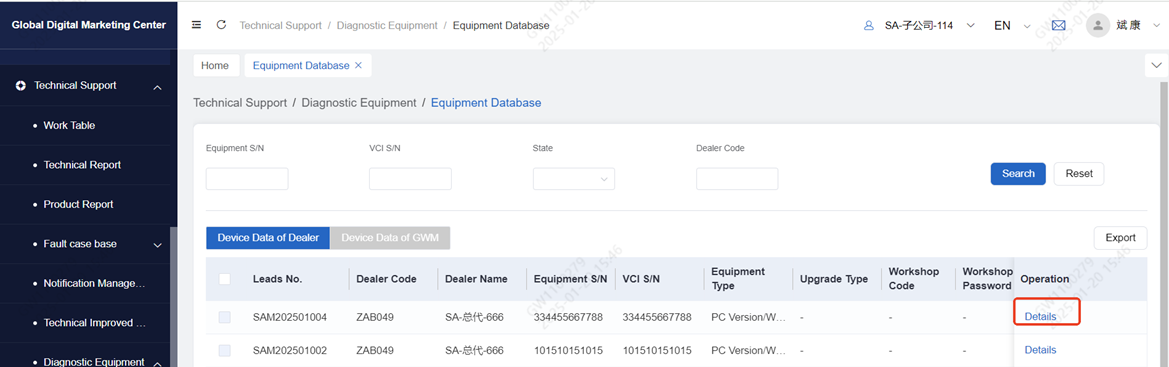
Click Equipment Database to find the diagnostic equipment data to be audited, and click details to enter the approval page
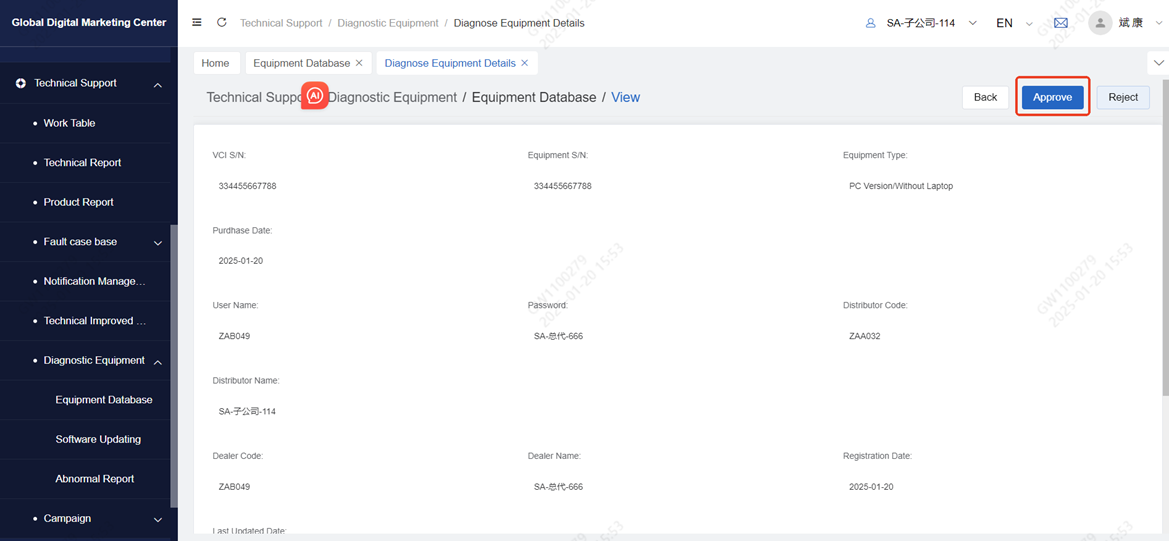
Click approve to get to the headquarters
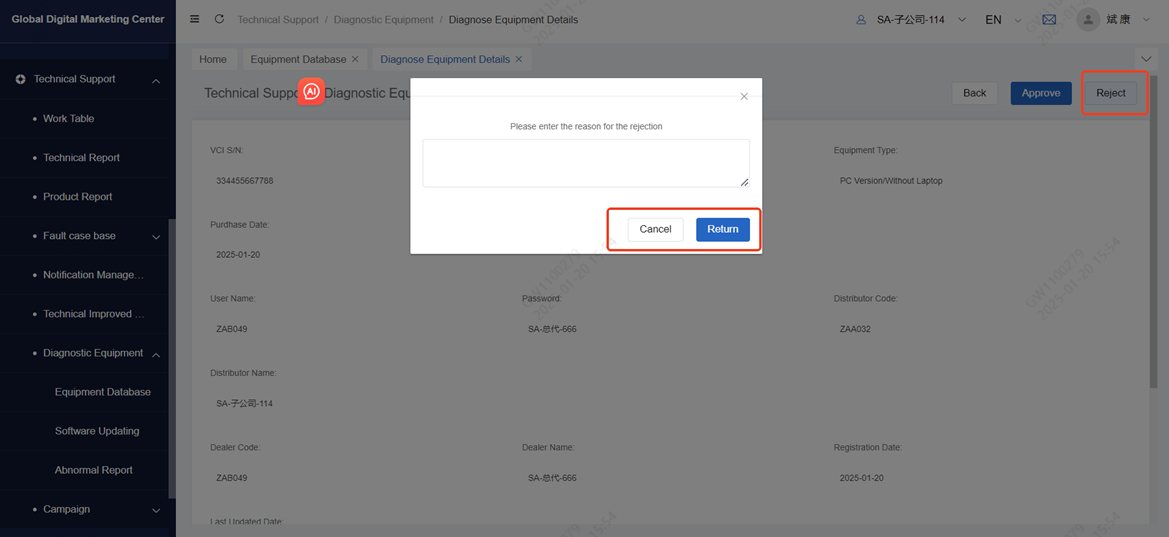
Click reject, fill in the reason for return, and click Return to return to the dealer
6.2.2 Soteware Updating
6.2.2.1 Submit upgrade order
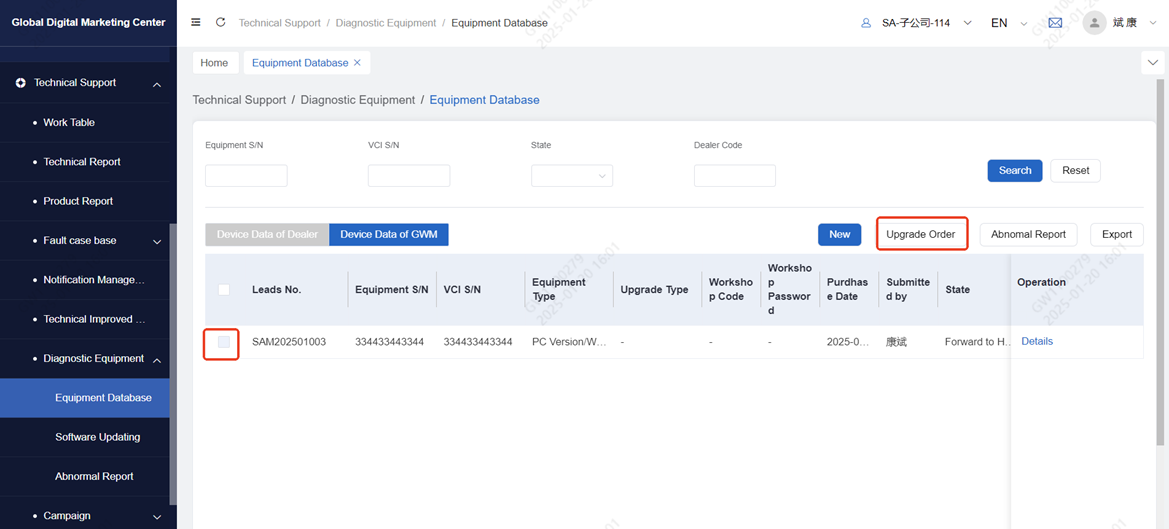
The completed equipment can generate an upgrade order. Select the equipment that needs to be upgraded, click Upgrade order button to enter the upgrade order page, check whether the information is filled in correctly, click Submit, and the headquarters will review.
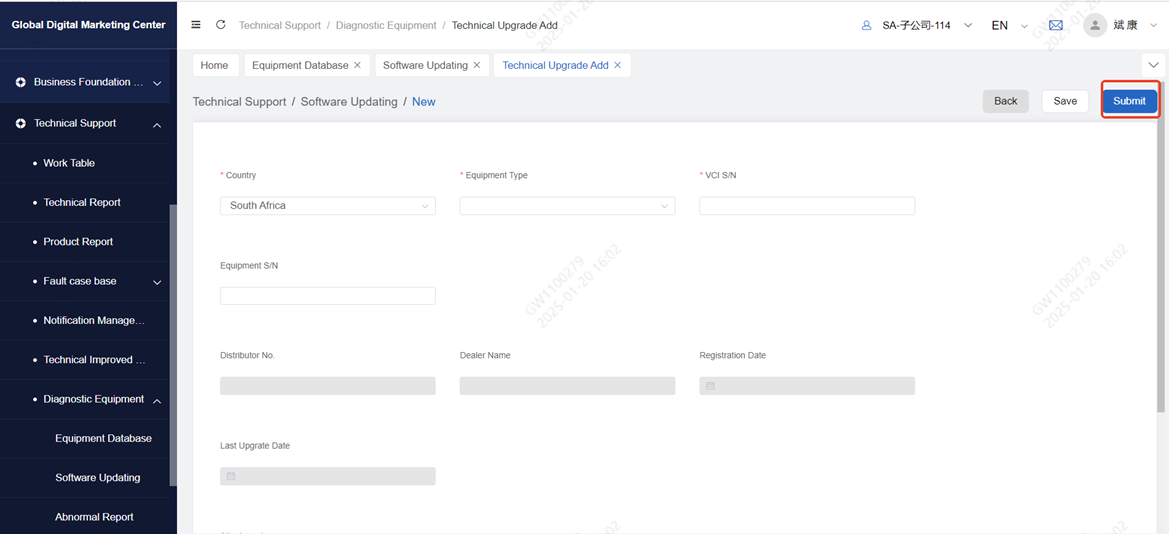
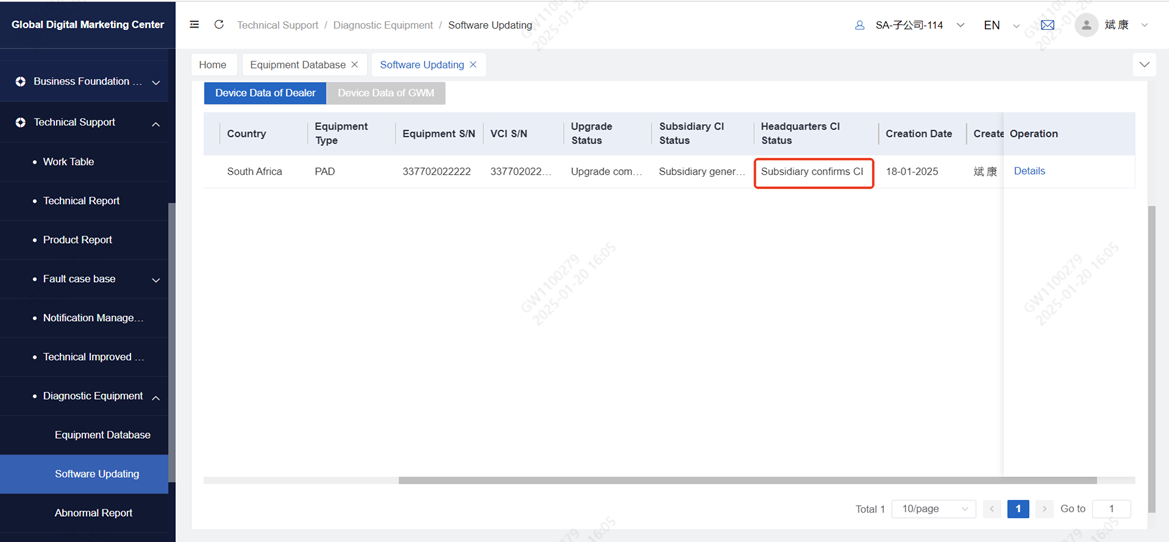
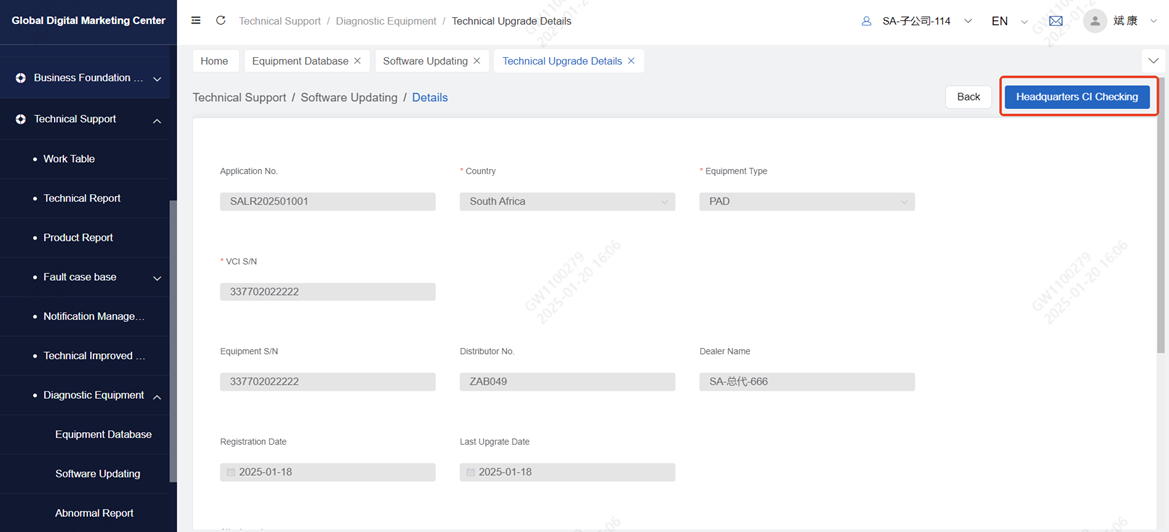
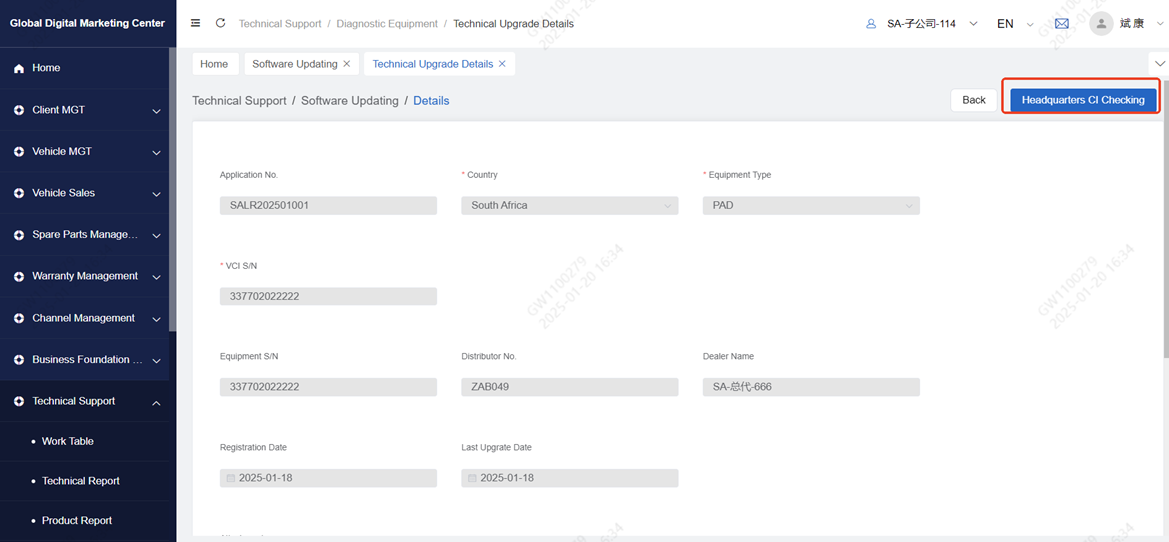
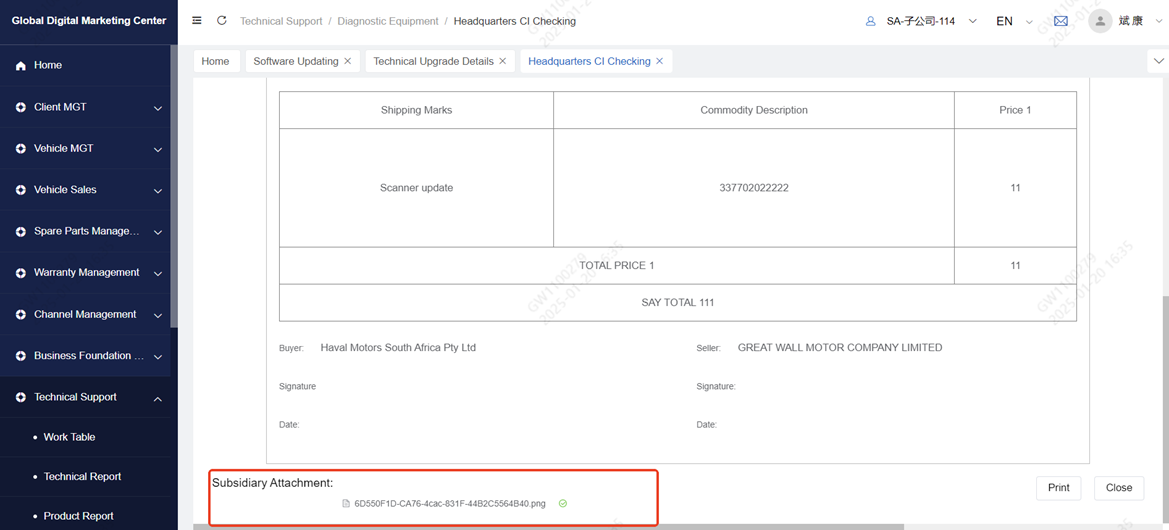
The headquarters will generate CI for the subsidiary after the review, and the subsidiary can click Headquarters CI Checking to view CI
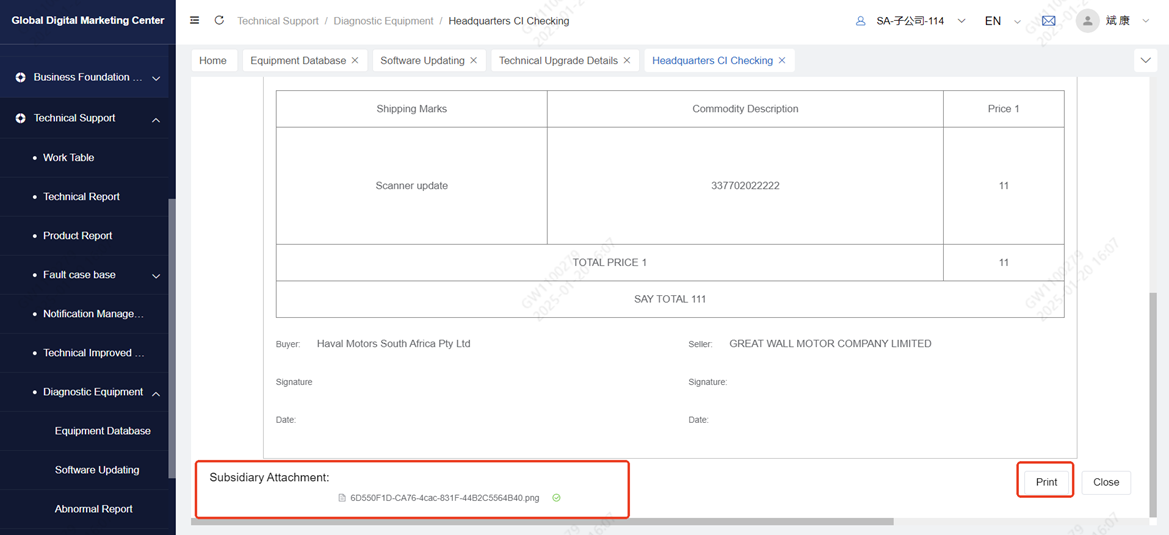
Click the Print button, sign offline after printing, and upload CI
Note: There are two entrances to the upgrade list. ① Select the registered device from the diagnostic device data list page and click upgrade order . ② Click the Software Updating menu and click the new button to enter the new page.
6.2.2.2 Handle upgrade order
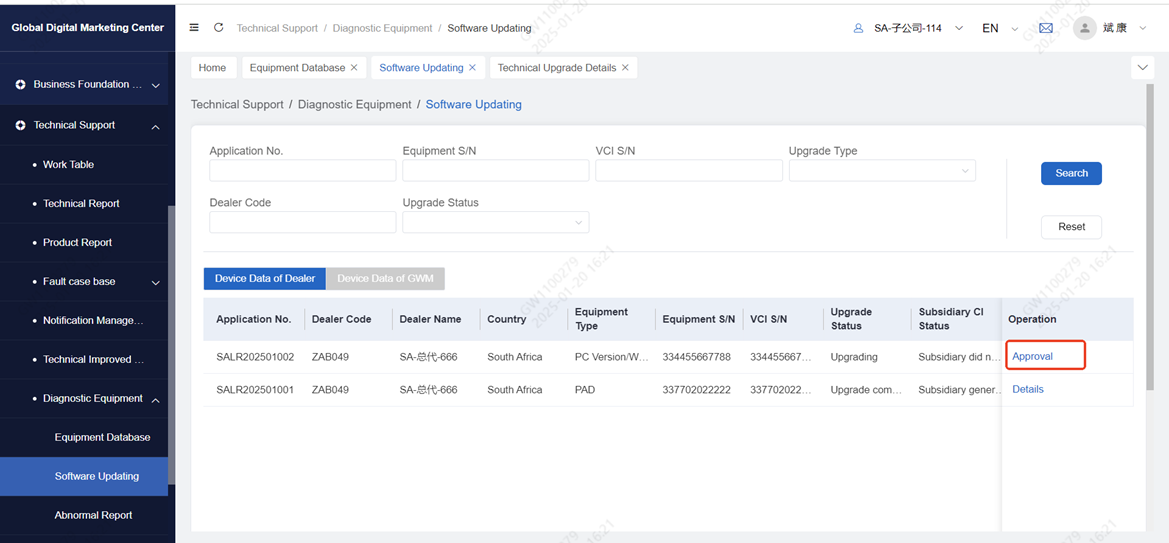
Click Software Updating to go to the updating page
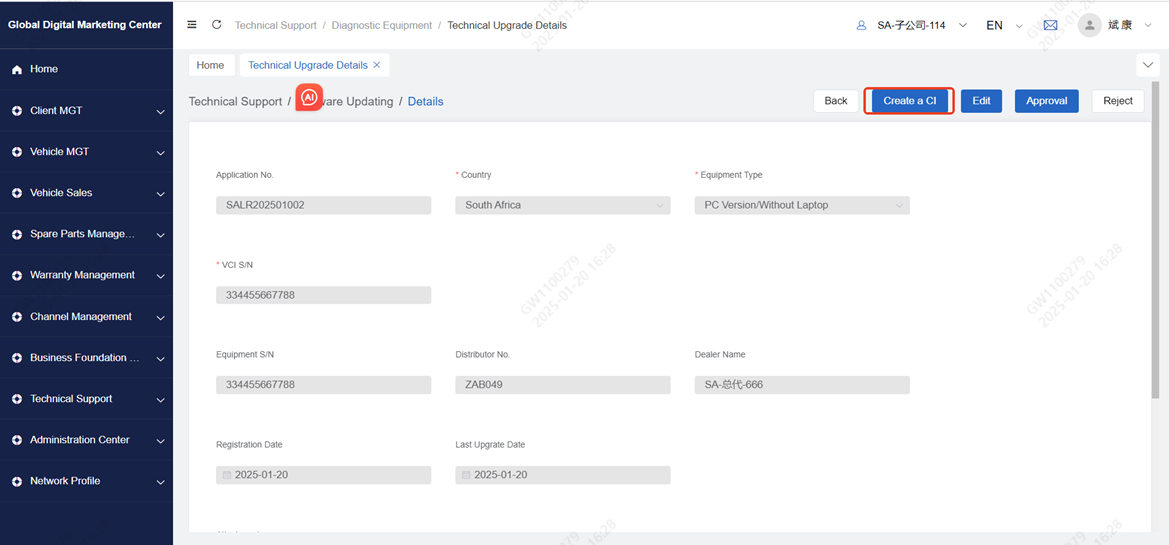
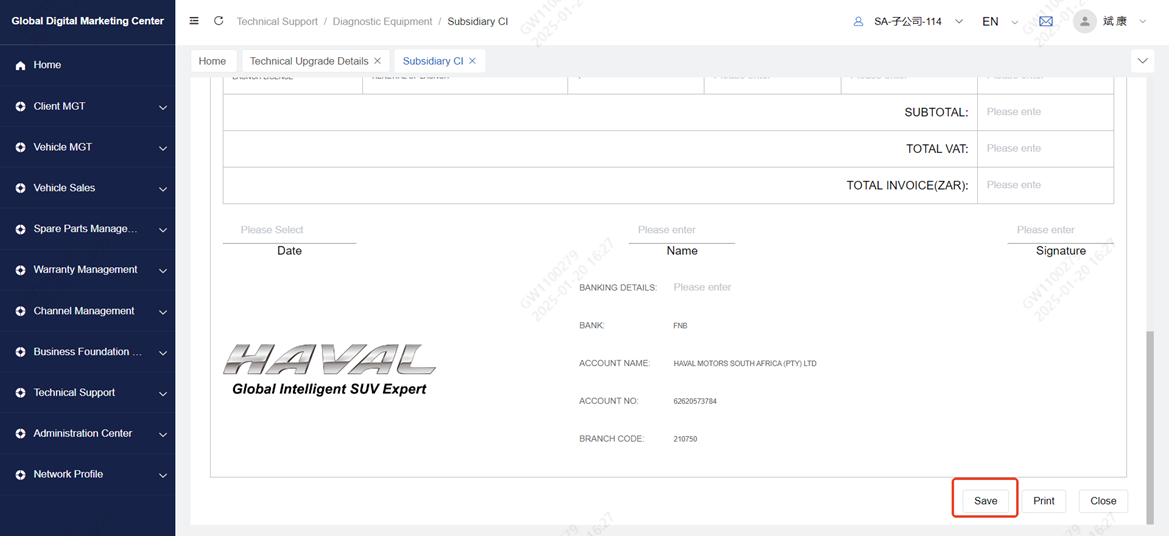
Click create a ci, enter the ci editing page, fill in the invoice information and click Save, dealers can view the CI
Note: The device type is free for lifetime upgrade and does not need to generate CI
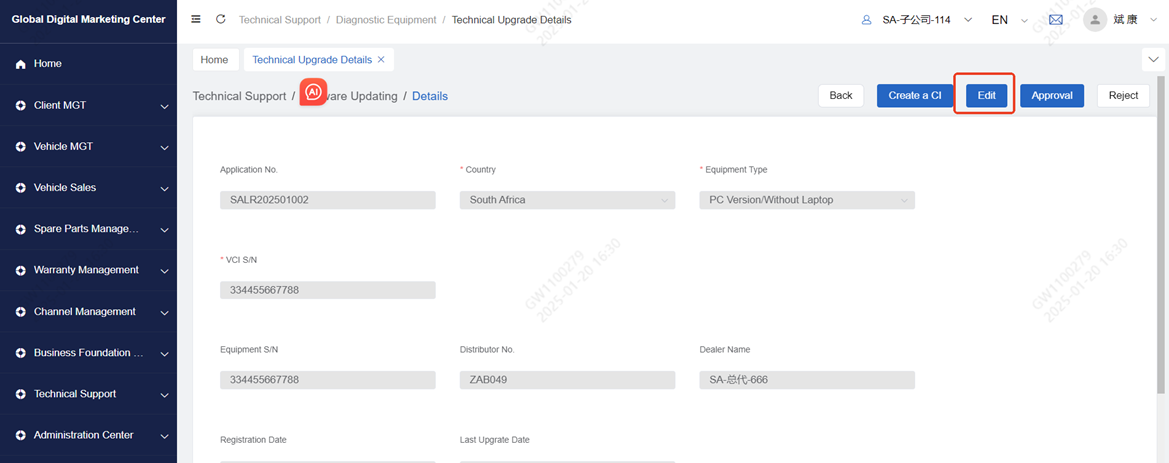
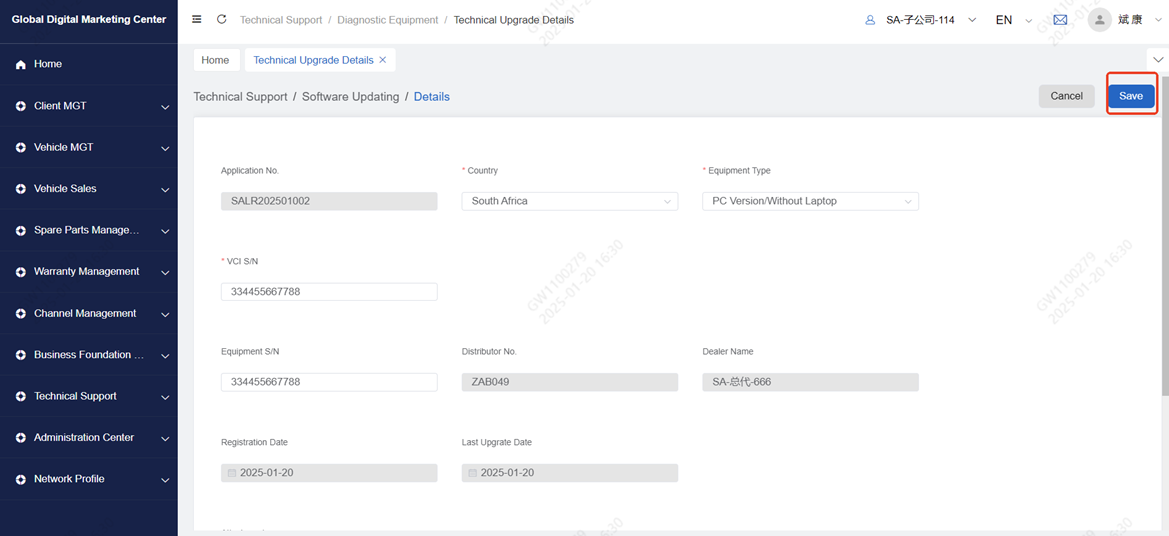
Click edit to edit all the information on the page. After editing, click Save
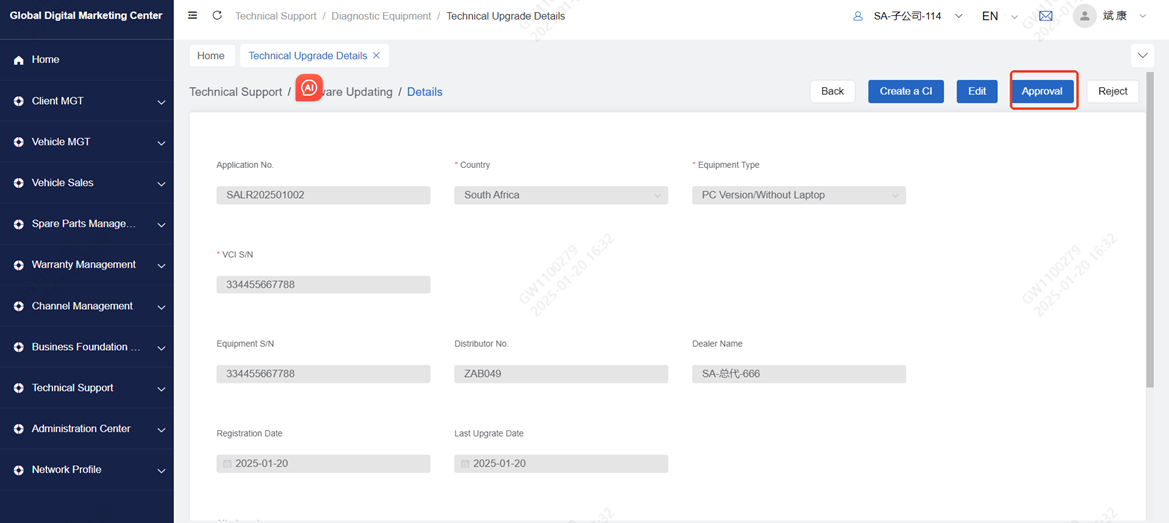
● Click approval, the subsidiary will pass the review and arrive at the headquarters for review
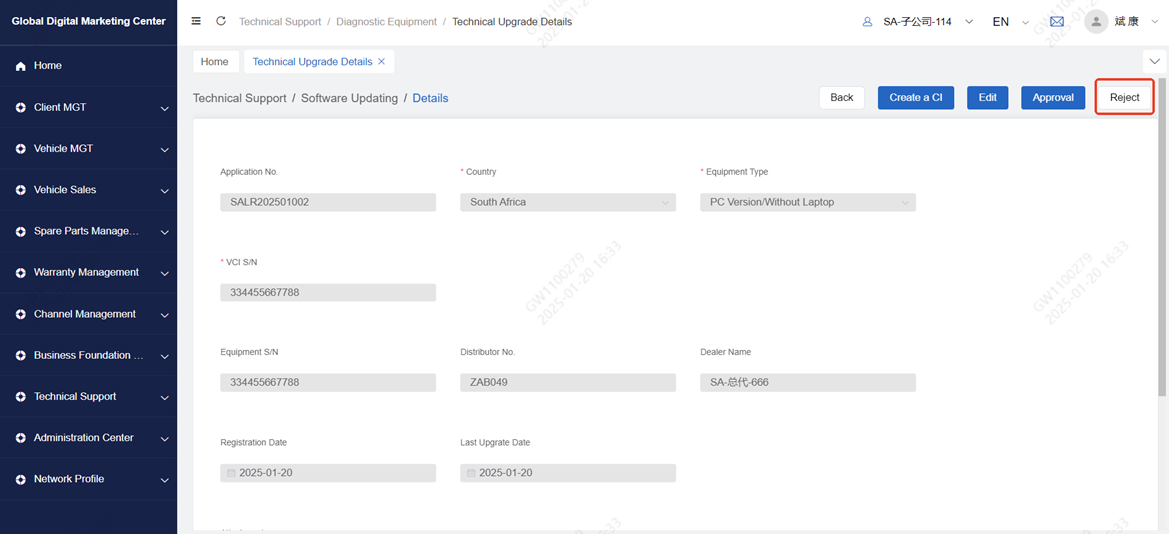
● Click reject to return to the dealer
The headquarters will generate CI for the subsidiary after approval, and the subsidiary technicians can check the CI
The subsidiary technician prints the CI, signs it offline, and uploads the signed CI
6.2.3 Abnormal Report
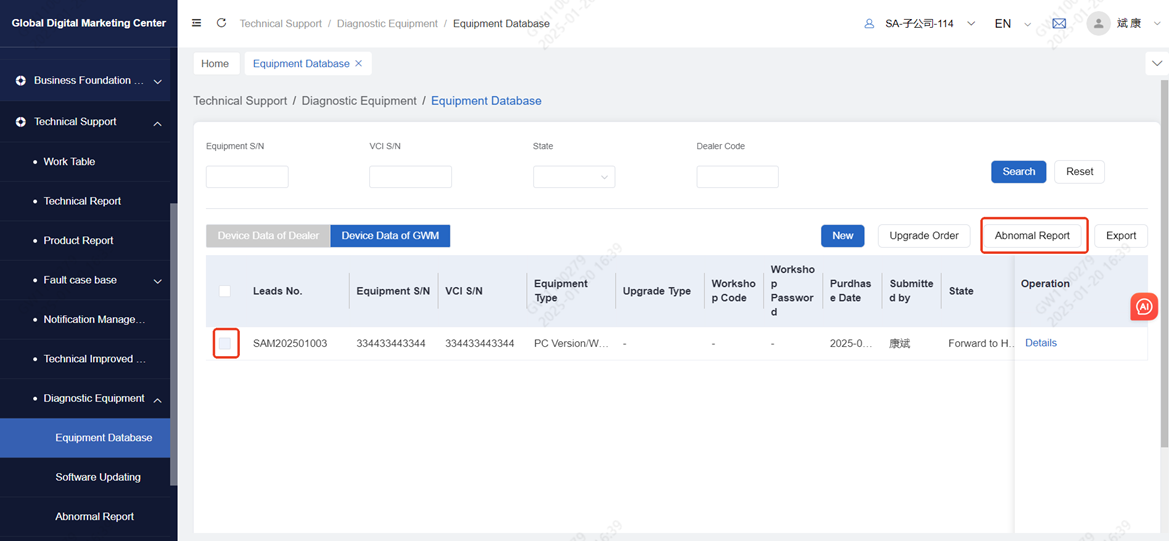
Note: There are two entrances to the exception list. ① Select the registered device from the diagnostic device data list page and click Abnormal Report . ② Click the Abnormal Report menu and click the new button to enter the new page.
6.2.3.1 Submit exception order
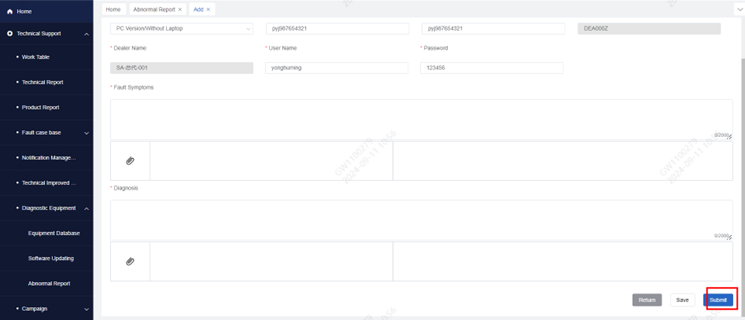
Select the registered device and click Abnormal Report to enter the new page of the exception list, check the basic information of the device, fill in the abnormal description, and click Submit to reach the subsidiary for processing
Click view to enter the details page, edit the communication content and click Send
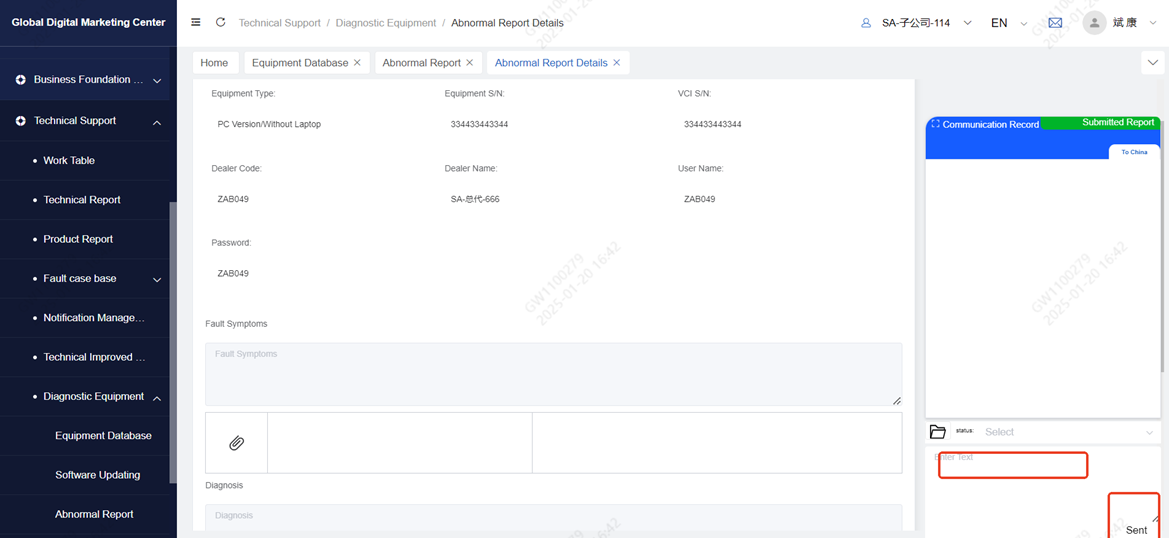
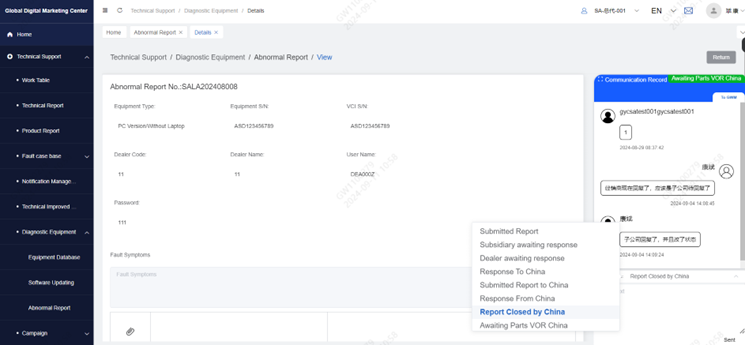
After the abnormal order is processed, the subsidiary side can conclude the problem, and the dealer can also trigger the conclusion through the communication status and select Report Closed by China
6.2.3.2 To handle abnormal orders
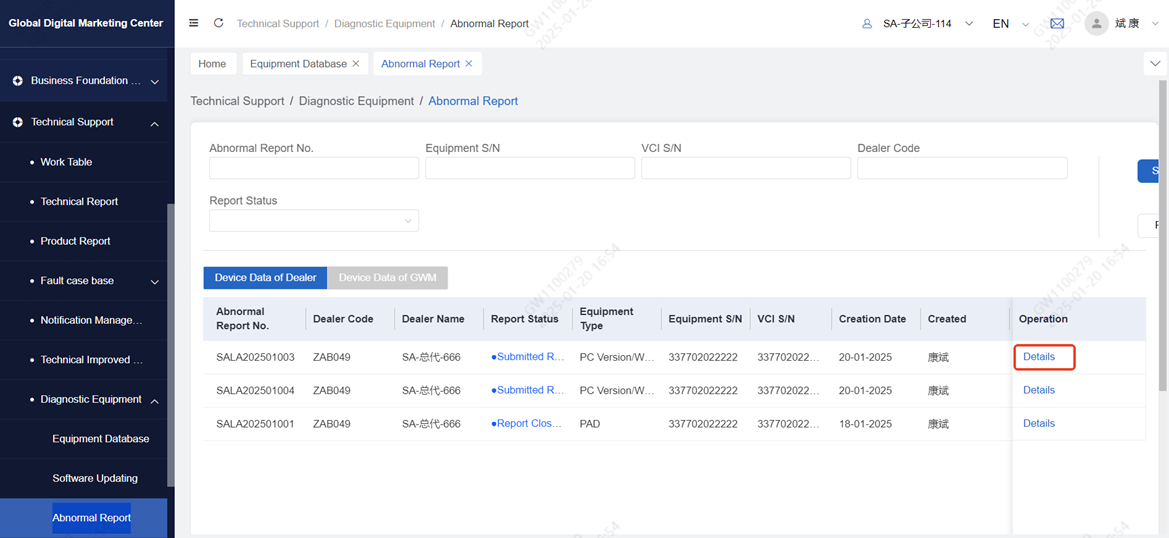
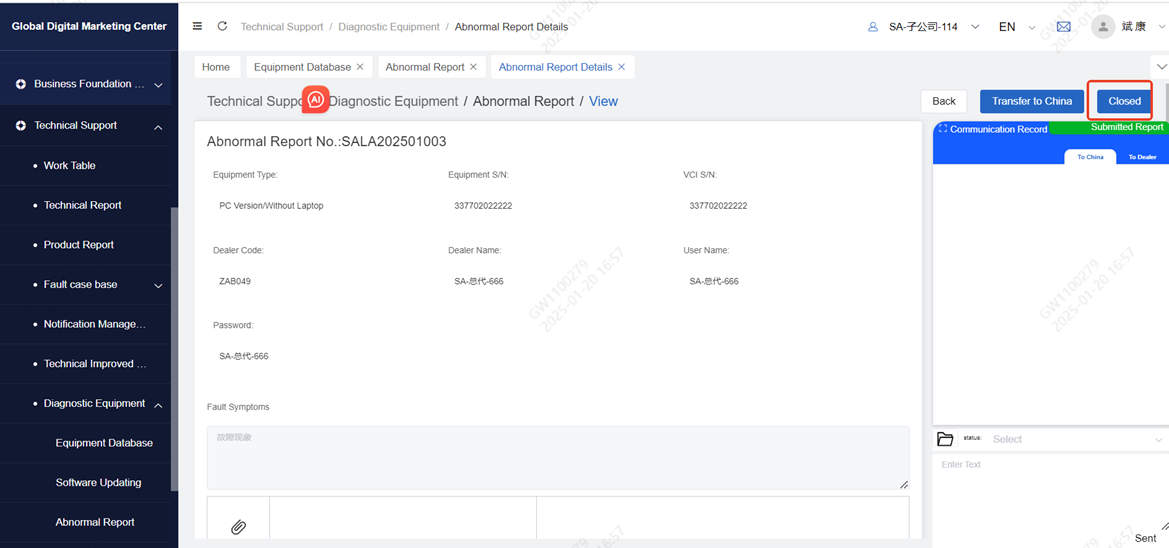
Click on Abnormal Report and click details to enter the approval page
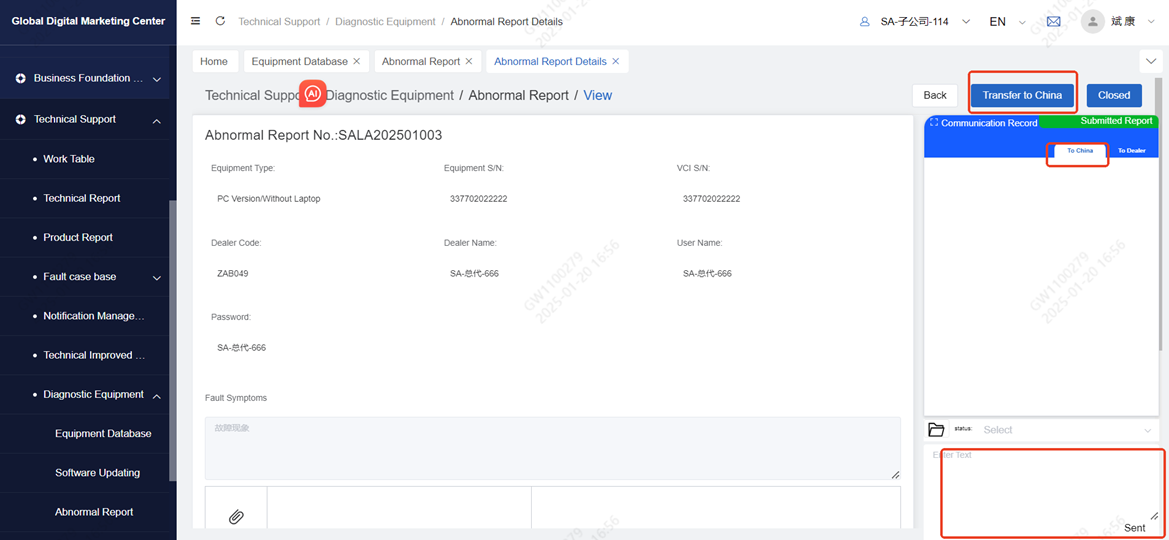
Click Transfer, forward to the headquarters, the headquarters can reply through communication, subsidiaries click to china to view
Click to dealer, the document is closed, can not continue to communicate.
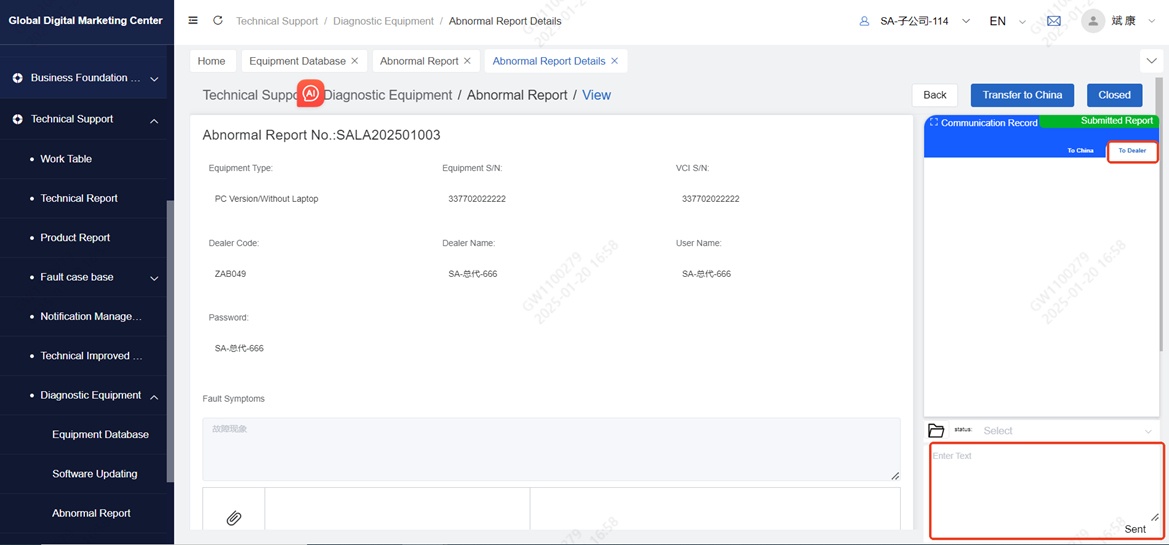
● Click closed, the document is closed and communication cannot continue.
7 Campaign
7.1 Introduction
● Divided into activity, recall, service activity, report four menus.
● Activities: Receive activities issued by the headquarters.
● Recall: Create a new recall activity and send it to the dealer after approval by the director. The dealer can view the recall.
● Service activities: Create new service activities and send them to dealers after approval by the director. Dealers can view the service activities.
7.2 Operation
Click Campaign and you can see four menus: Recall, Service Campaign, Campaign List and Data Report List
7.2.1 Campaign list
Click the Campaign List menu to enter the activity list of the receiving headquarters, and you can query relevant data through the query conditions
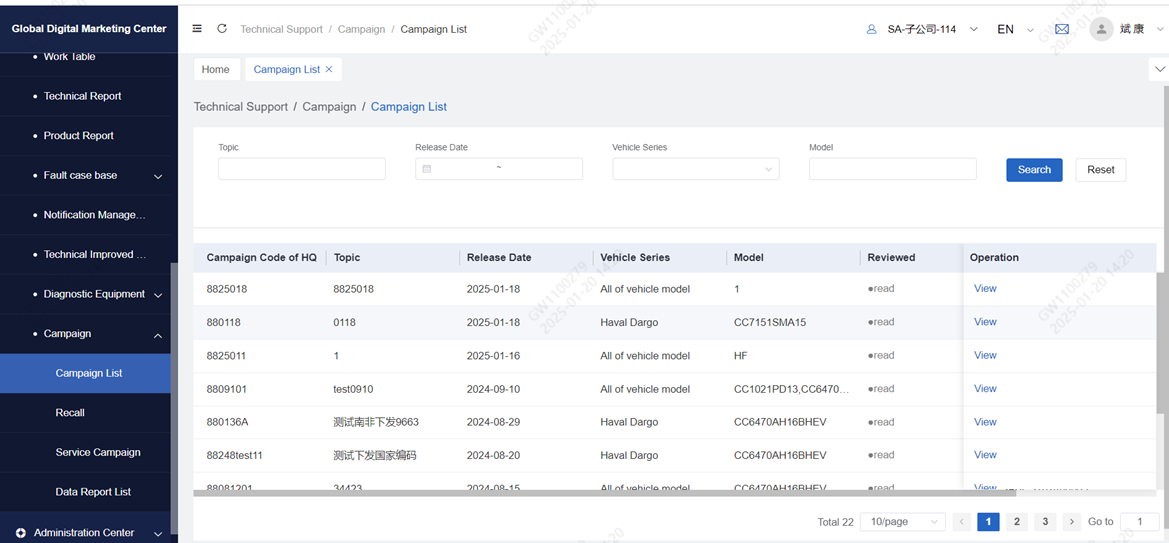
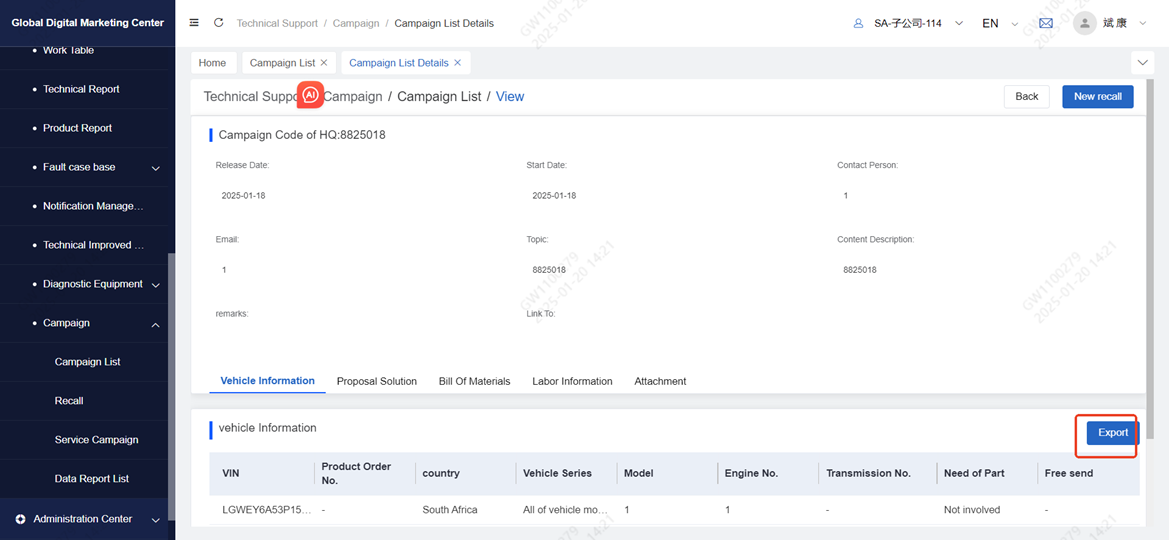
Click view to enter the details page, view the activity details, click export to export the vehicle information
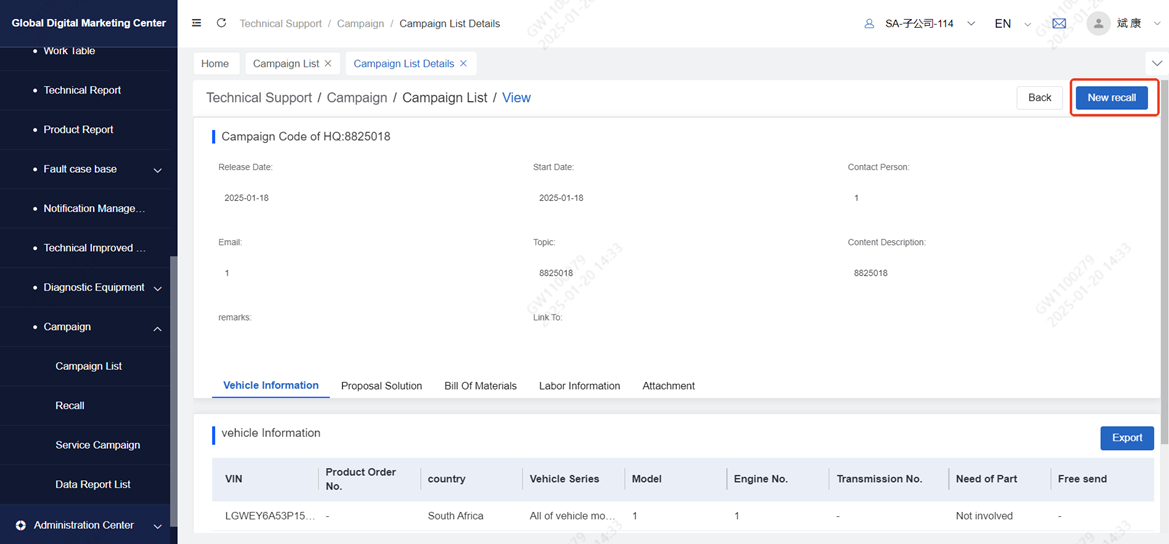
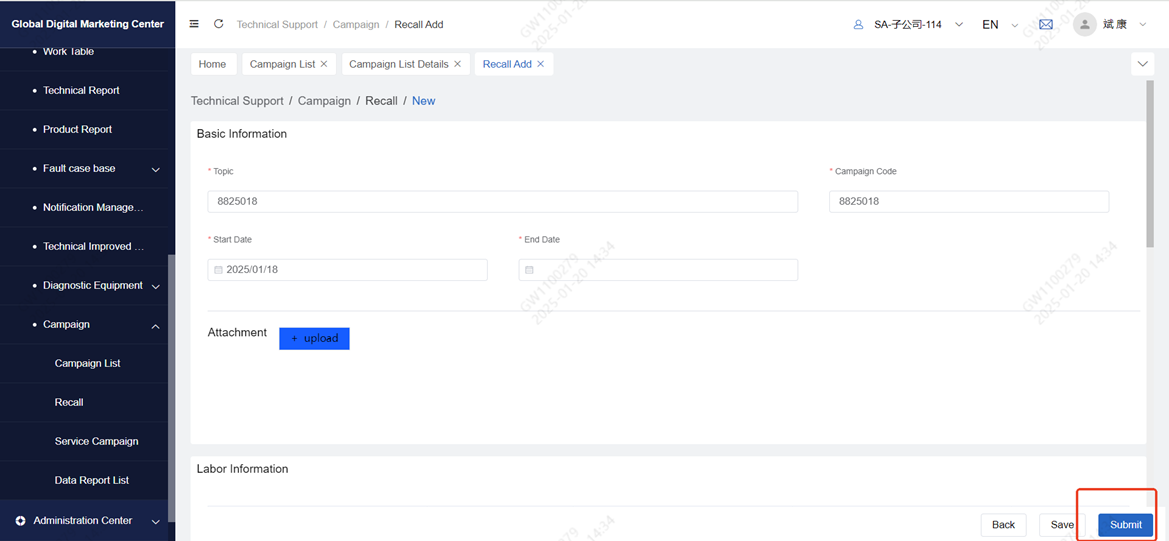
Click "New recall" to enter the "Recall" page. For details about how to create a new page, see "recall"
7.2.2 Recall
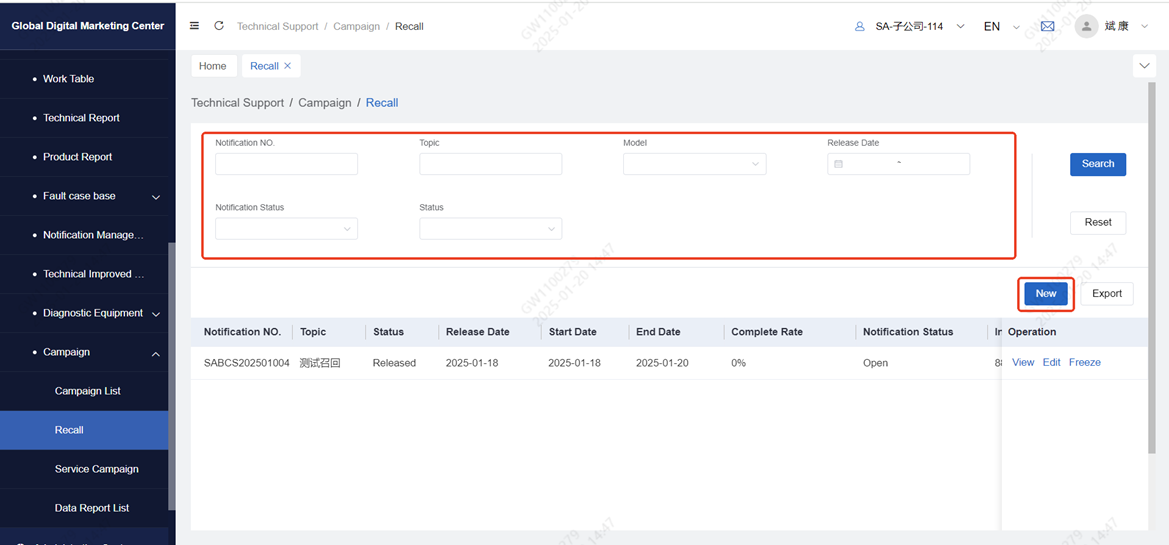
Click "Recall" to enter the "Recall" menu, which supports search data according to conditions and export
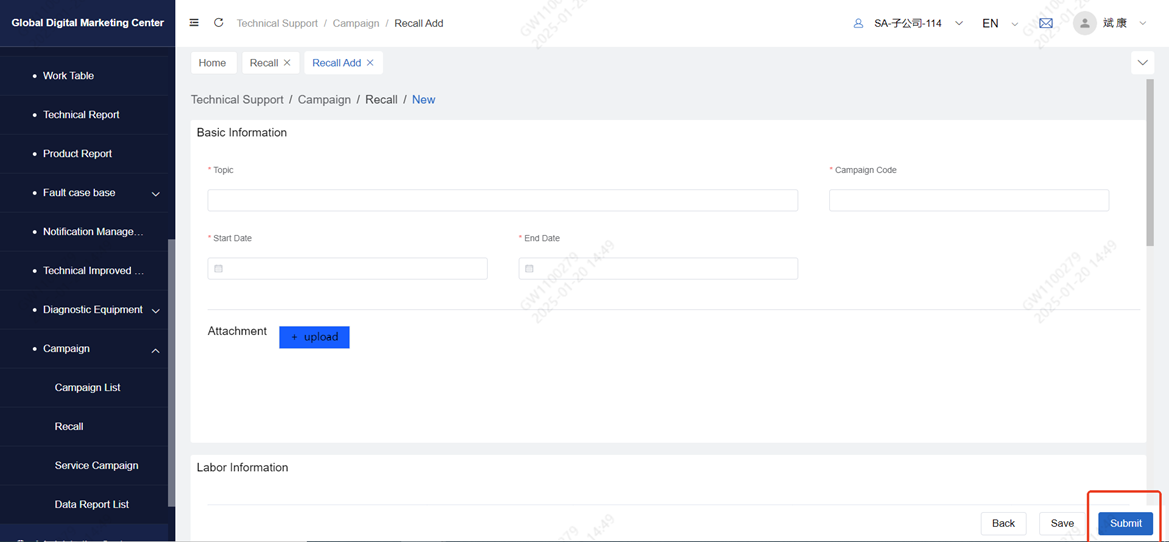
Click new to enter the new page, fill in Basic Information, Labor Information, Material Information and Vehicle Information, and click the submit button (submitted by the subsidiary technician and reviewed by the subsidiary director).
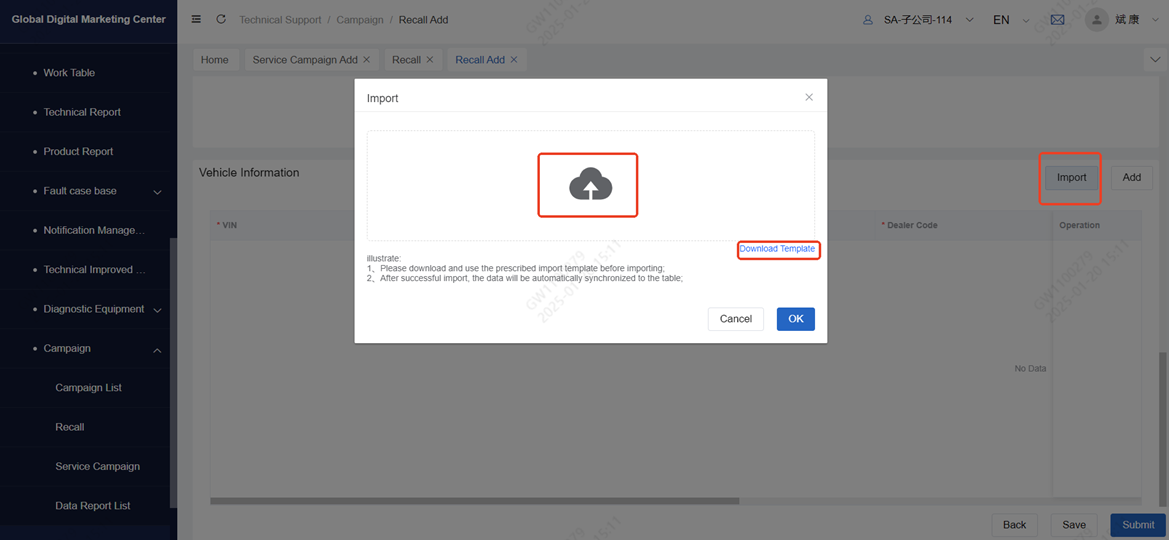
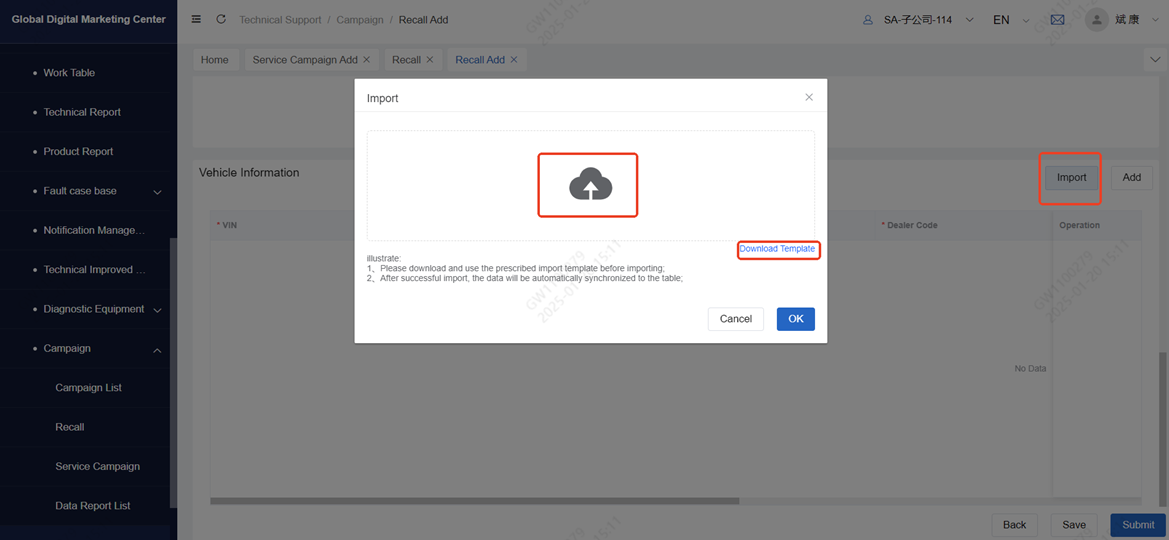
Note: Vehicle information can be manually added and imported. Click Import, click Download Template to download the template, and click Upload vehicle data
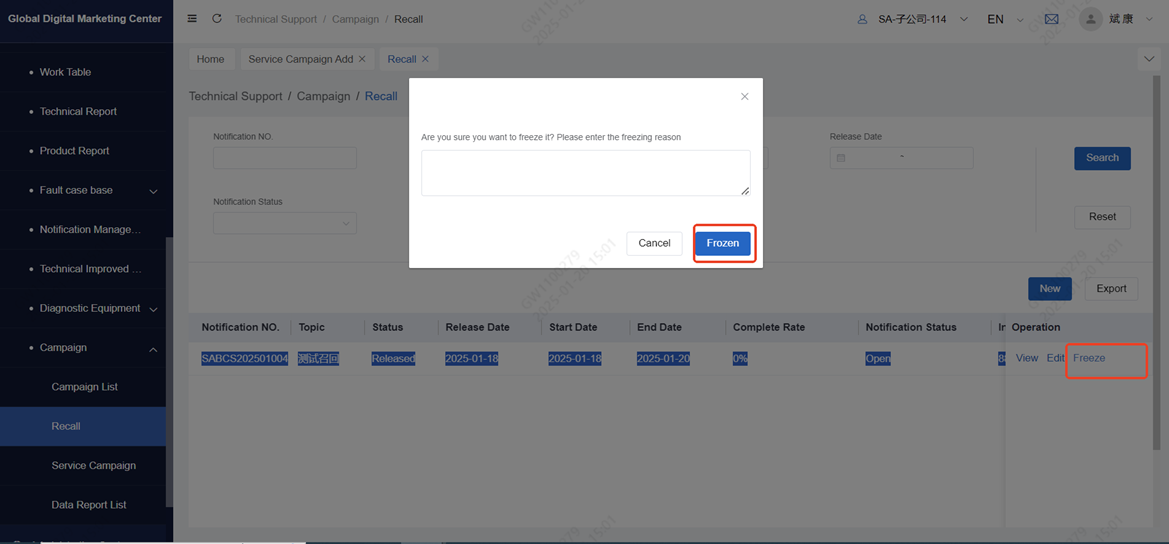
For successful activities, subsidiary technicians click Freeze, fill in the reasons for freezing, and submit to the director for review. If the director passes the audit, the corresponding activity will be frozen and the dealer will not be visible. If the director fails to pass the audit, the corresponding activity will still be released and the dealer will be visible.
7.2.3 Service Campaign
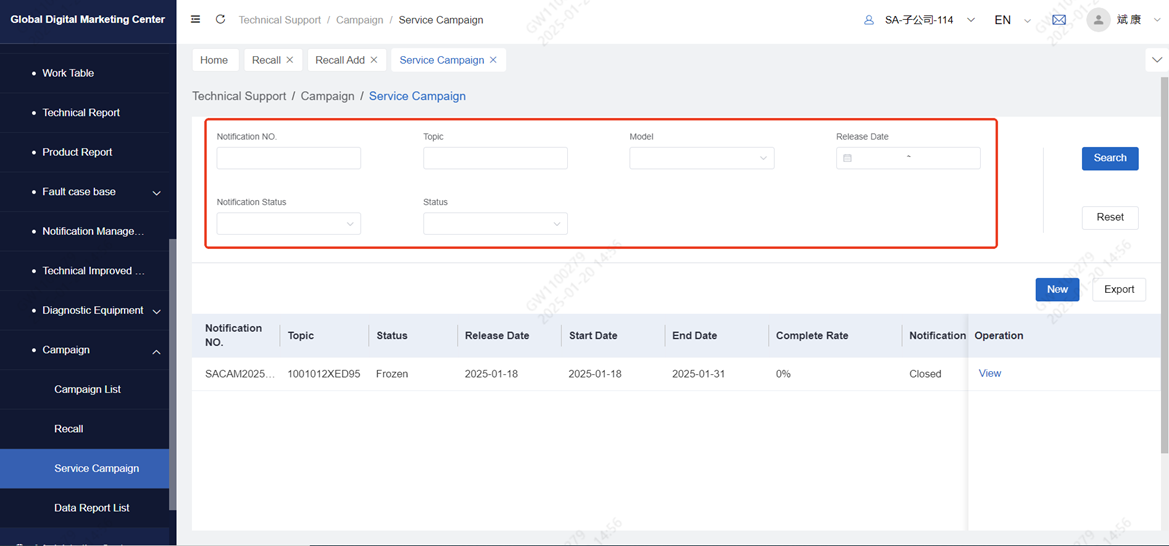
Click Service Campaign to enter the Service Campaign menu, which supports search data according to conditions and export
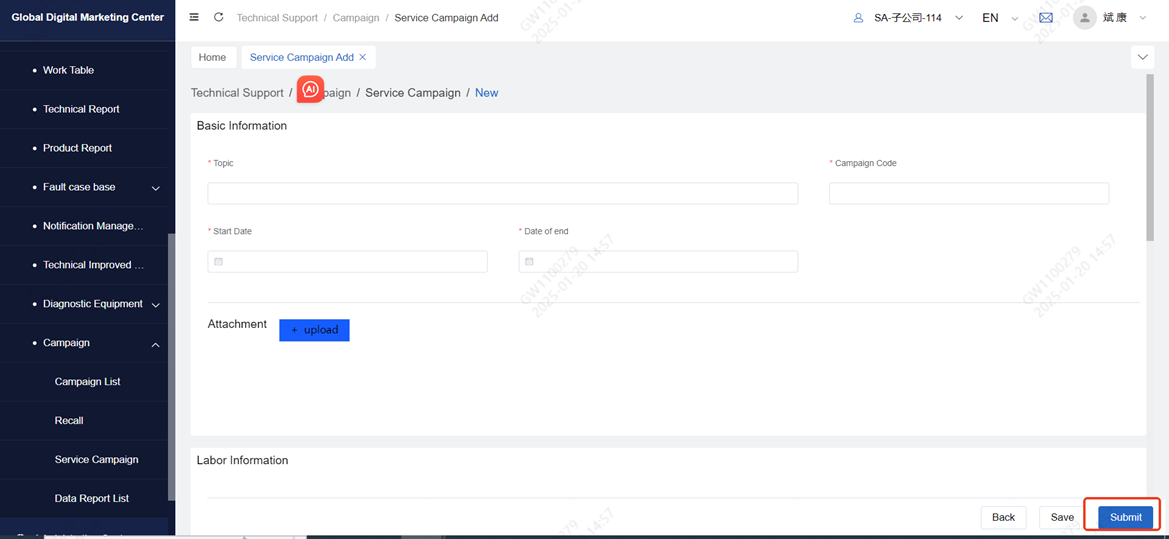
Click new to enter the new page, fill in Basic Information, Labor Information, Material Information and Vehicle Information, and click the submit button (submitted by the subsidiary technician and reviewed by the subsidiary director).
Note: Vehicle information can be manually added and imported. Click Import, click Download Template to download the template, and click Upload vehicle data
See recall for freezing operations