
Overview
You can see all the transport orders that you delivered to dealers here. So you can New , Edit, View and Delete transport order.
Business Process
State Machine
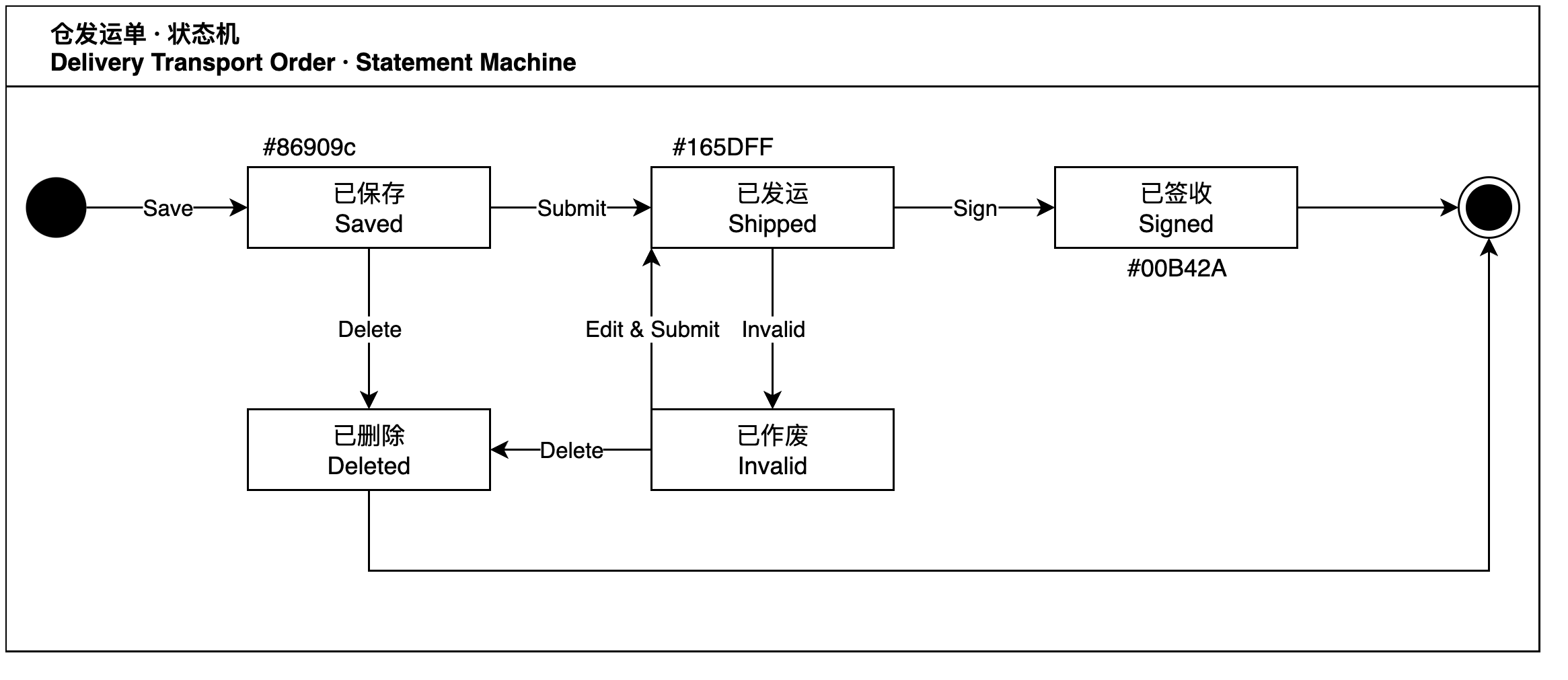
Delivery TO - List
Click Vehicle MGT - Logistics MGT - Delivery TO to:
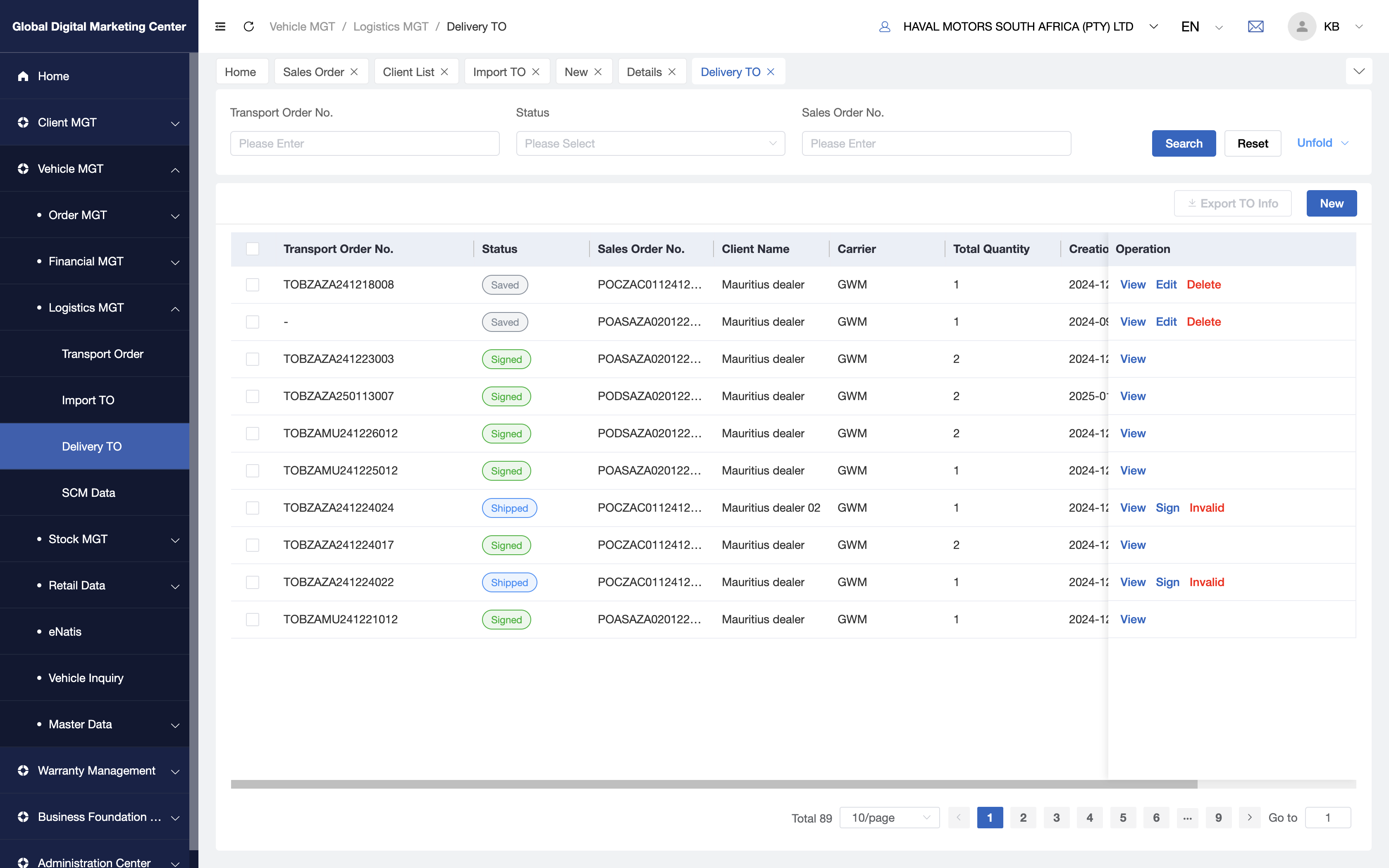
In this page, you can:
Newa delivery transport order:a. When you want to dispatch vehicles to dealers, you can use this function
New;b. Or you can also dispatch vehicles in
Stock Inquirypage, and useVehicle Movement - Moveinstruction to dispatch vehicles to dealers, it will also generate delivery transport order automatically.Viewtransport order: to see the details;Edittransport order: to edit it.Deletetransport order: to delete it.
Delivery TO - New
- Click
Newto:
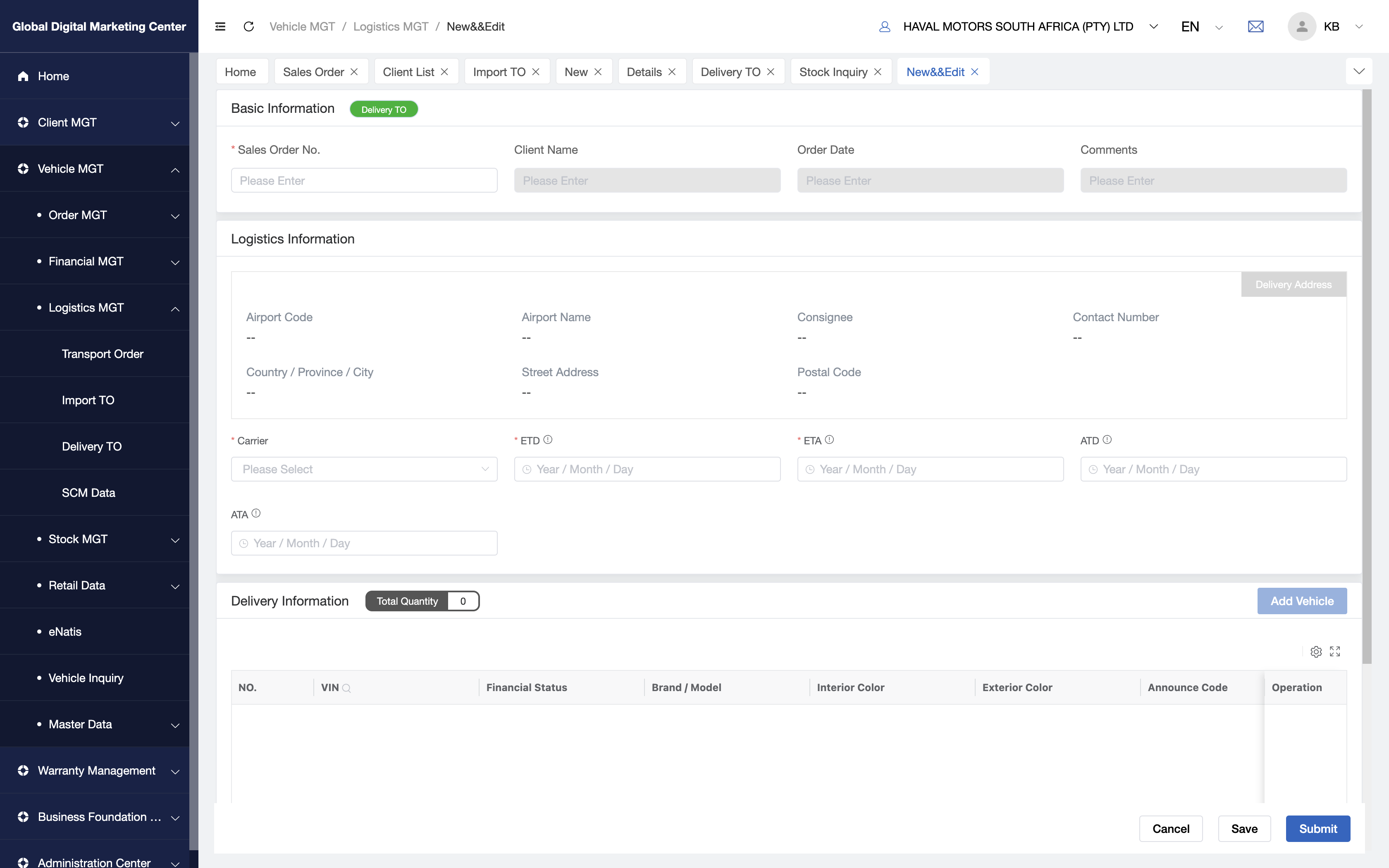
Fill in the forms:
Baisc Information:
a. Sales Order No: You need to enter the sales order number here, and other information will take out automatically.

Logistics Information: You need to check
Carrier,ETD,ETA,ATD,ATA, and when you want VDS to dispatch these vehicles , you need to select theVDSinCarrier( GDMC has been integrated withVDS)Delivery Information: When you enter the
Sales Order No., the vehicles will be taken out automatically. Or you can select the vehicles you want to dispatch, noted: all the vehicles that you want to dispatch need to beFinancial Releasedfirst.
Click
Submitto submit order, Congratulation! You have created a delivery TO to dealers.
Delivery TO - View
Click View to details page:
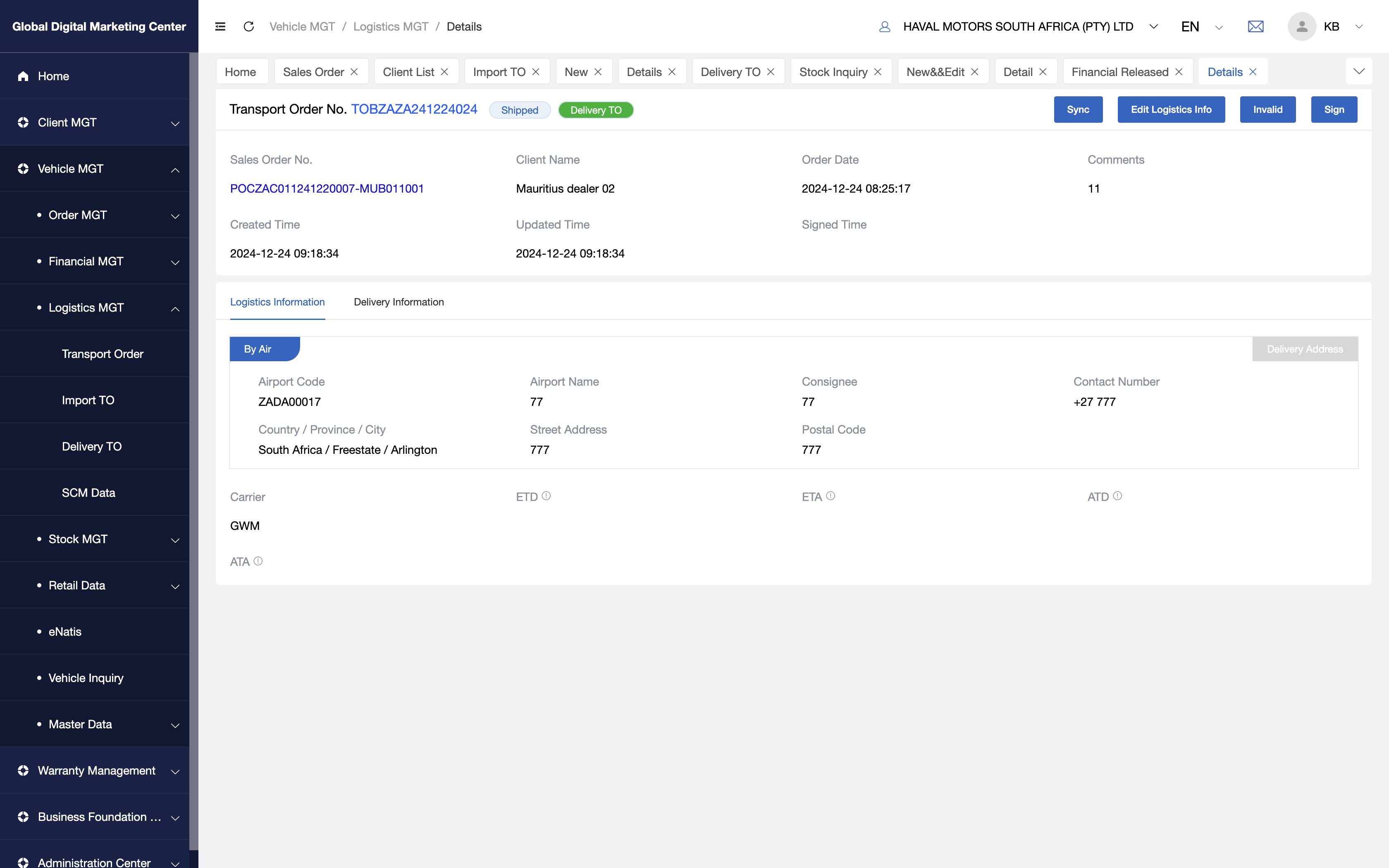
Delivery TO - Sign
When you want to sign this transport order, you need to click Sign, but before that, you need to confirm that you have been selected the ATA date, it's necessary for the order.